
Running an RCN Broadcast Campaign
Send a Messenger broadcast to your opted-in Facebook audience: Broadcast Center's Facebook tab, the campaign drawer, targeting by label, and scheduling.
What you'll do: send a Messenger broadcast to the people who gave you RCN permission (Recurring Notifications), aimed at the right topic label.
Time: 15 minutes.
It works like a WhatsApp broadcast: Broadcast Center, a campaign panel, and a flow behind it. The differences are the audience (only people who opted in) and the blocks you build the message with.
Before you start
☐ People have opted in through your RCN flow. If not, read RCN Postback Manager: Collecting Opt-Ins first. A campaign with no permitted recipients sends nothing and reports nothing.
☐ You know the label you attached to opt-ins for this topic
1. Open the Facebook tab
Click Broadcasting in the left menu.
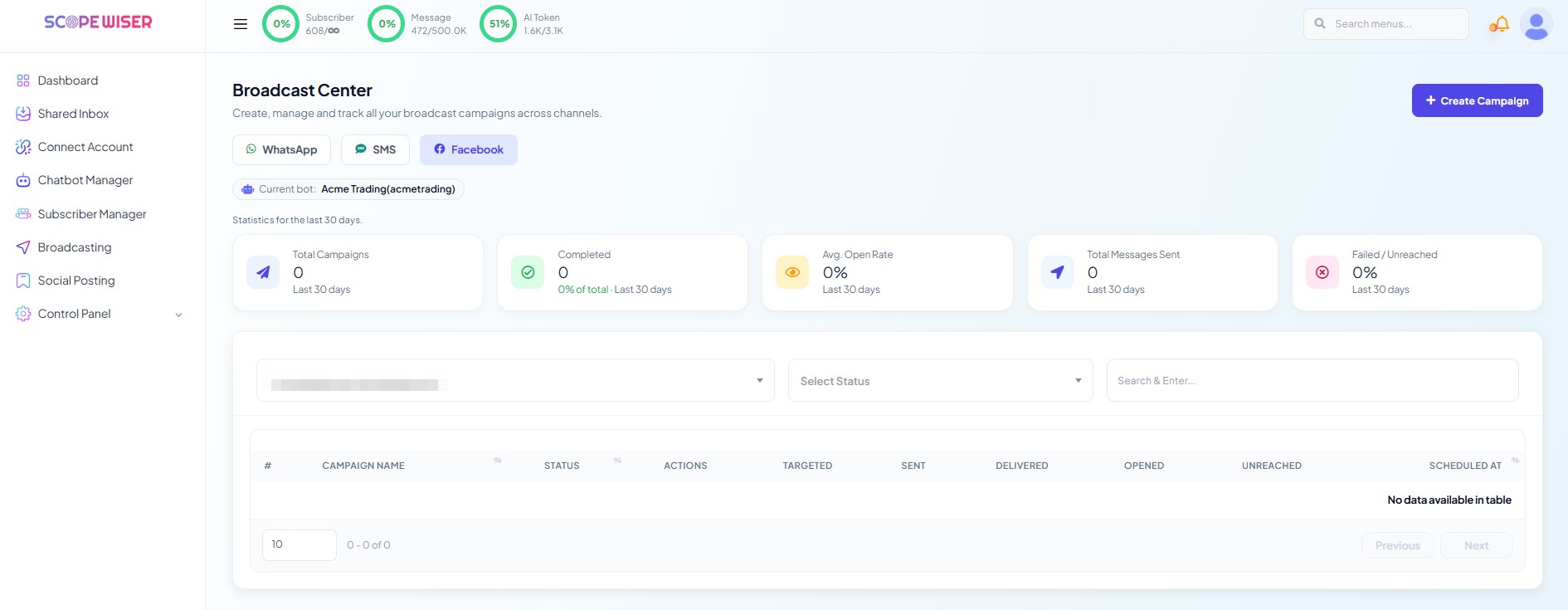
On the Broadcast Center page, switch from WhatsApp to the Facebook tab.
Check the Current bot: chip. It must name the Facebook Page whose subscribers you want, not a WhatsApp account left over from your last campaign.
Everything on the page belongs to that selection. The cards and columns are the same as on the WhatsApp tab.
2. Create the campaign
Click + Create Campaign.
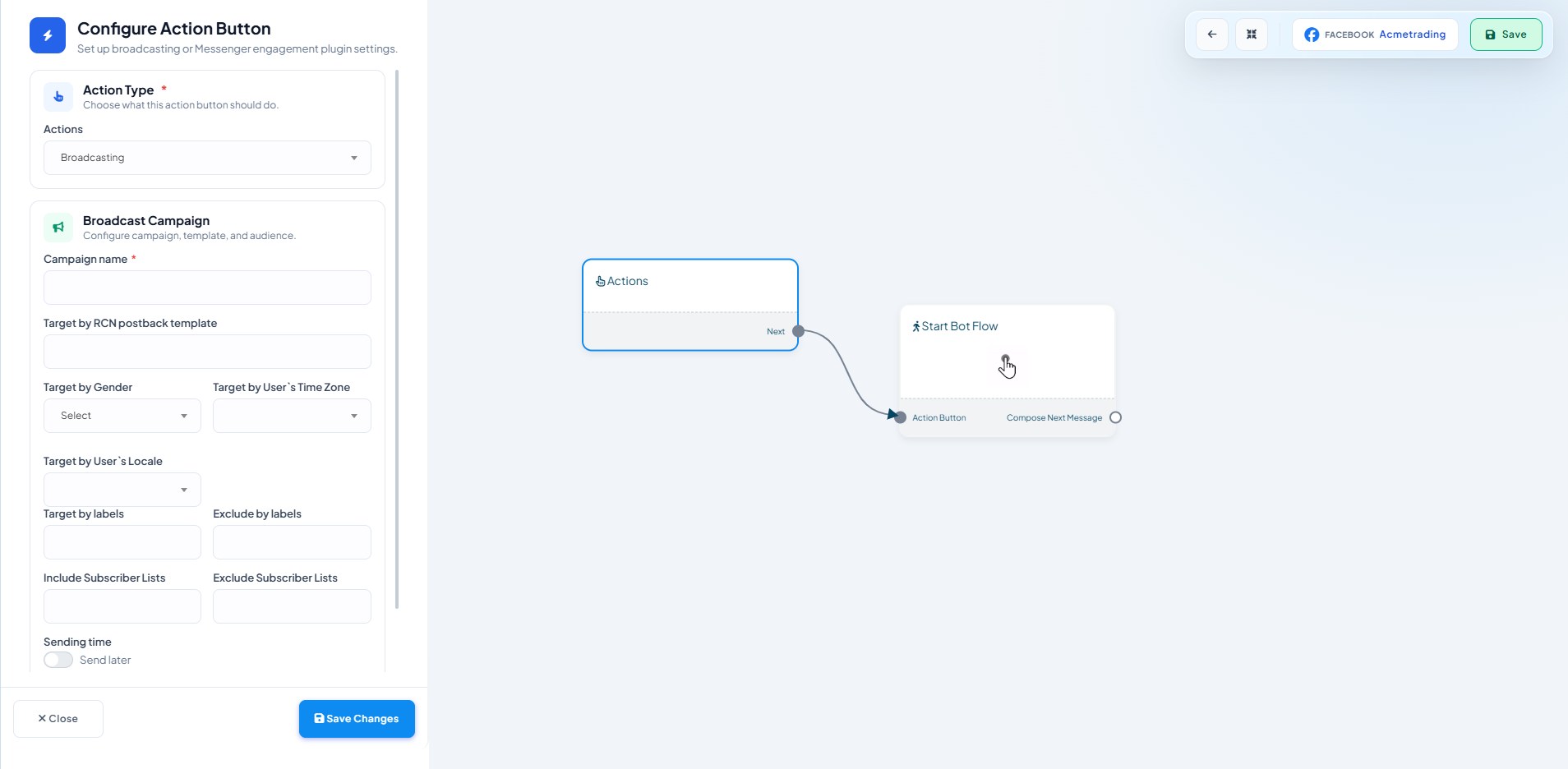
You should now see the Flow Builder in a new tab, with a panel headed Configure Action Button already open. Behind it, the canvas has an Actions node connected to a Start Bot Flow node.
Leave Actions set to Broadcasting.
Campaign name *: how the campaign appears in the Broadcast Center table later. Name it for the topic and the date, not test 2.
Include label ids: the label you attached to opt-ins for this topic. Always include it, even when it currently matches your whole audience.
Exclude label ids: when a promotion runs over several days, exclude the label from the previous send so you don't message the same people again.
Sending time, with a Send later toggle: off sends when you save; on lets you pick a date and time.
Click Save Changes to close the panel.
Don't leave both label fields blank. That targets everyone available, which is almost never right when different people opted in to different things. Someone who accepted a weekly-offers prompt agreed to weekly offers. Sending them a service announcement is how permissions get withdrawn.
3. Build the message
Double-click the Start Bot Flow node, give it a title, and save.
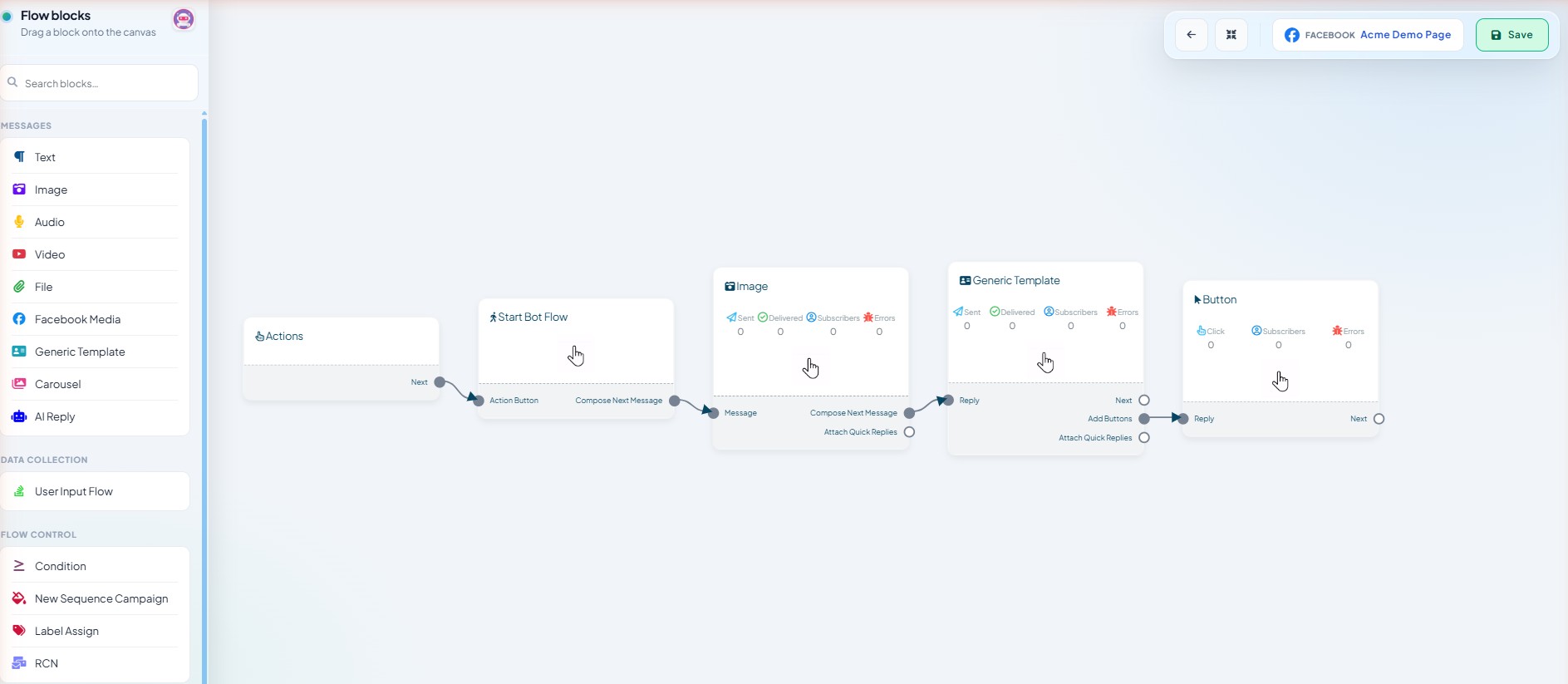
Use Compose Next Message and drag blocks in from the list (the full list is under Reference).
Click Save at the top right of the canvas.
Without a schedule, the campaign starts sending as soon as you save.
Tips for the message:
Generic Template and Carousel are the two blocks WhatsApp doesn't have, and most Messenger campaigns are built from them. A card with an image, a short text and buttons reads far better in Messenger than a wall of text.
An image followed by a text block is the reliable minimum.
Use the Delivery Options section on each block to set Typing on display and a short Delay in reply.
Put a Label Assign block behind a button to build the segment for the next campaign: everyone who tapped Tell me more gets tagged and can be targeted.
4. Watch it run
Go back to the Broadcast Center tab and refresh.
Your campaign appears with a
STATUSand counts underPROCESSED,DELIVERED,OPENEDandUNREACHED.Use the Select Status dropdown and the Search & Enter... box to narrow the list.
Fewer processed than labelled is normal: some permissions expired or were withdrawn. Facebook Broadcast Analytics & Reporting covers how to read it.
✅ Done when…
☐ Your campaign appears on the Facebook tab with counts under
PROCESSEDandDELIVERED
If something doesn't work
Zero recipients. Either the label is wrong or you have no live opt-ins. Check the label in Subscriber Manager first.
Far fewer than expected. Permissions have expired. Add fresh chances to opt in to your flows.
Campaign stuck processing. Large audiences take time. If a small one is stuck, contact support with the campaign name.
Nothing at all on the Facebook tab. Check the Current bot: chip names a Facebook Page.
Reference
Blocks available on a Facebook bot
A Facebook bot's blocks list differs from a WhatsApp bot's:
MESSAGES— Text, Image, Audio, Video, File, Facebook Media, Generic Template, Carousel, AI ReplyDATA COLLECTION— User Input FlowFLOW CONTROL— Condition, New Sequence Campaign, Label Assign, RCNINTEGRATIONS(for developers) — HTTP API, Google Sheet Data Fetch
Next: Facebook Broadcast Analytics & Reporting, to understand what came back. If your audience is smaller than you'd like, RCN Postback Manager: Collecting Opt-Ins covers adding more ways into the opt-in flow.