
Delaying Bot Replies with Delivery Options
Pause a flow between messages with Delivery Options: where the setting lives, what a delay does to the 24-hour window, and when a sequence is better.
What you'll do: make your bot wait before it sends the next message, so replies arrive spaced out instead of all at once.
Time: 5 minutes.
1. Open the block you want to delay
Open the flow at Chatbot Manager → Automation, or from any list that opens Flow Builder.
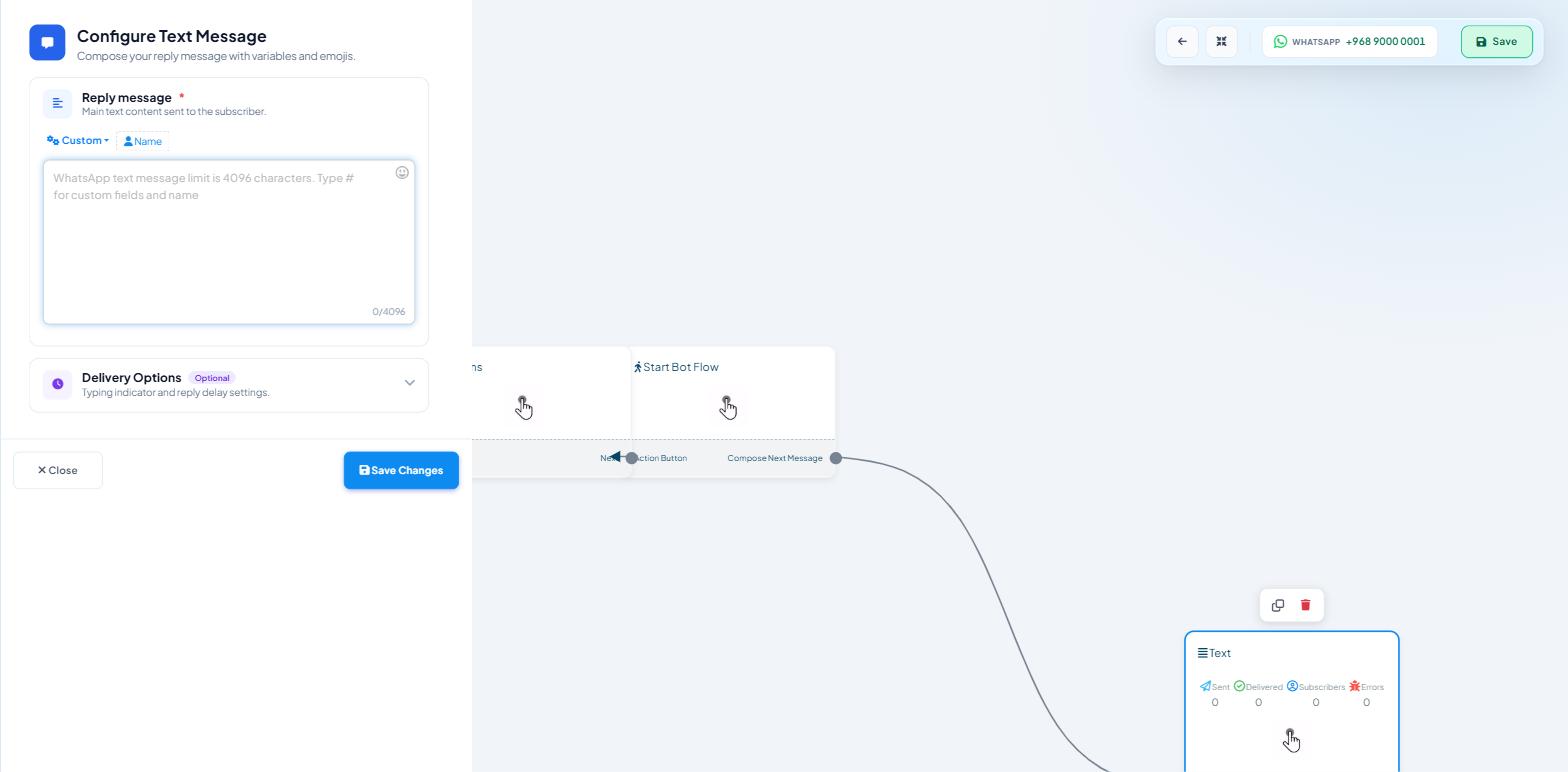
Click the block you want to delay. For a Text block the drawer opens as Configure Text Message: "Compose your reply message with variables and emojis."
Expand Delivery Options, badged Optional: "Typing indicator and reply delay settings."
You should now see three controls:
Delay in reply: "Wait before sending the next message." Shows the current value,
0 secby default.Typing on display: "Show typing indicator before the bot replies." A toggle, off by default.
Hours and Minutes: sliders, both at 0 by default.
2. Set the delay and save
Set the sliders. The table under Reference suggests delays that earn their place.
For short delays between messages, switch on Typing on display.
Click Save Changes in the drawer.
Click the blue Save in the canvas toolbar.
Both saves are needed. The drawer commits the block; the toolbar commits the flow.
3. Add a check after long delays
A long delay does not hold the subscriber in place. If someone answers your question during a three-hour pause and your delayed message then arrives on top of their answer, it reads as the bot ignoring them.
Put a Condition block after any delay longer than a few minutes.
Make it check for the completed action (for example, a label you assigned), so the follow-up only reaches people who did not act.
4. Test it
Send the trigger to your own number.
Time the gap.
✅ Done when…
☐ The delayed message arrives after the gap you set
☐ Any delay longer than a few minutes has a Condition in front of the follow-up
If something doesn't work
A delayed message never arrives. The flow run ended before the delay expired, or the block was never reached. On WhatsApp, the 24-hour window may also have closed while the bot was waiting (see The 24-hour window below).
The follow-up lands on top of the customer's answer. Add a Condition after the delay.
Reference
What the delay actually does
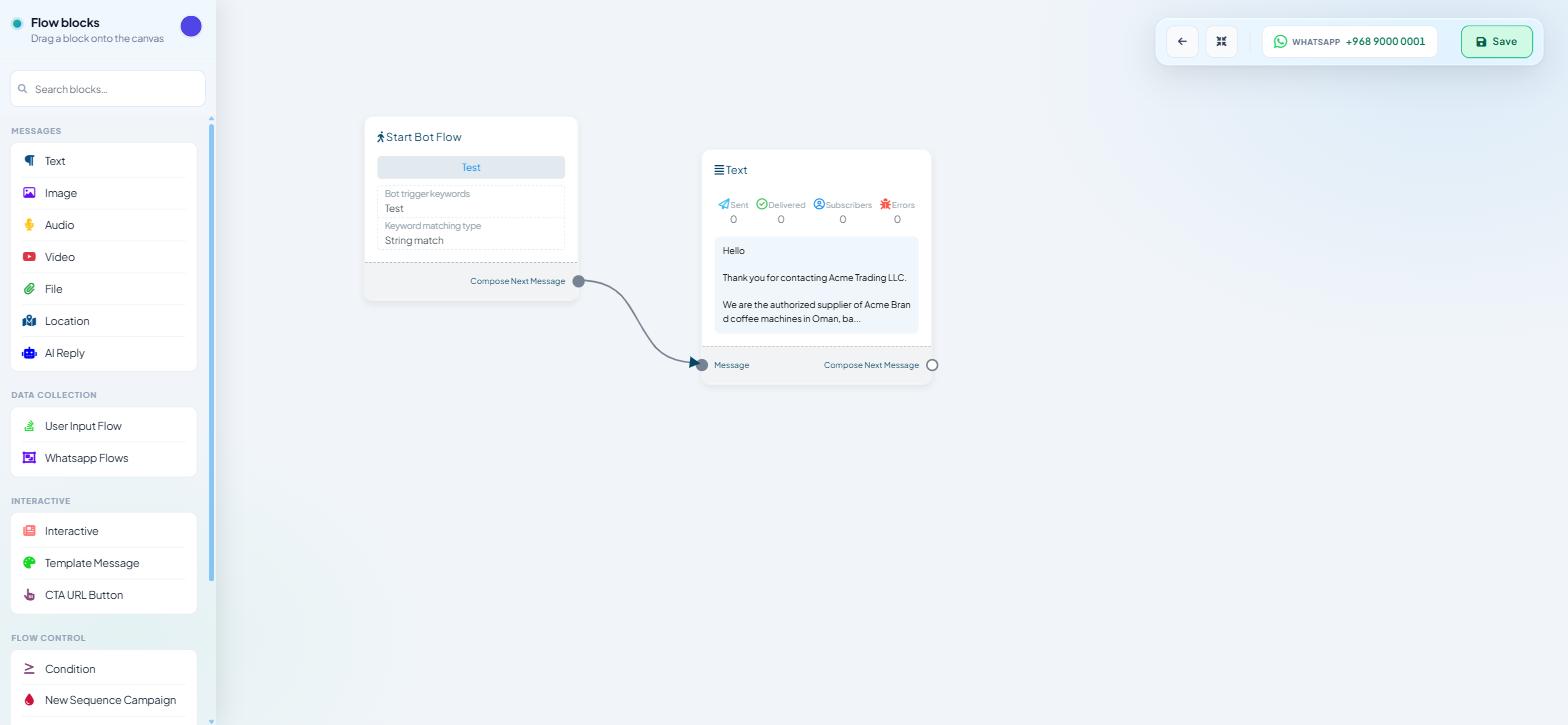
The delay sits between one block and the next. The block sends, the flow waits, then the following block sends. Nothing else in the conversation is frozen: a subscriber who replies during the wait is still handled by the rest of your automation.
For messages that should go out tomorrow or later, use Chatbot Manager → Automation → Follow-up Sequences instead. See What Follow-up Sequences Are.
The 24-hour window
WhatsApp lets you send free-form messages to a subscriber for 24 hours after their last message to you. In the Shared Inbox, the Customer Snapshot shows Messaging Window as either an Inside 24H countdown or a red Outside 24H Window.
The delay does not extend the 24-hour window. If the window closes while the bot is waiting, the message is not delivered. Keep in-flow delays comfortably shorter than the remaining window, and use a sequence for anything that has to land the next day.
Delays that earn their place
Delay | What it is for |
|---|---|
1 to 3 seconds | Between message blocks, so two paragraphs arrive a beat apart instead of together. Pair it with Typing on display. |
10 to 20 seconds | After a long answer, so the subscriber can read it before the next prompt lands. |
15 minutes to an hour | One nudge to someone who opened your list of options and tapped nothing. One nudge, not three. |
4 to 8 hours | Confirmation immediately, appointment reminder later. Check the 24-hour window rule first. |
12 to 24 hours | Review requests, satisfaction questions, "did that solve it?" follow-ups. Usually the point to switch to a sequence. |
Delays that cause problems
A delay before the first reply. The subscriber messaged you and got silence. Answer immediately, then pace what follows.
Delays stacked through a long chain. Six blocks with ten seconds each is a minute of staring at a screen. Count the total, not the individual settings.
A delayed follow-up with no condition in front of it. The customer who already bought gets nudged to buy. Label the completed action, then check for that label before the follow-up sends.
Long delays used as a scheduler. If you find yourself setting hours to move a message into tomorrow, you want Chatbot Manager → Automation → Follow-up Sequences.
What to do next
The delay is only half the pattern; the condition in front of it is the other half. Read Conditions, Triggers & Branching Logic next to build the check that stops a follow-up reaching someone who already acted.
Next: Conditions, Triggers & Branching Logic