
Creating & Getting WhatsApp Templates Approved
Build a WhatsApp message template in Scope Wiser, add variables, submit it to Meta, sync templates you created in WhatsApp Manager, and update one that is already live.
A message template is the only thing WhatsApp will deliver to someone outside their 24-hour service window. This article covers building one, submitting it to Meta, syncing templates you made in WhatsApp Manager, and updating one that is already live.
Templates exist on WhatsApp only. Selecting a Facebook, Instagram or Webchat bot removes the section from view.
Where templates live
Open Chatbot Manager.
Select your WhatsApp bot in the Bots / Accounts panel on the left.
Open the Automation tab, then the Message Templates sub-tab.
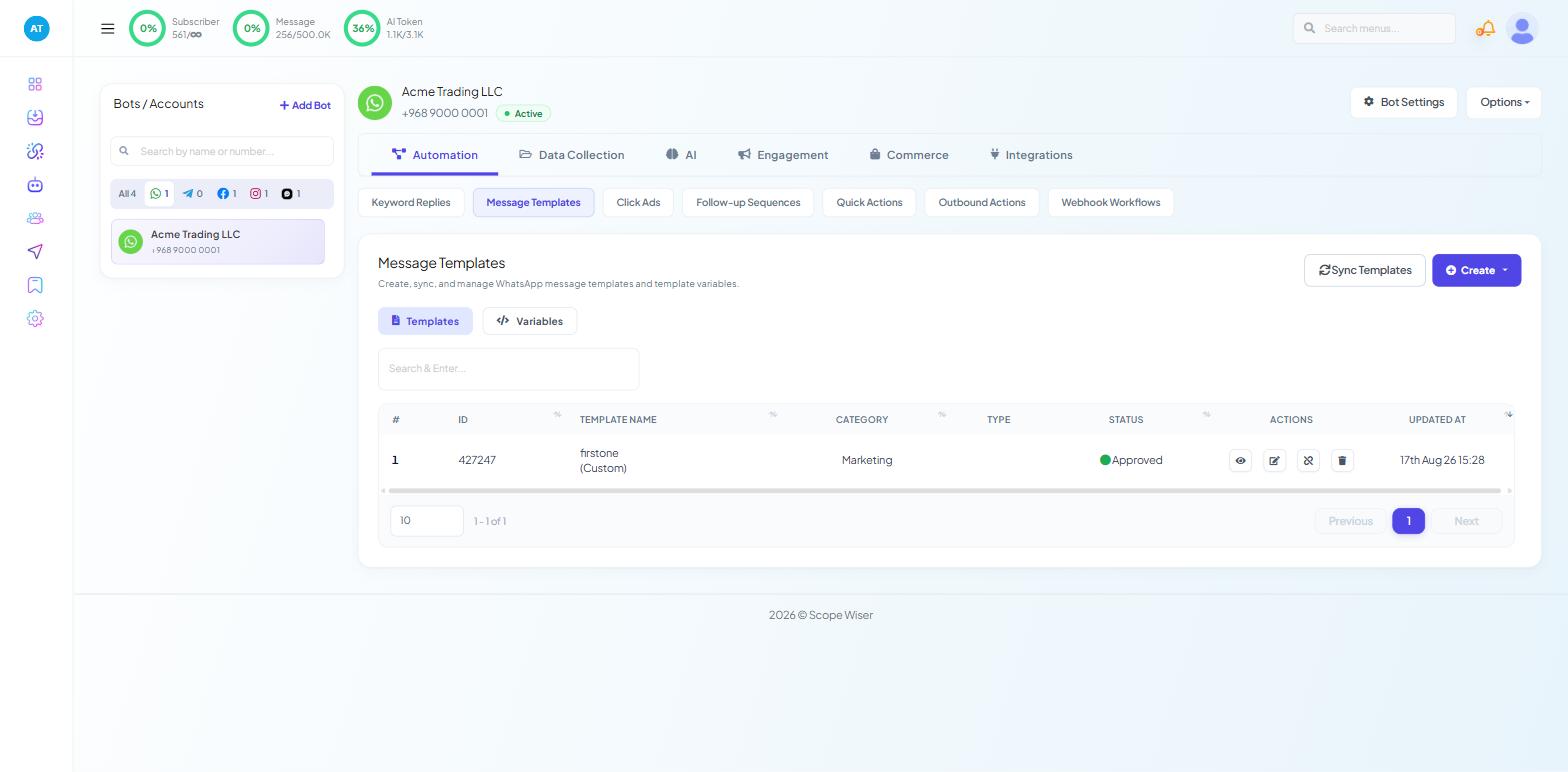
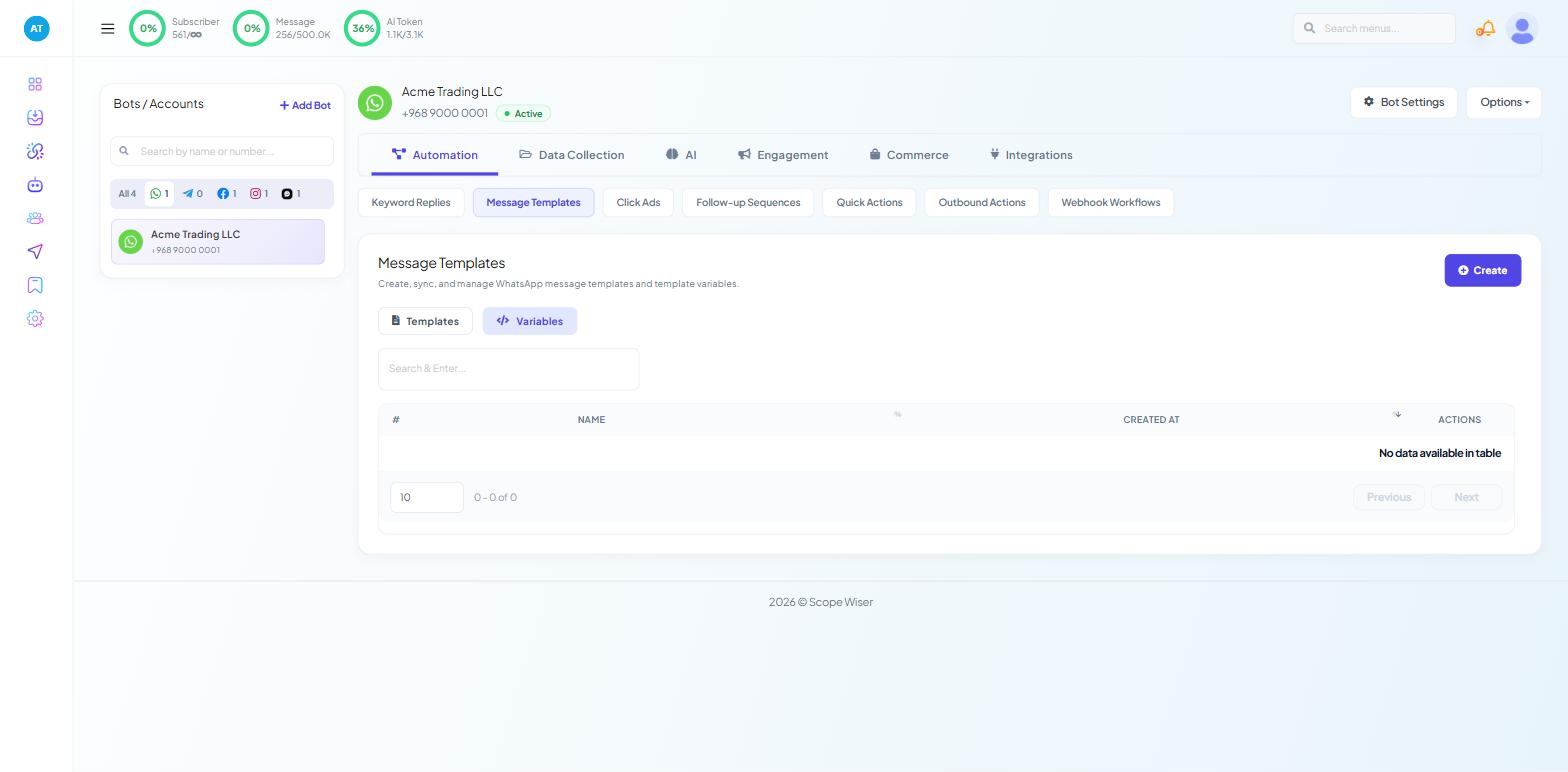
Two inner tabs split the screen: Templates, which lists what you have, and Variables, which holds the reusable placeholders you can drop into a template body. Above them sit Sync Templates and Create.
The list has columns #, ID, TEMPLATE NAME, CATEGORY, TYPE, STATUS, ACTIONS and UPDATED AT. STATUS is the one you will keep coming back to — a template shows Approved with a green dot once Meta has passed it.
Create variables first
Variables are the parts of the message that change per recipient — a first name, an order number, a due date. A template must be re-approved if its structure changes, so decide what varies before you write anything.
Switch to the Variables inner tab and add the placeholders you need there. You can then insert them into any template body.
Create the template
Click Create. The dropdown lists the template types you can build:
General Template — the standard text-and-buttons template most campaigns use
WP Template — for the WordPress auto-broadcast integration
Carousel Media Template — a scrolling row of image or video cards
Carousel Product Template — cards drawn from your product catalogue
If you see fewer options, your role is missing the permission; an owner can enable it under Control Panel → User Permission.
Start with General Template. The carousel types are covered separately in WhatsApp Carousel & Dynamic-URL Templates.
A slide-over headed Message Template opens, with a live phone preview on the right that updates as you type. Work down it:
TEMPLATE NAME * — placeholder "Put a name to track it later". This is an internal name, not customer-facing. Use something you will recognise in a dropdown six months from now, such as
order_ready_v2.LOCALE * — the language, defaulting to
English (US). One template covers one language.TEMPLATE CATEGORY * — segmented buttons for
Utility,MarketingandAuth/OTP. Choose honestly. Promotional copy filed as utility is the most reliable way to get rejected.HEADER TYPE * — a dropdown offering
No Header,Text,Image,VideoandDocument. ChoosingTextreveals HEADER TEXT *, with placeholder "Provide text for header (50)". The media options let the template carry an image, video or file above the body.MESSAGE BODY (1024)* — the message itself, with placeholder "Type # for custom fields and name, #! for variables". Type
#to open the custom-field and name picker,#!to open the variables list. The toolbar above the box offers the same things as buttons — Custom Fields, Variables, Name — plus AI Re-write and an emoji picker.FOOTER TEXT — optional, placeholder "Provide text for footer (60)". Useful for a standing line such as an opt-out instruction.
BUTTON — segmented buttons for
None,Call To ActionandQuick Reply. A call-to-action button opens a link or dials a number; a quick reply is a tappable word that comes back to your bot as a reply, which reopens the 24-hour window.Click Save when the preview looks right.
Submitting and waiting
Saving submits the template to Meta. Approval usually takes minutes to a few hours, but there is no guaranteed time. Build templates before you plan a campaign rather than during one.
Click Sync Templates to pull the current state back from Meta, then read the STATUS column. A template that is not yet Approved appears in a broadcast's template selector but cannot be sent; the drawer says so: "Approved and pending templates are listed. Pending templates cannot be sent until WhatsApp approves them."
If a template comes back refused, Why Message Templates Get Rejected covers the causes and what to change.
Templates you built in WhatsApp Manager
You do not have to write templates in Scope Wiser. If your team already works in Meta's own WhatsApp Manager, create and submit the template there, and once it is approved click Sync Templates in Scope Wiser. The template is fetched and appears in the list alongside the ones you built here.
Syncing brings the structure across. A synced template with variables still needs each variable associated with a Scope Wiser field before a broadcast knows what to substitute.
Updating a template that is already live
Meta treats an approved template as fixed, so "editing" one is really a re-submission:
Make the change in Meta's WhatsApp Manager and resubmit it there.
In Scope Wiser, find the template in the list and use the unlink row action. This detaches it from Scope Wiser without touching it in WhatsApp Manager.
Click Sync Templates. Scope Wiser fetches the current version.
Re-associate any variables.
Send a test to yourself before pointing a campaign at it.
The row actions on each template are icons: an eye for preview, a pencil for edit, an unlink or disable icon, and a bin for delete. Deleting removes the template; unlinking is the one you want when you intend to bring it back.
Using an approved template
Two places consume templates. In a broadcast, the campaign drawer's Select template field lists them. In a flow, drag the Template Message block from the INTERACTIVE section of the WhatsApp Flow Builder palette and pick the template inside it.
If a template will not send, check in this order: is the status Approved; is the recipient opted in; are all its variables supplied. Missing variable data is the quiet failure — the message is rejected by Meta rather than delivered with a blank.
What to do next
Take your first approved template into Running a WhatsApp Broadcast Campaign, which walks through targeting and sending. If your campaign needs product cards or per-recipient links, WhatsApp Carousel & Dynamic-URL Templates covers the two template types that need more setup.