
Quick Replies, Buttons & CTA URLs
Everything tappable in a flow: reply buttons off the Interactive block, list messages, the CTA URL Button block, and the nine system Quick Actions.
What you'll do: add buttons people can tap to your flows, add a link button on WhatsApp, and customise the system buttons every bot already has.
Time: 10–20 minutes.
Buttons are more reliable than typed answers because you choose the options. There are three separate things here, and they are easy to confuse:
Buttons inside a message: from the Interactive block on WhatsApp, or from Generic Template and Carousel on the other channels. Sections 1 and 2.
The CTA URL Button block: a WhatsApp-only block whose single button opens a web page. Section 3.
Quick Actions: the system action buttons that already exist on every bot, each wired to its own flow. Section 4.
1. Add buttons on WhatsApp (Interactive block)
A freshly dragged Interactive block already shows all five of its ports: the input Reply, and the outputs Next, Buttons, List Messages and E-commerce. Buttons are built on the canvas from the Buttons port, not inside the block's own panel.
Drag an Interactive block onto a WhatsApp canvas. The Configure Interactive panel opens automatically.
Fill in the message. Message Body is required. (Every section is described under Reference below.)
Click Save Changes.
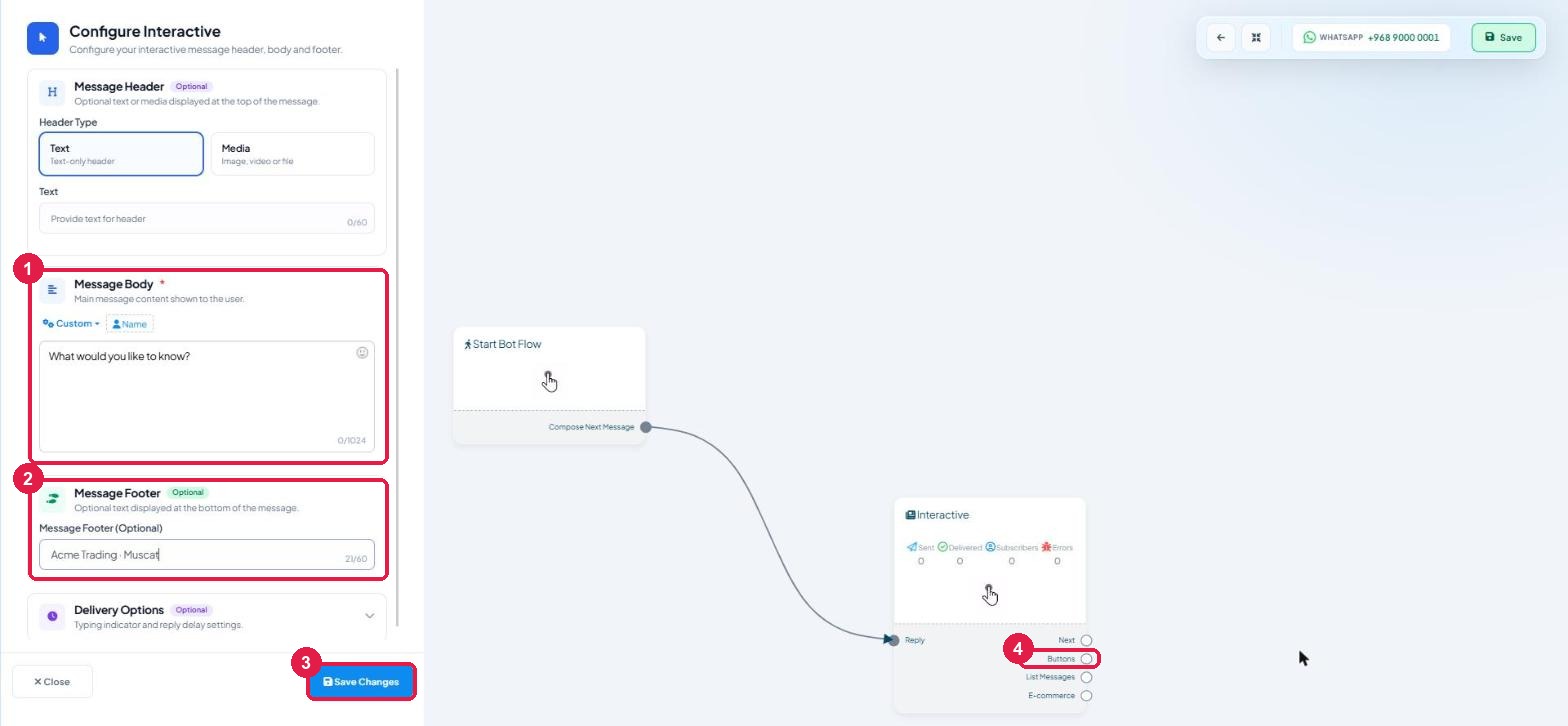
Drag a line out of the Buttons port onto empty canvas. This creates a Button node and opens the Configure Button panel.
In Button Title, type the button text (required, up to 20 characters).
Under Button action, in When user press the button, choose Send Message, Start a Flow or System Default Action Button.
Optional: open the Automation section to Save to custom field, Add/Remove Label(s), Add to/Remove from List(s) or Subscribe to/Unsubscribe from Sequence when the button is pressed.
Click Save Changes.
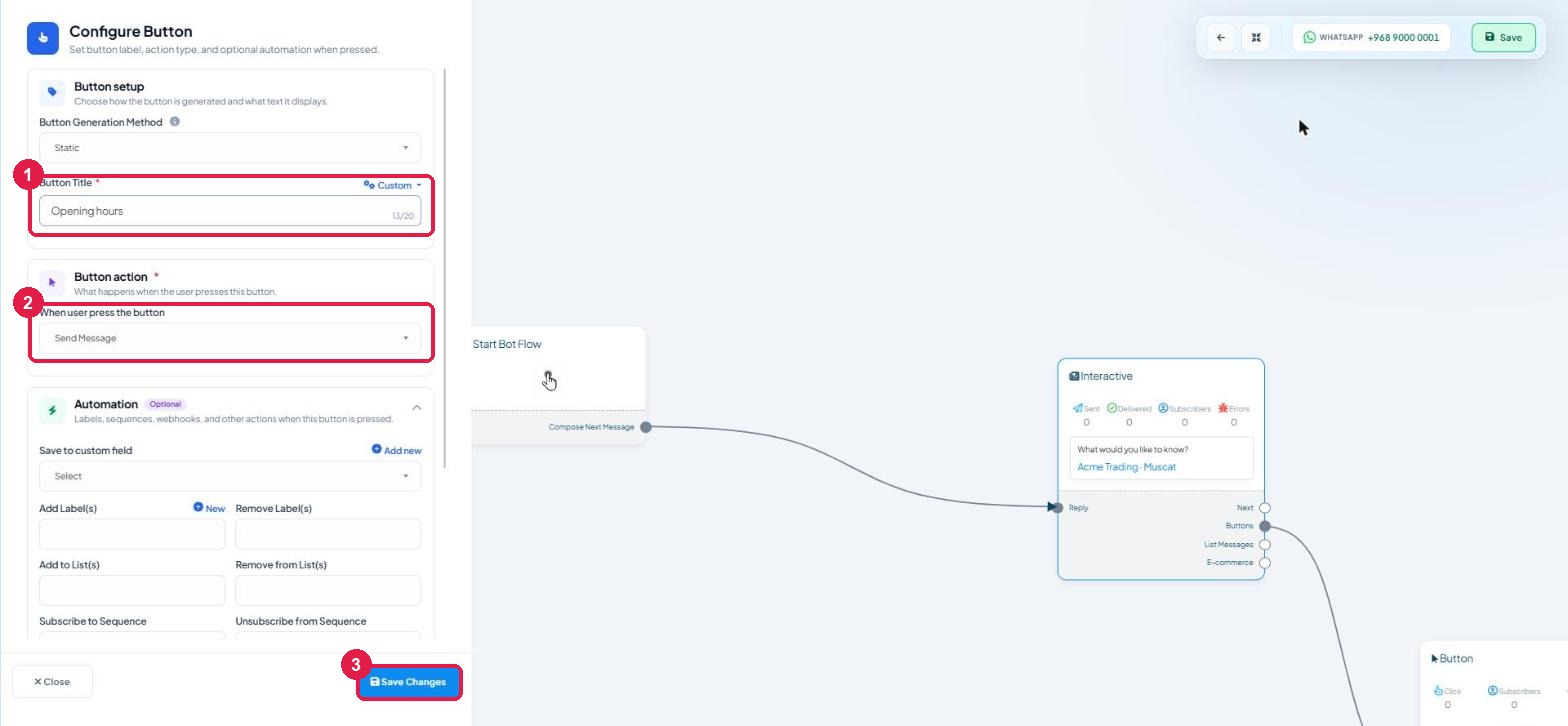
Repeat steps 4–8 for each button. WhatsApp allows one to three buttons per message.
Connect the answer to each button: drag from the Button node's Next dot. The block picker opens; choose Text and write the answer.
Click the blue Save in the top-right toolbar.
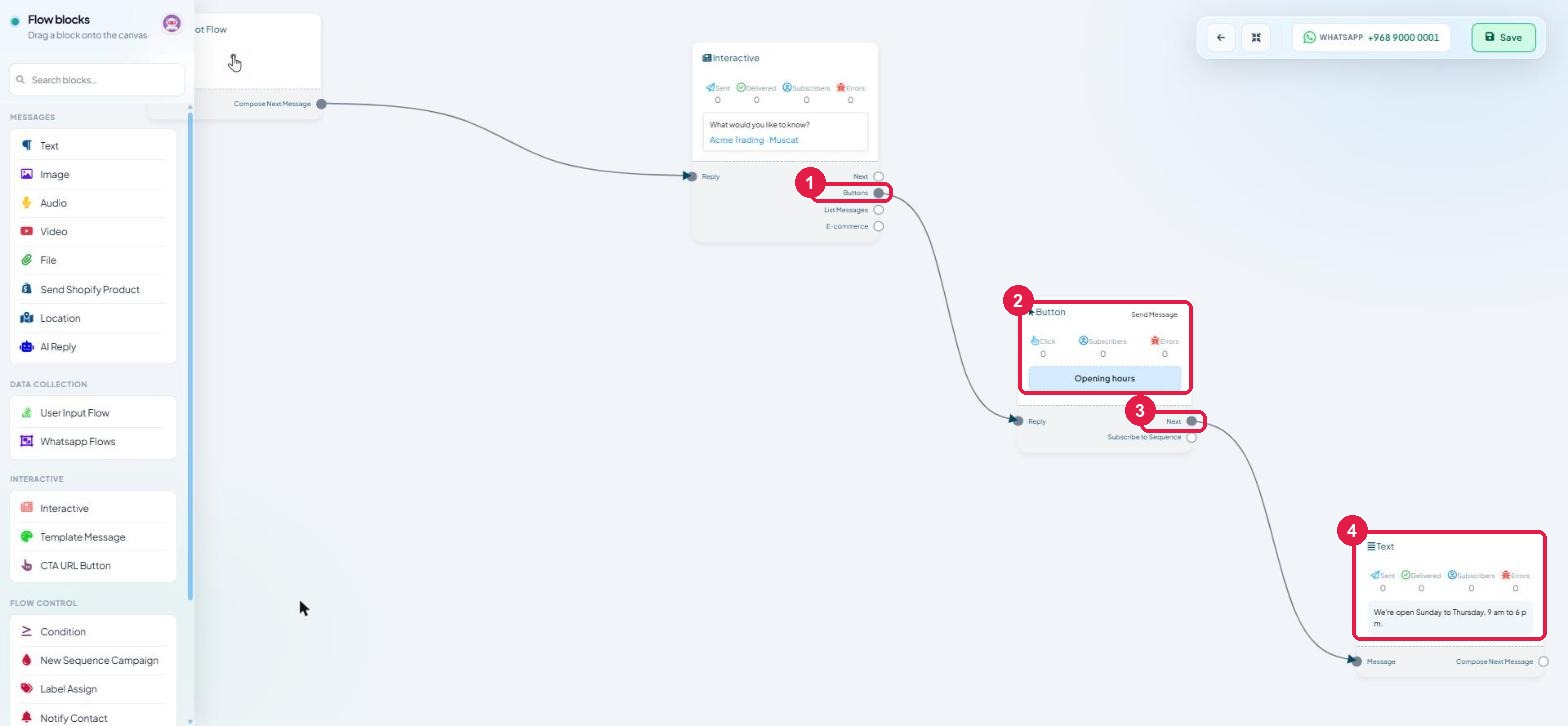
How a Button node is wired: Reply is the input dot on the left, where the line from the Interactive block's Buttons port arrives. The output dots on the right are Next and Subscribe to Sequence. So a button is a branch, not just a label: one tap can send the next message and enrol the person in a sequence, without a Condition block anywhere.
More than three options, or options that change? Use List Messages, the other output on the same block. It is the right choice once you have more options than three, or once the options are not fixed: products, appointment slots or order numbers pulled from an API. That pattern has its own article: Displaying Dynamic Lists From an API.
2. Add buttons on Facebook, Instagram and Webchat
Those channels have no INTERACTIVE group. Buttons come attached to the card blocks instead: Generic Template for a single card with buttons beneath it, Carousel for several cards each carrying their own.
Drag Generic Template onto the canvas. It arrives with one Button node already connected.
For a second or third button, drag a line out of the template's Add Buttons port onto empty canvas. Each drag creates another Button node.
Click a Button node to open its drawer.
Type the label into Button Title.
Under When user press the button, choose what the tap does: Send Message, Start a Flow, Redirect to Website URL, Webview, Call us or System Default.
Click Save Changes.
Click the blue Save in the toolbar.
Good button labels:
Label buttons with the action, not the topic: "Book a slot" beats "Booking".
Keep labels short enough not to truncate on a narrow phone.
Connect something to every button. An unconnected button is a dead end one tap away.
3. Add a link button on WhatsApp (CTA URL Button)
CTA URL Button sits in the INTERACTIVE group and is WhatsApp only. It does not appear in the Facebook, Instagram or Webchat palettes. It sends a message carrying a single button that opens a URL.
Pull a connector out of Compose Next Message and choose CTA URL Button from the picker menu, or drag the block across from the palette.
Fill in the header, the body, the footer, the button's visible text and the destination URL.
Click Save Changes, then the blue Save in the toolbar.
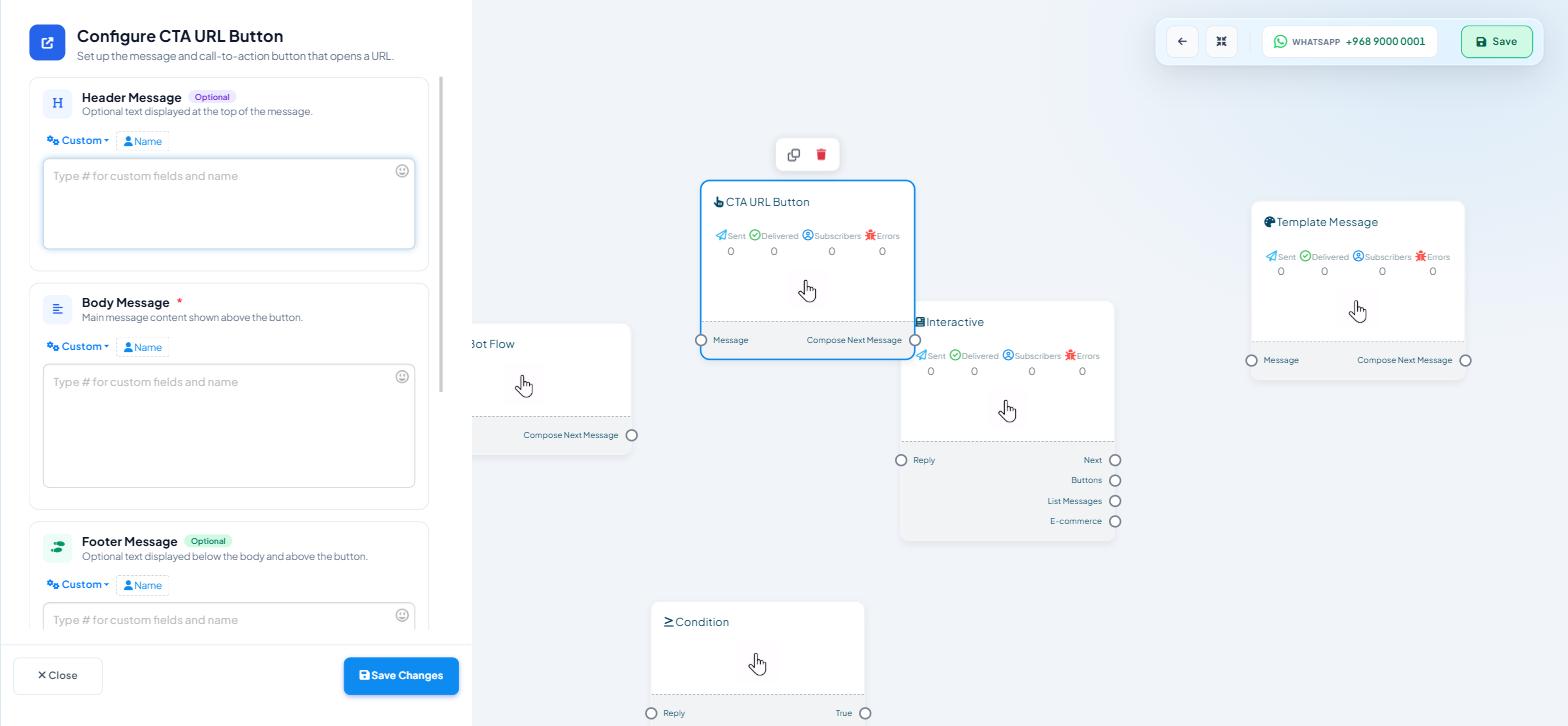
Two things to design around:
WhatsApp supports one URL button per message in this format, so a message offering three destinations needs a different block.
WhatsApp shows a confirmation prompt before opening the link, so send people somewhere they expect to go.
Scope Wiser does not count taps on this link. If you need that, use a tracking link from your website tool.
4. Customise the Quick Actions
Go to Chatbot Manager → Automation → Quick Actions. The screen is headed Action Buttons: "Manage system action buttons, get started, no match and quick actions."
Click a card. Flow Builder opens on that flow.
Change the message. Most ship as a single Text block, so customising one is a matter of changing the message and saving.
Click Save Changes, then the blue Save in the toolbar.
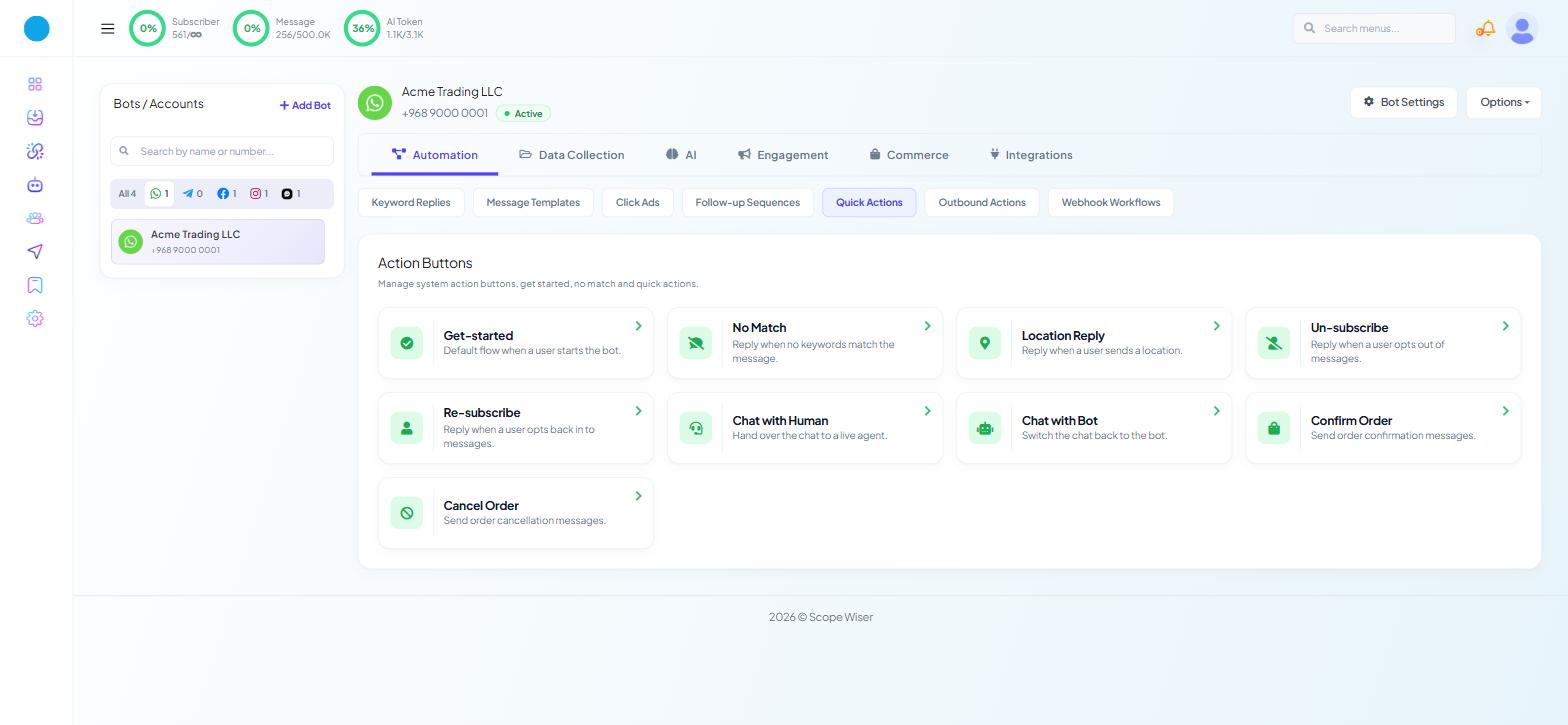
You can extend them. An Actions node feeds an ordinary flow, so Get-started can open with a Text block and then present an Interactive menu, and No Match can offer a route to a human.
The full card list, and how each flow is built, is under Reference below.
5. Test it
Save the panel with Save Changes.
Save the flow with the blue Save in the top-right toolbar.
Send the trigger from a real phone on the connected channel. Button truncation, card rendering and the URL confirmation prompt all behave differently on a phone than on a desktop.
Tap every button.
✅ Done when…
☐ Every button shows on a real phone without its label cut off
☐ Every button, when tapped, gets an answer
☐ Any link button opens the page you expect
If something doesn't work
After a flow has been live for a day, read the stat rows on the Button and message nodes together.
Clicks on a button but nothing downstream. The branch is unconnected, or the block it leads to is unconfigured.
Messages delivered but no clicks anywhere. The buttons are not being seen as options. Usually the message above them is too long, and the buttons fall below the fold.
Clicks spread evenly across every button. Often a sign the labels are not distinguishable, not that demand is genuinely even.
Labels inside a Quick Action flow differ from the card name (for example Chat with Bot opens "Chat With Robot"). That is normal.
You see fewer than nine Quick Action cards. The list is shorter on other channels. Check the screen rather than assuming nine.
Reference
Configure Interactive panel
The Configure Interactive drawer, "Configure your interactive message header, body and footer", holds four sections and nothing else:
Section | What it takes |
|---|---|
Message Header (Optional) | Header Type: Text ("Text-only header") or Media ("Image, video or file"). Text is capped at 60 characters |
Message Body (required) | Up to 1024 characters, with Custom and Name inserters above the box and the placeholder "Type # for custom fields and name" |
Message Footer (Optional) | Up to 60 characters |
Delivery Options (Optional) | "Typing indicator and reply delay settings." |
Configure Button panel (WhatsApp)
Button Generation Method: Static or Dynamic.
Button Title: required, up to 20 characters.
Button action → When user press the button: Send Message, Start a Flow or System Default Action Button.
Automation (optional): Save to custom field, Add/Remove Label(s), Add to/Remove from List(s), Subscribe to/Unsubscribe from Sequence.
Quick Action cards
On a WhatsApp bot there are nine cards, each opening its own flow in Flow Builder:
Card | Description on screen |
|---|---|
Get-started | "Default flow when a user starts the bot." |
No Match | "Reply when no keywords match the message." |
Location Reply | "Reply when a user sends a location." |
Un-subscribe | "Reply when a user opts out of messages." |
Re-subscribe | "Reply when a user opts back in to messages." |
Chat with Human | "Hand over the chat to a live agent." |
Chat with Bot | "Switch the chat back to the bot." |
Confirm Order | "Send order confirmation messages." |
Cancel Order | "Send order cancellation messages." |
A Facebook bot shows seven: the same cards minus Confirm Order and Cancel Order, because Commerce is WhatsApp-only.
How a Quick Action flow is built
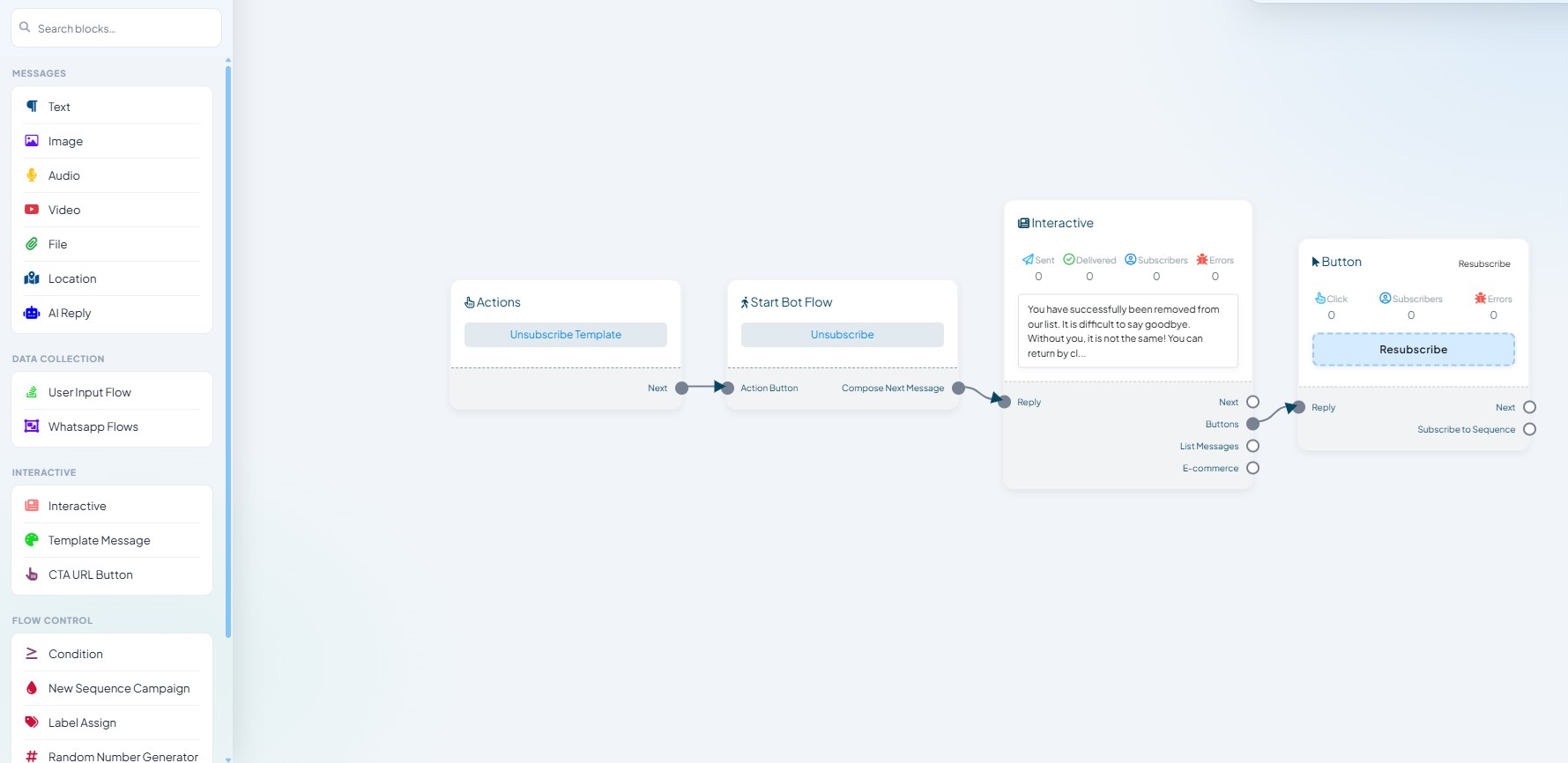
Each one has the same shape: an Actions node with a template chip and a Next port, feeding a Start Bot Flow node whose ports are Action Button and Compose Next Message, feeding the reply itself.
Most ship as a single Text block. Four of them (Un-subscribe, Re-subscribe, Chat with Human and Chat with Bot) ship as an Interactive block with one Button node, so the customer can reverse the decision in one tap.
What to do next
Calling External APIs From a Flow is the next step up: buttons and lists whose options come from your own systems rather than from a fixed list you typed in.
Next: Calling External APIs From a Flow