
Managing Multiple Bots From One Dashboard
Switch between connected bots, know what is per-bot and what is account-wide, and duplicate, copy, export or import a flow without breaking it.
What you'll do: switch between your bots, see what is shared across the account, and reuse a flow on another bot instead of building it twice.
Time: 5 minutes.
Most accounts have more than one bot: a WhatsApp number and a Facebook Page, or two numbers for two brands.
1. Switch to another bot
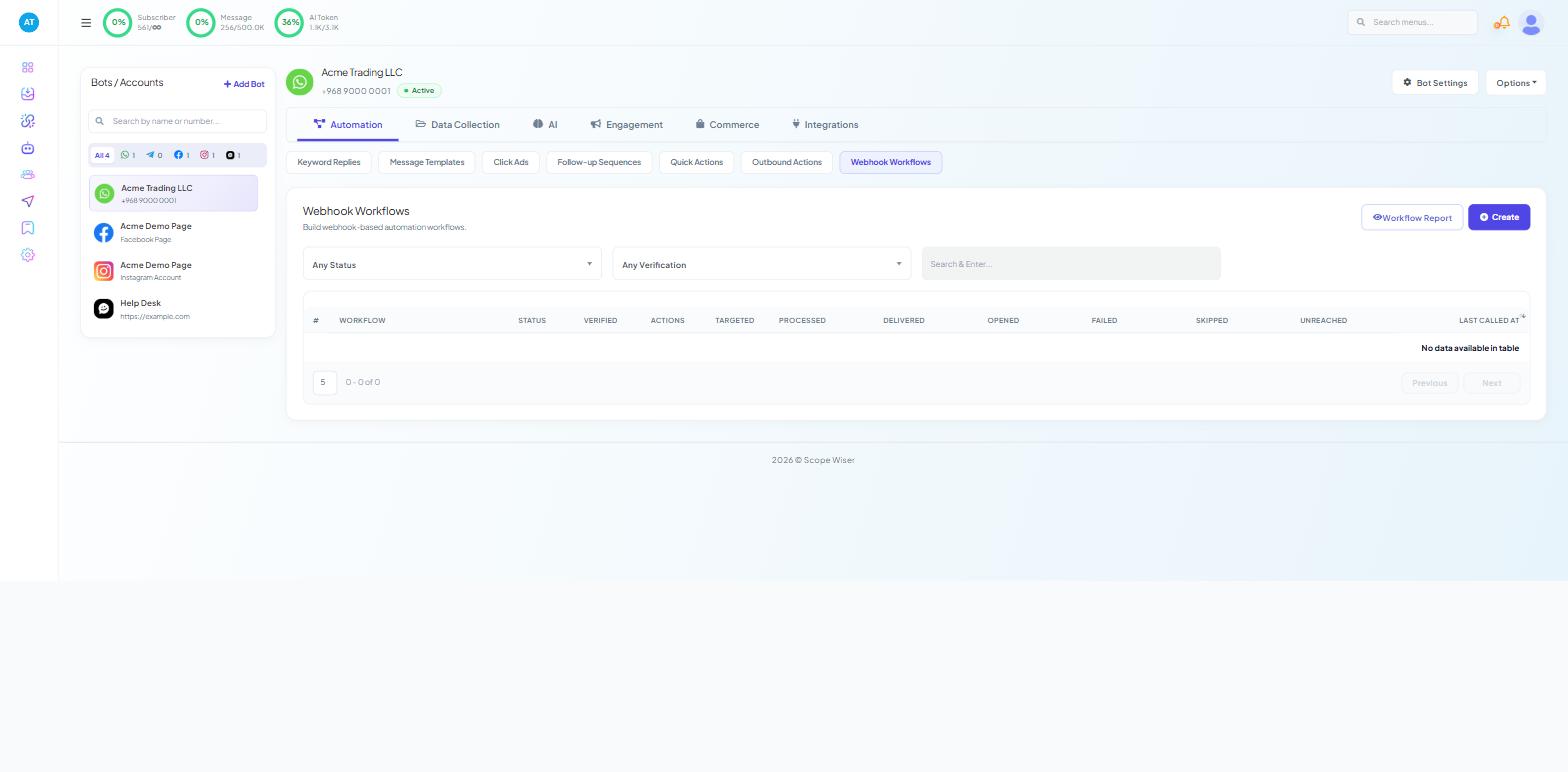
Click Chatbot Manager. The Bots / Accounts panel runs down the left.
If you have many bots, type in "Search by name or number..." or click a channel filter chip (All, WhatsApp, Facebook, Instagram, Webchat). Each chip shows a live count.
Click the bot you want. Each entry shows the bot's name above its identifier: a phone number for WhatsApp, Facebook Page or Instagram Account for those channels, the site address for a webchat widget.
You should now see that bot's name, identifier and Active badge in the header, with Bot Settings and Options beside it.
Everything below the header now belongs to that bot. The tabs change too: a WhatsApp bot has a Commerce tab, and the other channels do not.
To connect another account, click + Add Bot at the top of the panel.
Tip: after selecting a bot, bookmark the page. The bookmark reopens that bot and tab.
2. Copy a flow to reuse it
Select the bot that already has the flow.
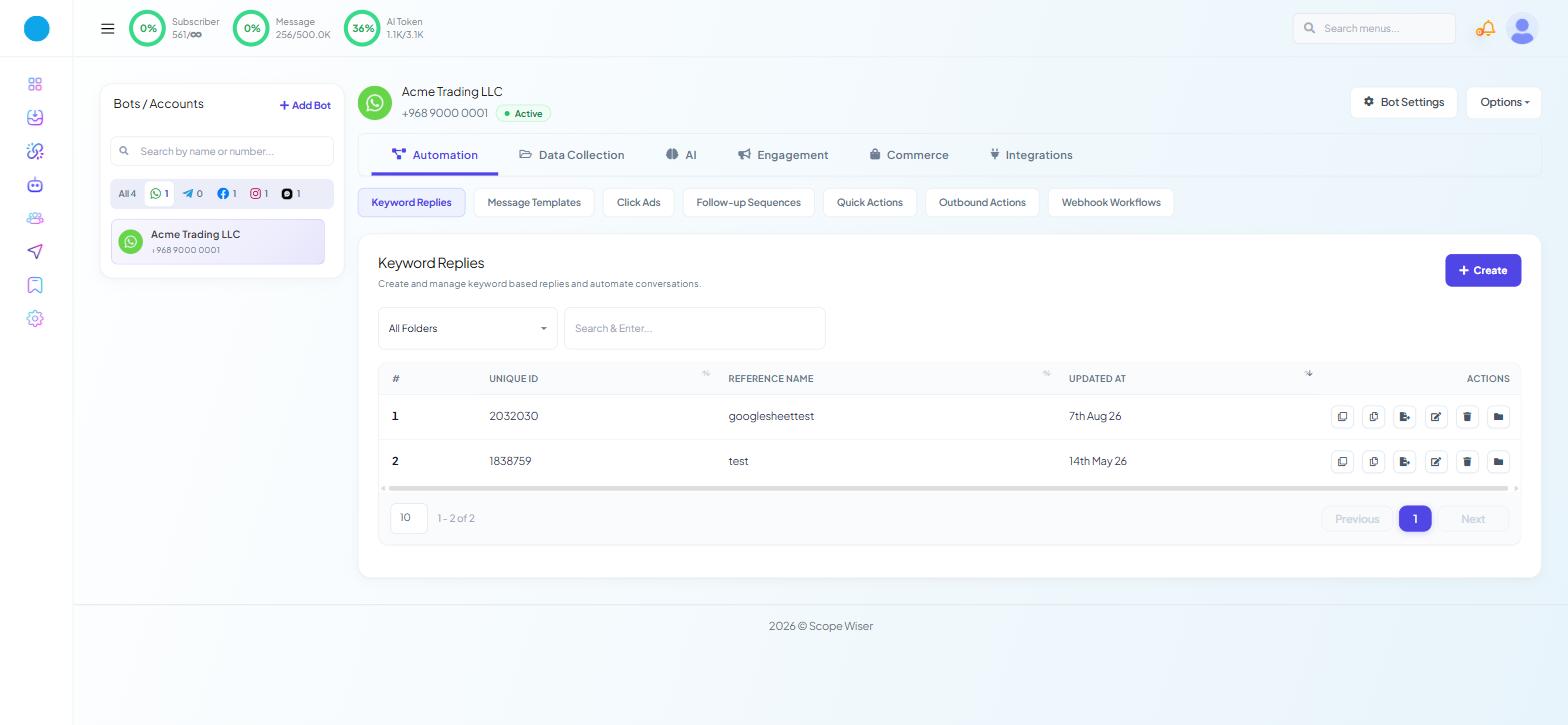
Open Automation › Keyword Replies. Each row carries six action icons: Duplicate, Copy to other Bot, Export flow data, Edit, Delete and Move to Folder.
Click the action you need:
Duplicate makes a second copy of the flow under the same bot. Useful for a variant such as a seasonal greeting. The copy gets its own unique ID; nothing is overwritten.
Copy to other Bot sends the flow to a different bot on this account. Pick the target bot from the list. Structure, buttons, conditions and settings all come across.
Export flow data downloads the flow as a .txt file you can keep as a backup or import into another account.
Folders keep a long list manageable. See Organising, Exporting and Importing Flows.
3. Import a flow back in
Select the target bot.
Click Options ▾ in the bot header.
Click Flow Import.
In the Upload Text File drawer, choose the exported .txt file.
Click Save.
Organising, Exporting and Importing Flows covers export and import in full.
4. Check the copied flow before you switch it on
A copied or imported flow is a structure, not a set of working connections. Go through the list under What travels and what breaks below, then open the flow on the target bot and test it once.
Nothing warns you at copy time. A missing template or label only shows up as a failure when the flow first runs.
✅ Done when…
☐ The copied or imported flow appears in the target bot's Keyword Replies list
☐ You have checked templates, channel-only blocks, labels, sequences, integrations and keywords on the target bot
☐ You have tested the flow once on the target bot
If something doesn't work
The bot answers with the wrong thing. Two flows on the same bot using the same keyword is the commonest cause. Check the target bot's Keyword Replies list before copying a flow that uses hi.
A Template Message block fails on the new bot. The template must exist and be approved on the target number, and you must re-select it.
Buttons or cards are missing after a cross-channel copy. Rebuild the channel-only blocks.
Reference
What is per-bot and what is not
Belongs to one bot | Shared across the account |
|---|---|
Keyword Replies and every other Automation tab | Shared Inbox (all channels in one queue) |
Bot Settings — all eight tabs | Subscriber Manager (filterable by channel and bot) |
Integrations, which differ by channel | Usage meters and plan limits |
Quick Actions, Follow-up Sequences, Message Templates | Control Panel, users and permissions |
WhatsApp message templates belong to the WhatsApp Business Account behind a number, so a template approved for one number cannot be used by another number until it is approved there too.
What travels and what breaks
Message templates. A Template Message block points at a template on the original number. On the target bot that template must exist and be approved, and you must re-select it. Nothing warns you at copy time; the failure appears when the flow first runs.
Channel-only blocks. Some blocks exist on one channel only (WhatsApp buttons vs Facebook cards). A flow copied across channels needs those blocks rebuilt.
Labels, lists and sequences. If the flow assigns a label or subscribes someone to a sequence, confirm that label or sequence exists on the target bot.
Integrations. Integrations (Google Sheets, HTTP API, webhooks) are set up per bot. Set them up again on the new bot.
Trigger keywords. Two flows on the same bot using the same keyword is the commonest cause of a bot answering with the wrong thing.
Keeping several bots tidy
Give each flow a REFERENCE NAME that says what it does and, where relevant, which brand it belongs to.
Keep one bot as the master copy of shared flows and copy outwards from it, rather than editing the same flow in several places.
After copying, open the flow on the target bot and test it once.
Export before deleting anything. Deleting is per bot and cannot be undone.
What to do next
Introduction to Flow Builder: How Scope Wiser Flows Are Built explains the blocks a copied flow is made of. If the extra bot is not connected yet, How to Connect WhatsApp to Scope Wiser: Complete Setup Guide is the starting point.