
Organising, Exporting and Importing Flows
Folders, Move to Folder, Duplicate, Copy to other Bot, Export flow data and Flow Import: keep a bot with dozens of replies tidy and move flows between bots.
What you'll do: group your keyword replies into folders, copy a flow within a bot or to another bot, and export a flow to a file and import it back in.
Time: 10–15 minutes.
A bot with five keyword replies needs no organising. A bot with forty does, and so does a team that builds the same welcome flow for every account it runs. Scope Wiser gives you six controls for this, all on the Keyword Replies list: folders to group flows, and row actions that copy a flow inside a bot, to another bot, or out to a file and back in.
Everything below starts from the same screen:
Click Chatbot Manager and select the bot.
Stay on Automation → Keyword Replies.
1. Create folders
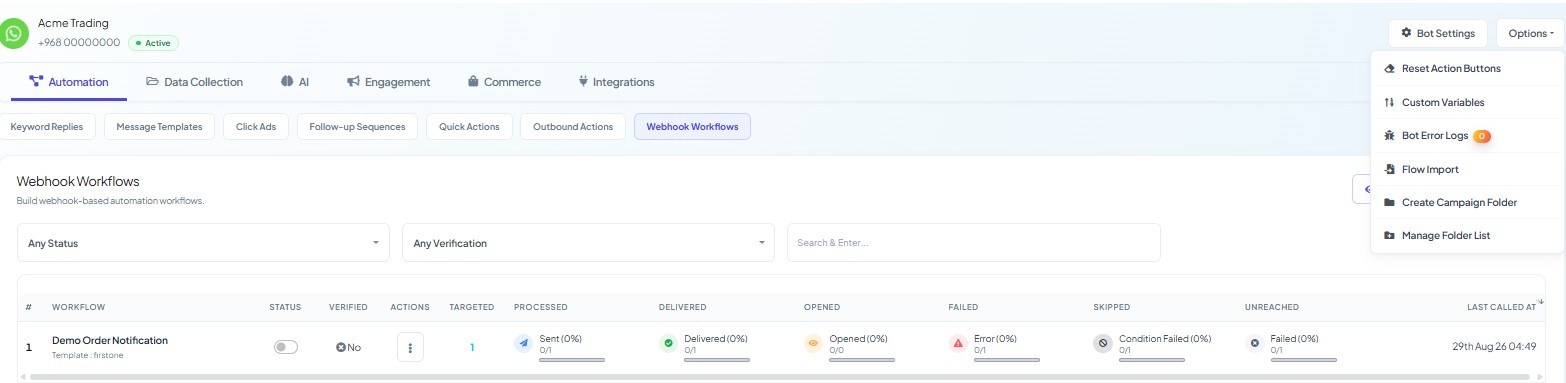
Folders are created from the Options ▾ menu at the top right of the bot's page, not from the table.
Click Options ▾.
Click Create Campaign Folder. A Create New Folder dialog opens.
Type a Folder Name ("Create a new folder to organize your campaigns").
Optional: in Select Campaigns ("Select one or more campaigns to add to this folder"), pick flows to add now. You can fill a folder at the moment you create it.
Confirm the dialog.
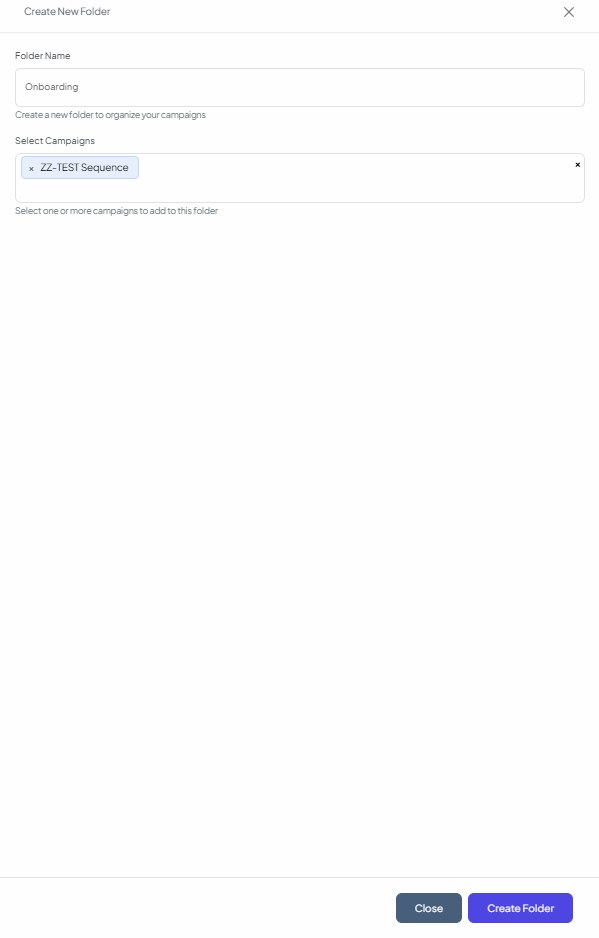
A workable scheme for most accounts is one folder per purpose: Onboarding, Support, Promotions, Seasonal. Create them before the list grows past a screen. Moving forty flows later is tedious; moving each one as it is built is not.
2. File flows into folders
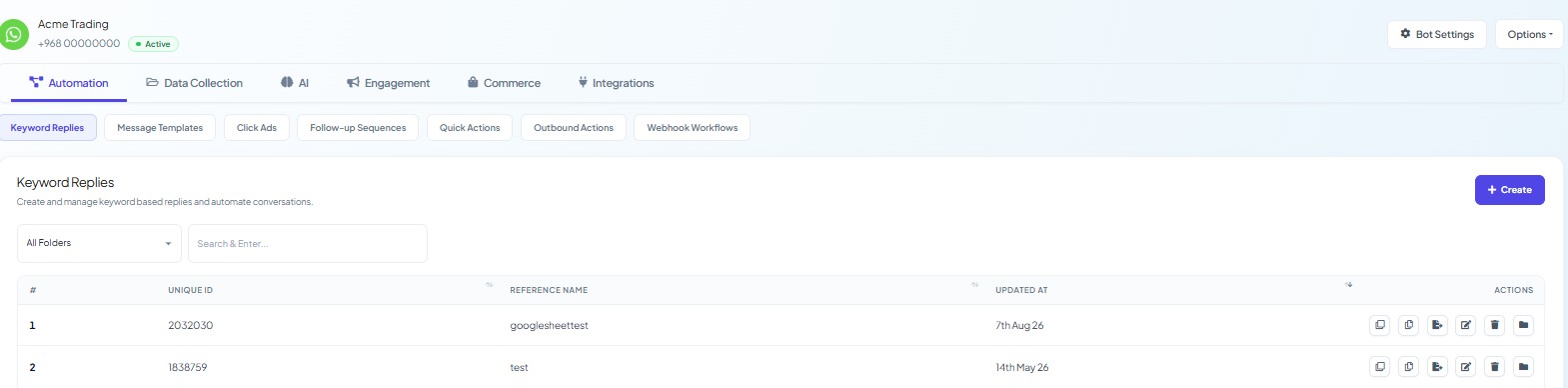
On a row, click Move to Folder and choose the folder.
To see one folder's flows, use the All Folders dropdown above the Keyword Replies table.
To rename or remove folders, use Options ▾ → Manage Folder List.
3. Copy a flow
On the flow's row, click:
Duplicate for a second copy in the same bot. It happens immediately, with no dialog.
Copy to other Bot to push a copy into another bot on the same account. Useful when several WhatsApp numbers or Pages need the same conversation.
Open the copy and change its trigger keyword straight away. Rename a duplicate before it confuses anyone.
Both create a live flow with the same trigger keyword as the original. On the same bot that is a conflict waiting to happen: two flows answering one word. Preventing Bot Conflicts and Duplicate Replies explains what that looks like from the customer's side.
4. Export a flow to a file
On the flow's row, click Export flow data. The flow downloads as a text file.
Use it for:
Backup. Export the flows you would not want to rebuild. The file is small; keep it with the rest of the account's records.
Moving a flow to another account. Copy to other Bot only reaches bots on the same account. For a different account (a client's, or a new workspace), export from one and import into the other.
Templating. Build a flow once, export it, and import it into each new bot as a starting point, then edit the copy.
5. Import a flow
On the target bot, click Options ▾.
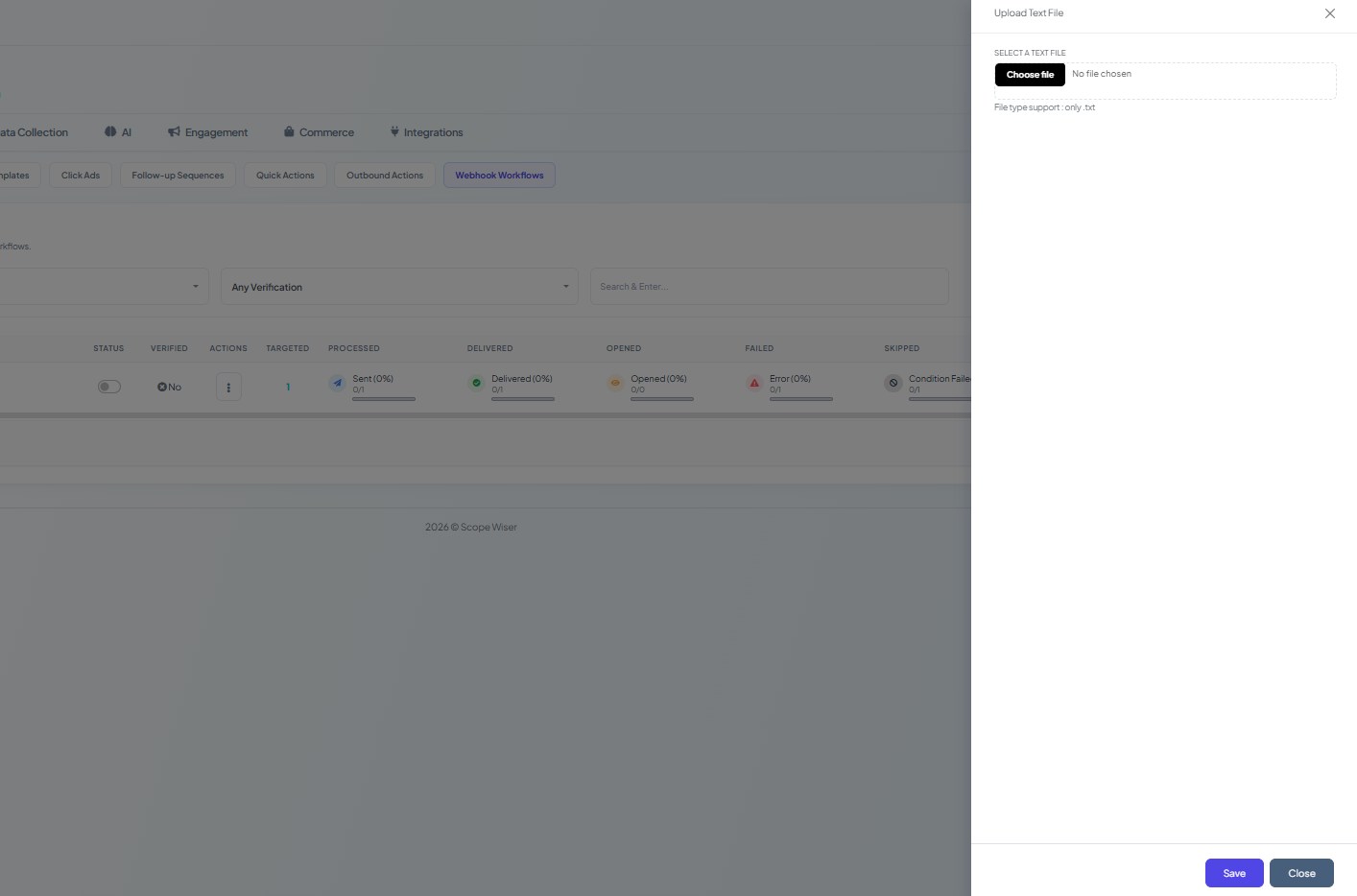
Click Flow Import. An Upload Text File dialog opens ("Select a text file", with the note File type support: only .txt).
Choose the exported file.
Click Save. The flow is created in the current bot.
6. Check the imported flow
Open the flow in Flow Builder before trusting it. Anything that referenced resources on the source bot, such as a specific message template, a labels list or a saved HTTP API, has to be re-selected on the new bot, because those live per bot and do not travel in the file.
✅ Done when…
☐ Your flows are filed in folders
☐ Every copied flow has its own trigger keyword
☐ Every imported flow has its templates, labels and APIs re-selected
If something doesn't work
A copied flow answers alongside the original. Both have the same trigger keyword. Change the copy's keyword. See Preventing Bot Conflicts and Duplicate Replies.
Copy to other Bot doesn't list the bot you want. It only reaches bots on the same account. Export and import instead.
The import won't accept your file. Only .txt is supported.
An imported flow fails on a template, label or API. Re-select it on the new bot.
A keyword stopped working. Deleting a flow stops its trigger keyword at once.
Reference
The six row actions
Icon | What it does |
|---|---|
Duplicate | Makes a second copy of the flow in the same bot, immediately, with no dialog. Rename the copy before it confuses anyone. |
Copy to other Bot | Pushes a copy of the flow into another bot on the same account. Useful when several WhatsApp numbers or Pages need the same conversation. |
Export flow data | Downloads the flow as a text file. This is the file Flow Import accepts, so it is how a flow travels between accounts, or into a backup. |
Edit | Opens the flow in Flow Builder. |
Delete | Removes the flow. The trigger keyword stops working at once. |
Move to Folder | Files the flow under a folder you have created. |
The Options ▾ menu
The menu holds six items: Reset Action Buttons, Custom Variables, Bot Error Logs, Flow Import, Create Campaign Folder and Manage Folder List.
Manage Folder List opens a Folder List table with the columns #, Name, Social Media and Actions, where folders are renamed or removed. Folders belong to a bot and a channel, which is why the list carries a Social Media column.
What to do next
Read Keyword Replies and Postbacks if you are still deciding how a flow should be triggered, and Managing Multiple Bots From One Dashboard for the account-level view of which bot holds what. If a copied flow answers alongside the original, Preventing Bot Conflicts and Duplicate Replies is the fix.
Next: Managing Multiple Bots From One Dashboard