
Persistent Menus, Get Started and Ice Breakers by Channel
Always-visible menus, first-contact greetings and tappable opening questions differ on Facebook, Instagram, Webchat and WhatsApp. Where each is configured.
What you'll do: set up what a customer sees before they type anything: a menu that never scrolls away, a greeting on first contact, and a set of tappable opening questions.
Time: 15–30 minutes per channel.
Each channel exposes a different subset, in a different place, and WhatsApp's are not configured in Scope Wiser at all.
Before you start
☐ Check which channel your bot is on. Select it in Chatbot Manager and open the Engagement tab. The sub-tabs differ by channel (table under Reference).
☐ Build the replies first. Ice breakers and menu items point at replies or postbacks you have already built and saved.
On WhatsApp, skip to section 5. WhatsApp has no persistent menu and no Get Started Settings. Don't try to follow the Facebook steps on a WhatsApp bot.
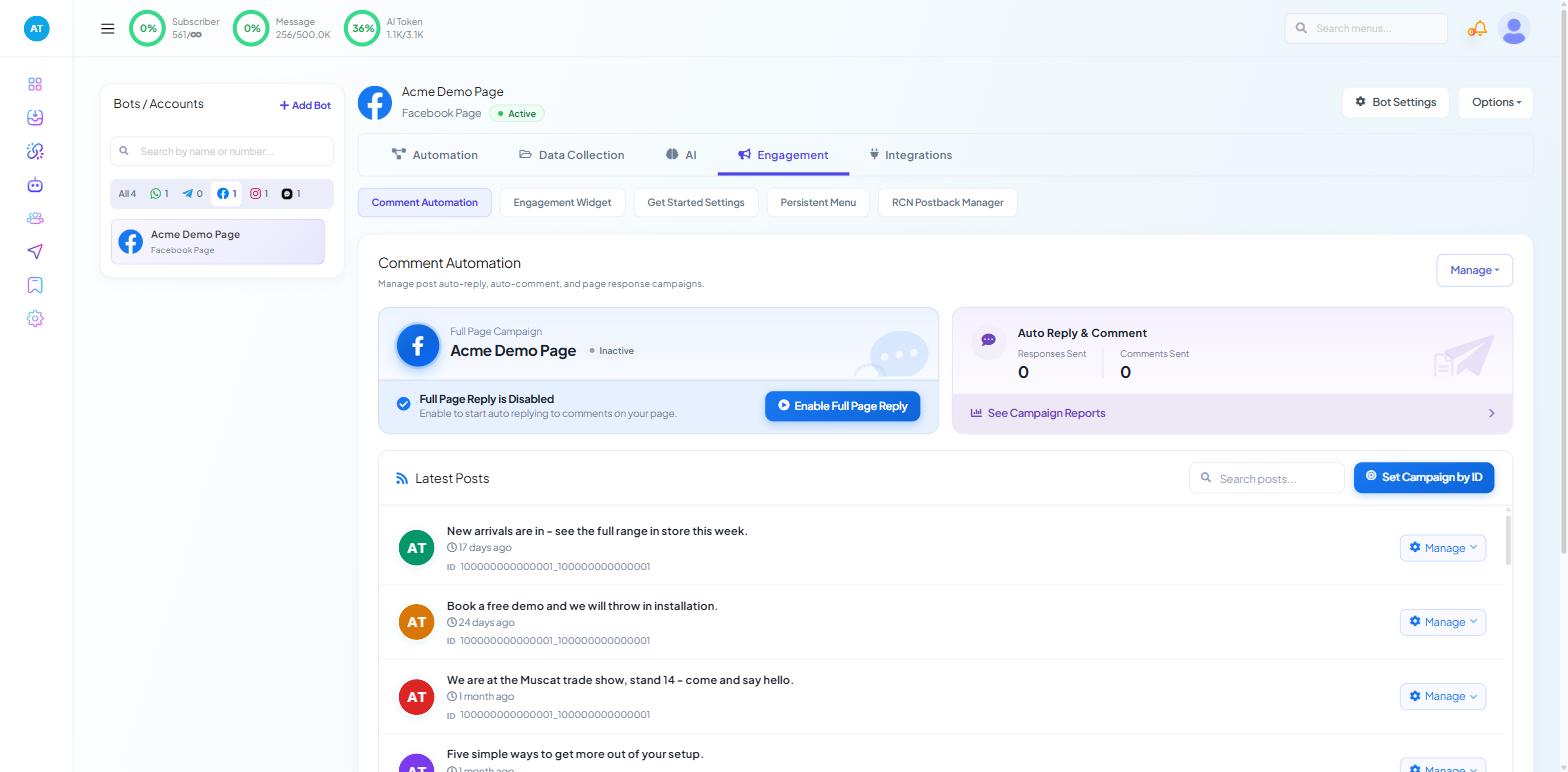
1. Turn on Get Started (Facebook, Instagram, Webchat)
The Get Started button is what a first-time visitor taps before any conversation exists. Do this first: on Facebook the persistent menu depends on the Get Started button being enabled.
Go to Engagement → Get Started Settings.
Set the Get Started Status to enabled.
Write a Welcome Message. Keep it to one sentence about what this bot can do, and one about what to do next. "Welcome to Acme Trading. Tap a question below, or type what you're looking for." beats a paragraph.
Save.
Ice breakers sit on the same screen, further down.
2. Add ice breakers (Facebook, Instagram)
Ice breakers are the tappable questions shown before the first message. They convert the visitor who has no idea what to type.
On the same Get Started Settings screen:
Set the Ice Breakers Status to enabled.
Type a question in the question block. Make it a real one, phrased the way a customer would ask it: "Do you deliver to my area?", not "Delivery information".
Link it to a reply message template from the dropdown. That template is what the bot sends when the question is tapped.
Add further templates under the same question if one reply is not enough.
Add more question blocks for more ice breakers.
Save the settings.
The dropdown lists only replies you have already built and saved. On a bot with nothing built yet it is empty. Build the reply first.
Three or four good questions cover most first contacts. Twelve of them look like a menu and get ignored.
3. Build the persistent menu (Facebook, Instagram)
A persistent menu is a fixed list of options in the chat window that stays visible wherever the conversation goes. Customers use it to reach your opening hours, your catalogue or a human without having to remember a keyword.
Go to Engagement → Persistent Menu and click Create.
Set Locale to
default. Add other locales afterwards, each with its own set of items.Decide Composer Input Disabled: whether the customer can still type freely. Turning typing off forces everyone down your menu paths. It is occasionally the right call for a pure self-service bot and usually the wrong one for support.
For each item, fill in:
Menu Title: the label the customer taps, such as Help, Shop or Contact Us.
Type: Web URL or Post Back.
Target: the address for a Web URL item, or, for a Post Back item, the name of a postback you created under Automation → Postbacks.
Add each further item, then save.
Use Options → Publish on the Persistent Menu screen.
Saving is not publishing. The menu reaches customers only once you use Options → Publish. The same menu offers Remove to take it down again.
Plan on roughly three top-level items per locale, and write titles a customer would recognise, not internal names.
Post Back is the item type that does real work. A Web URL item sends the customer to your website and out of the conversation. A Post Back item keeps them in the chat and starts a flow you built, which is why postbacks are worth setting up first. See Keyword Replies and Postbacks for how a postback is created on Facebook and Instagram.
4. Build the persistent menu (Webchat)
Webchat has the same Engagement → Persistent Menu sub-tab and the same Create flow.
Go to Engagement → Persistent Menu and click Create.
Add items. Each is either a URL or a chatbot reply as a postback.
Decide Composer Input Disabled. The effect is more visible here: a website visitor with typing disabled sees a chat window with no text box at all.
Save and publish.
The look of the website widget (its colours, position, title and wallpaper) is a separate setting, not on this tab. It lives under Connect Account → Webchat, in the Set Up Your Live Chat Widget drawer, starting with the field labelled Chatbox disaply title (spelled this way on screen).
5. Set up the WhatsApp equivalents
WhatsApp has no persistent menu and no Get Started Settings sub-tab. Its equivalents split across Scope Wiser and Meta.
The greeting is a flow:
Go to Automation → Quick Actions, headed Action Buttons.
Open the Get-started card ("Default flow when a user starts the bot.").
Edit the message and click Save.
Switching it on is a setting:
Click Bot Settings and stay on General.
Enable
GET STARTED MESSAGE.Set
GET STARTED MESSAGE FREQUENCY LIMITtoEvery TimeorOnce a day.Click Publish Changes.
Ice breakers and commands come from Meta. They are not configured in Scope Wiser:
In Meta's WhatsApp Manager, go to Phone numbers → your number → Automations and add your Ice breakers and Commands.
In Scope Wiser, go to Automation → Keyword Replies and create one reply per item. Use the full question, or the full command including its leading slash (such as
/hours), as the trigger keyword.
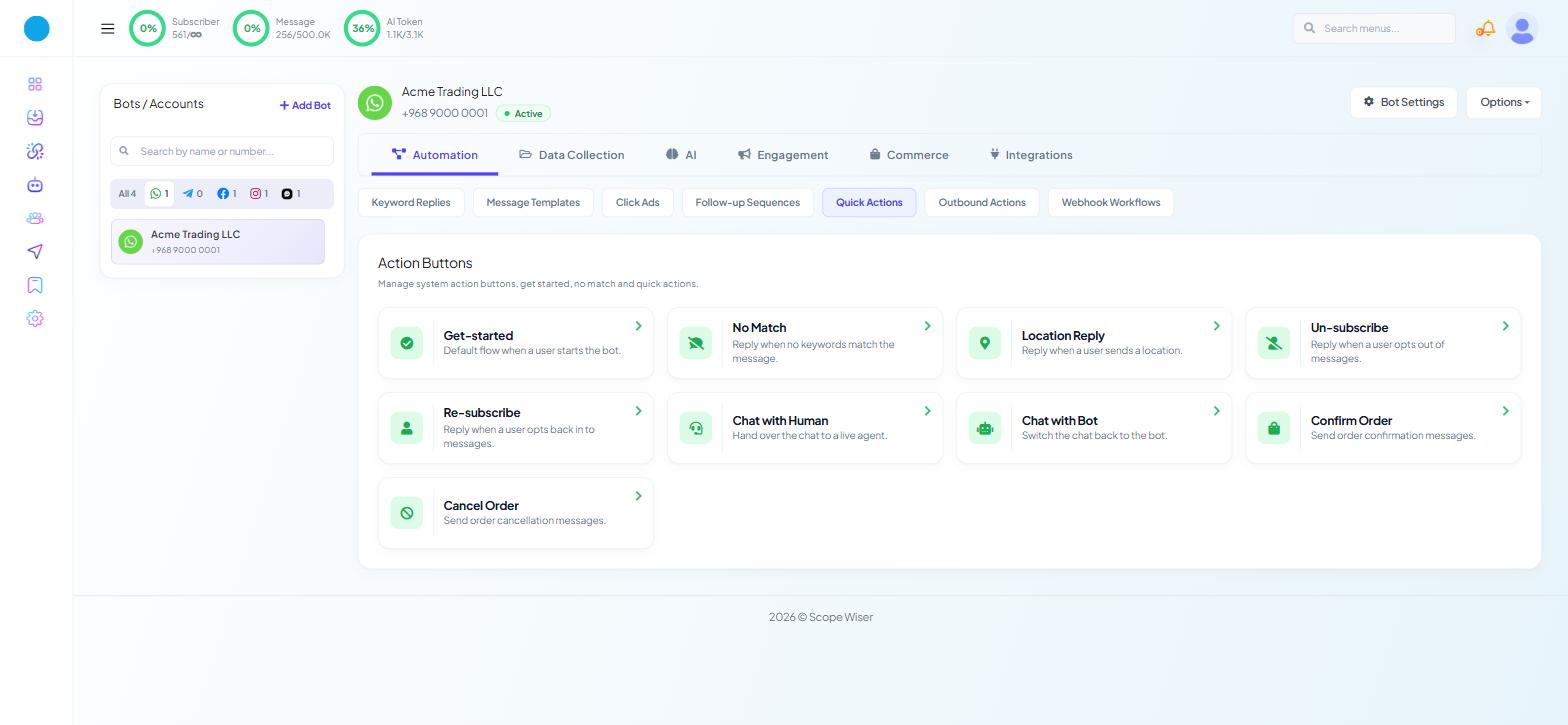
A useful WhatsApp extra: the Location block in the Flow Builder sends a message with a button the customer taps to share their position, so nobody has to type an address. The reply is handled by the Location Reply card in Quick Actions ("Reply when a user sends a location."), and the captured location is then visible from the Shared Inbox and Subscriber Manager.
Get-started and Location Reply are two of nine cards on that screen; the full set is listed in Quick Replies, Buttons & CTA URLs. The No Match card, the reply a customer gets when nothing matches, is covered in Preventing Bot Conflicts and Duplicate Replies.
6. Test what you built
Menus and greetings are the two things most likely to look fine in the editor and wrong in the chat.
Message the bot from an account that has never contacted it. Ice breakers and the Get Started button appear on a first interaction, or after the chat history is cleared.
Tap every menu item.
✅ Done when…
☐ A first-time account sees your greeting (and ice breakers, where available)
☐ Every menu item and ice breaker leads to the right reply
☐ Facebook/Instagram menus are published with Options → Publish
If something doesn't work
You can't see Persistent Menu or Get Started Settings. You are on a WhatsApp bot. Use section 5.
The menu doesn't show for customers. Saving is not publishing. Use Options → Publish. On Facebook, also check that Get Started is enabled.
The ice breaker reply dropdown is empty. Build and save the reply first.
Ice breakers or Get Started don't appear when you test. They show on a first interaction, or after the chat history is cleared. Test from an account that has never contacted the bot.
A menu item does nothing. A Post Back item pointing at a deleted flow fails quietly.
A Facebook or Instagram menu item won't open your own site. That domain must be whitelisted first. See Whitelist Domain for Facebook and Instagram.
Reference
Engagement sub-tabs by channel
Channel | Engagement sub-tabs |
|---|---|
Comment Automation · Engagement Widget · Get Started Settings · Persistent Menu · RCN Postback Manager | |
Comment Automation · Get Started Settings · Persistent Menu | |
Webchat | Get Started Settings · Persistent Menu |
Chat Entry — and nothing else |
So persistent menus and Get Started Settings exist on Facebook, Instagram and Webchat. WhatsApp has neither, and its equivalents live in two other places entirely.
What to do next
With the entry points in place, the next thing that shapes first impressions is what happens when somebody types something you did not anticipate. Preventing Bot Conflicts and Duplicate Replies covers the no-match reply and its frequency limit. For the flows behind each menu item, start at Build Your First Chatbot in 5 Minutes.
Next: Preventing Bot Conflicts and Duplicate Replies