
Abandoned Cart Recovery
Recover abandoned carts over WhatsApp: the built-in Shopify action, the WooCommerce plugin and webhook route, message timing, and how to read the recovery report.
A short WhatsApp message a while after someone leaves a full basket recovers a meaningful share of those carts. The two platforms take genuinely different routes here, and it is the biggest practical difference between them in Scope Wiser. Read the section for your store.
Shopify | WooCommerce | |
|---|---|---|
Route | Store Automation, built in | Webhook Workflow plus a WordPress plugin |
Effort | One form | Plugin install, callback URL, field mapping |
Detection | Scope Wiser watches the store through its API | The plugin detects the abandonment and calls Scope Wiser |
The one thing both routes depend on
Only carts where the customer typed a phone number can be recovered. Ask for the phone number early in your checkout.
Shopify: the built-in action
1. Get a template approved. On the WhatsApp bot, Chatbot Manager → Automation → Message Templates. The Create dropdown offers General Template, WP Template, Mixed Template, Carousel Media Template, Carousel Product Template and Default Template. Write a short body with the customer's name and a button that returns them to their cart, and use Sync Templates to check approval status. When creating the template, choose the Marketing category.
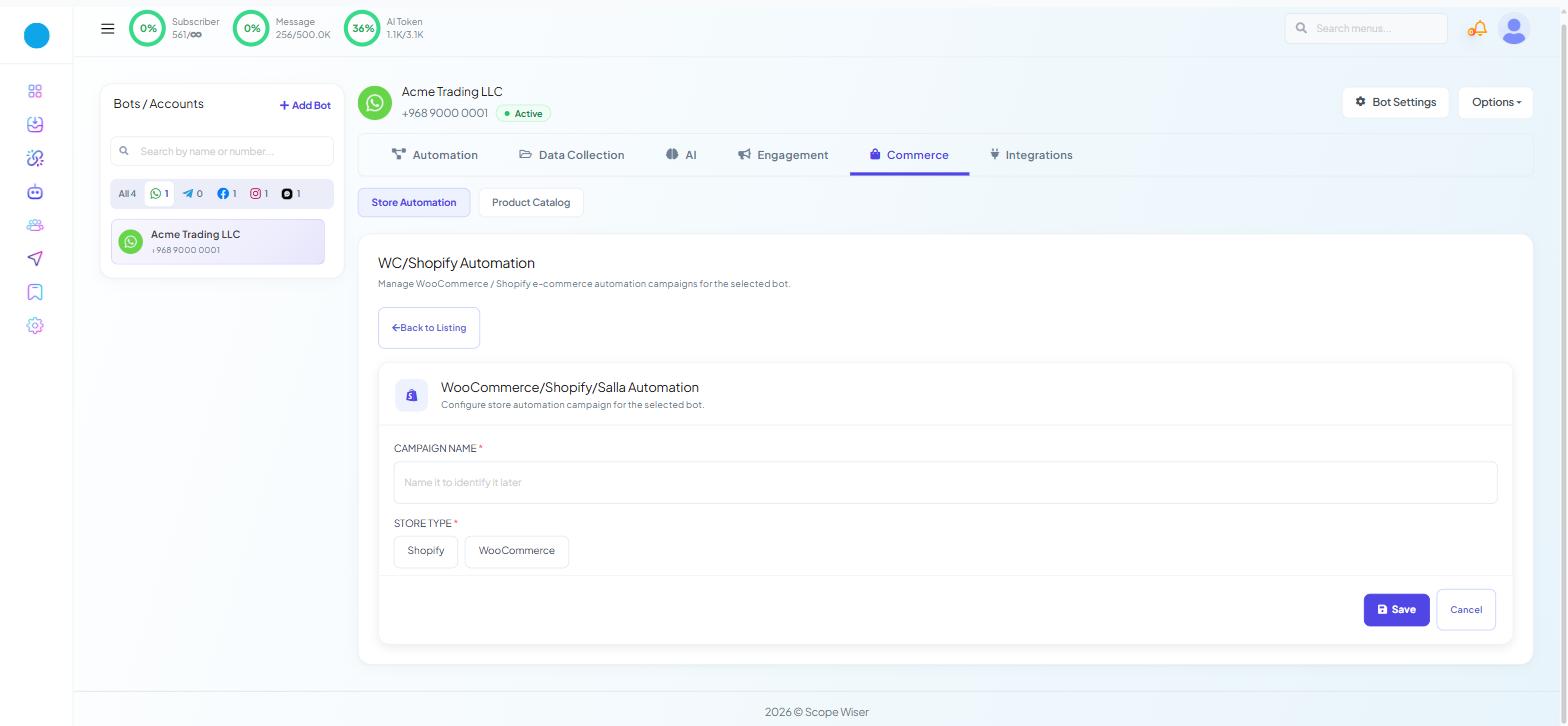
2. Create the campaign. Chatbot Manager → Commerce → Store Automation — headed WC/Shopify Automation — then Create. Commerce is a WhatsApp-only tab.
CAMPAIGN NAME * — placeholder "Name it to identify it later".
STORE TYPE * — Shopify.
SELECT STORE API * — your connected store, with ADD NEW API beside it.
ACTION * — Abandoned Cart Recovery. Choosing Shopify makes this the default.
MESSAGE DELAY (MINUTES) * — defaults to
30. This is the delay from abandonment to message.MESSAGE TEMPLATE * — the approved template.
COUNTRY CODE (optional, set if phone number does not have any country code) — set it if your checkout stores local-format numbers.
ASSIGN LABEL and ASSIGN SEQUENCE — a label on everyone who abandoned is a segment worth having.
3. Save. The campaign runs from then on. Scope Wiser watches for carts where contact details were entered but checkout was not completed, waits out the delay, checks whether the purchase has since happened, and sends only if it has not.
WooCommerce: plugin and webhook
The ACTION list on a WooCommerce campaign has exactly three options — Order Notification, COD Verification and Order Update Notification. Abandoned Cart Recovery is not among them. Cart recovery on WooCommerce runs through a plugin and a webhook workflow instead.
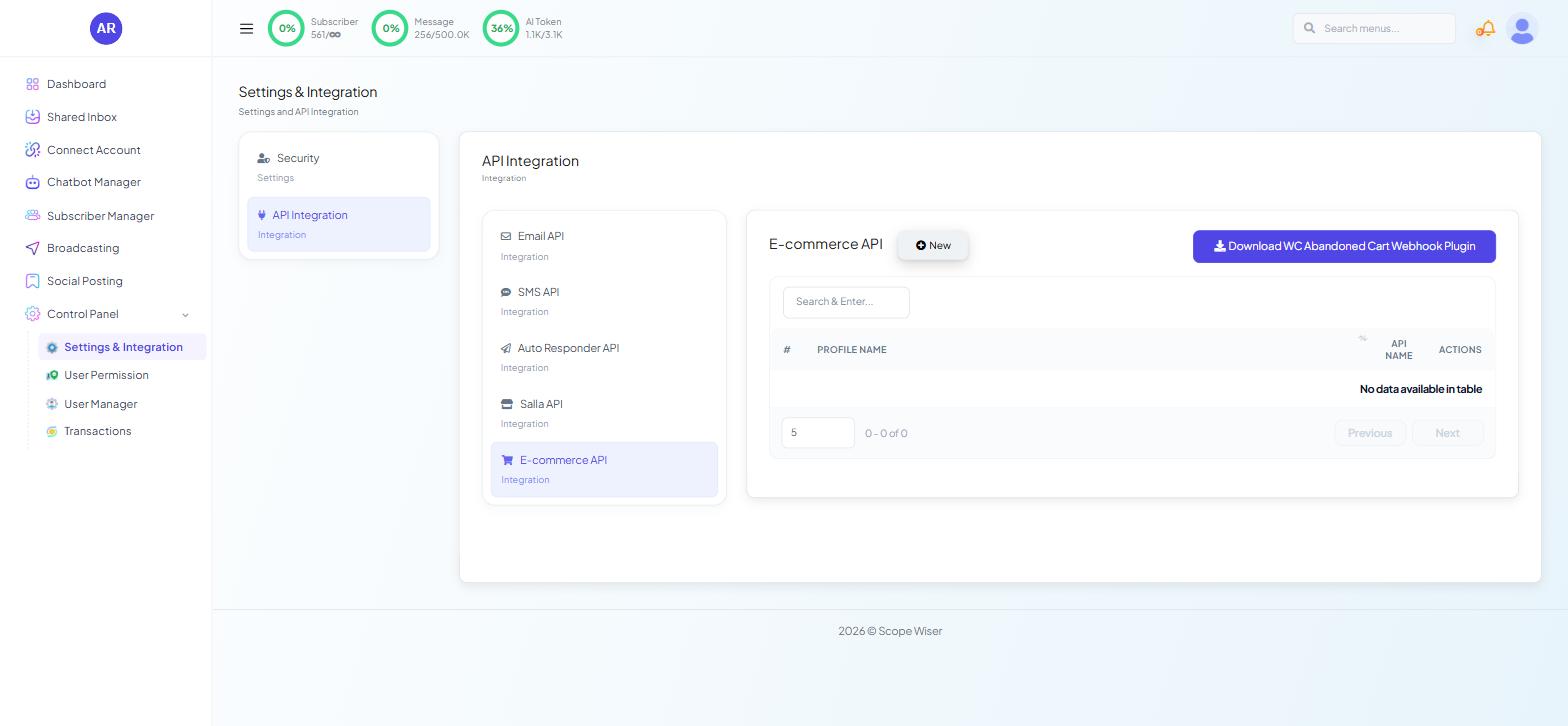
1. Download the plugin. Go to Control Panel → Settings & Integration → API Integration → E-commerce API. That screen carries a Download WC Abandoned Cart Webhook Plugin button, which the other API Integration screens do not have.
2. Install it in WordPress. Plugins → Add Plugin → Upload, choose the downloaded file, install and activate.
3. Create the workflow. Chatbot Manager → Automation → Webhook Workflows → Create. The form opens with Workflow Details and nothing else: set WORKFLOW NAME * and MESSAGE TEMPLATE * to your cart-recovery template, check the TEMPLATE INFO preview shows the variables you expect, and press Create Workflow. The callback URL and everything below it appear only after that button.
4. Paste the Webhook Callback URL into the plugin's settings in WordPress, and save. The URL is the read-only box at the top of Configure Webhook Data, and it is also available later from Copy Webhook URL on the workflow's row.
5. Map the data. Abandon a cart yourself, then press Capture Webhook Response on the Real-time Response tab to load what the plugin actually sent. The Custom JSON Body tab takes a pasted sample instead, and its Run Test button loads the mapping fields with no external trigger at all.
Map the phone number and the customer's name onto your template variables. Attach the Trim Left (+) formatter to the phone row, and Concat List Items to the product list if your template names the abandoned products — how to build them is in Webhook Workflow: Complete Beginner's Guide → Data Formatters.
6. Set the delay. Send message with a delay is a single row — Wait 0 minutes after a webhook triggers — and minutes are the only unit, so thirty minutes is 30 and four hours is 240.
7. Use the follow-up actions. Under Actions following successful webhook call, ASSIGN LABEL marks everyone who abandoned, ASSIGN SEQUENCE enrols them in a Follow-up Sequence for a later reminder, and SUBSCRIBER NAME pulls the customer's name out of the payload. Then Save Workflow.
8. Test by abandoning one more cart and watching the workflow report before checking WhatsApp.
Timing
Start at 30 minutes. Try shorter for cheap impulse items, a few hours for expensive ones. Change one thing at a time.
Writing the message
Say what was in the cart. Naming the product is a reminder; "your order" is a mailshot.
Link back to the cart, not the homepage.
Send once. A second reminder recovers very little.
Save any discount for a second message to people who did not come back.
Reading the report
Open a Store Automation campaign's report from the ACTIONS column on its row. On the WooCommerce route the numbers sit on the Webhook Workflows listing instead, and the LAST CALLED AT column on the Workflow Report tells you when the plugin last called.
A big gap between detected and sent means missing phone numbers — fix your checkout form. For what the FAILED, SKIPPED and UNREACHED columns mean, see Webhook Workflow: Complete Beginner's Guide.
When it goes wrong
No carts detected at all. On Shopify, check the store connection. On WooCommerce, check the plugin is active and the callback URL is saved in its settings.
Carts detected, nothing sent. Missing phone numbers, or numbers with a
+that has not been stripped. Set COUNTRY CODE if your checkout stores local-format numbers; on the webhook route, check that a Trim Left formatter with+is attached to the phone row.Messages sent to people who did buy. The delay is long enough that the purchase happened after the message was queued. Shorten it, or accept a small overlap.
The template will not send. Not approved, or paused. Sync Templates to refresh the status.
Duplicate messages. More than one active campaign or workflow is watching the same store. Only one should.
What to do next
Order Notifications: WooCommerce & Shopify completes the pair: recovery brings people back to checkout, and a confirmation is what should meet them when they finish. Both use the same templates and the same store connection.