
Connecting WooCommerce
Connect a WooCommerce store by entering your store URL and approving access in WooCommerce — no API keys to copy.
This article connects your WooCommerce store to Scope Wiser. Once it is connected, order notifications, cash-on-delivery verification and cart recovery can be set up.
Connecting takes about ten minutes. Have your WordPress admin login ready.
Step 1: Open the WooCommerce connection page
From the sidebar, open Connect Account.
Under Available Connections, find the WooCommerce card and click Connect WooCommerce.
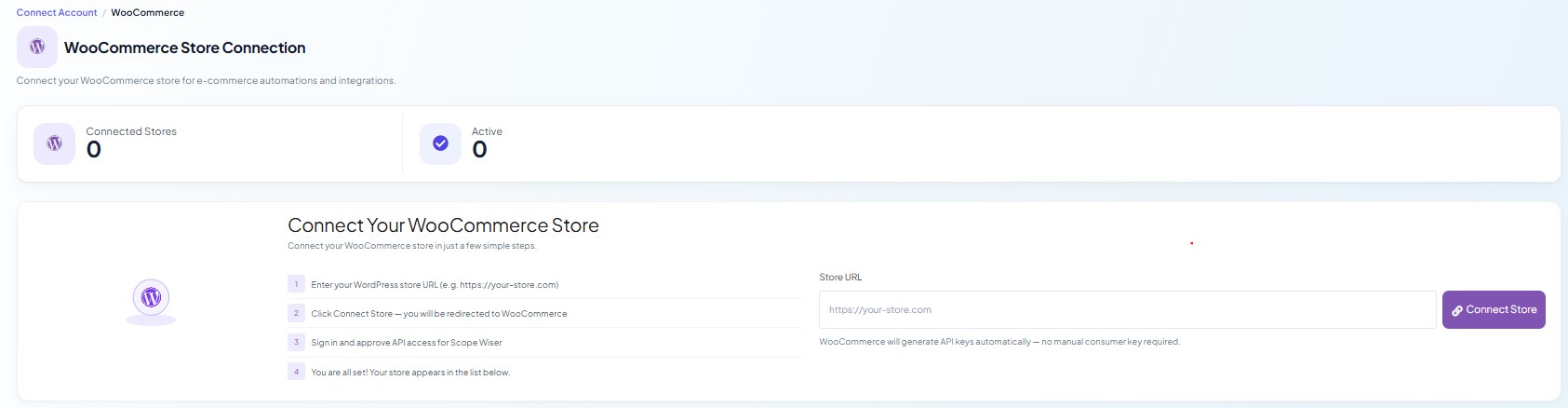
The WooCommerce Store Connection page opens with a panel headed Connect Your WooCommerce Store. It lists four steps:
Enter your WordPress store URL (e.g.
https://your-store.com)Click Connect Store — you will be redirected to WooCommerce
Sign in and approve API access for Scope Wiser
You are all set! Your store appears in the list below.
You do not need to create API keys in WooCommerce — the store URL is the only field.
Step 2: Enter your store URL and connect
In Store URL, type the address of the WordPress site your shop runs on, e.g.
https://your-store.com. Includehttps://and nothing after the domain — not the shop page and not the admin address.Click Connect Store.
WooCommerce opens an approval screen. Click Approve. You return to Scope Wiser and the store appears in the Connected Stores table, with the columns STORE, STORE URL, EMAIL, STATUS, CONNECTED and ACTIONS.
Where the cart-recovery plugin is
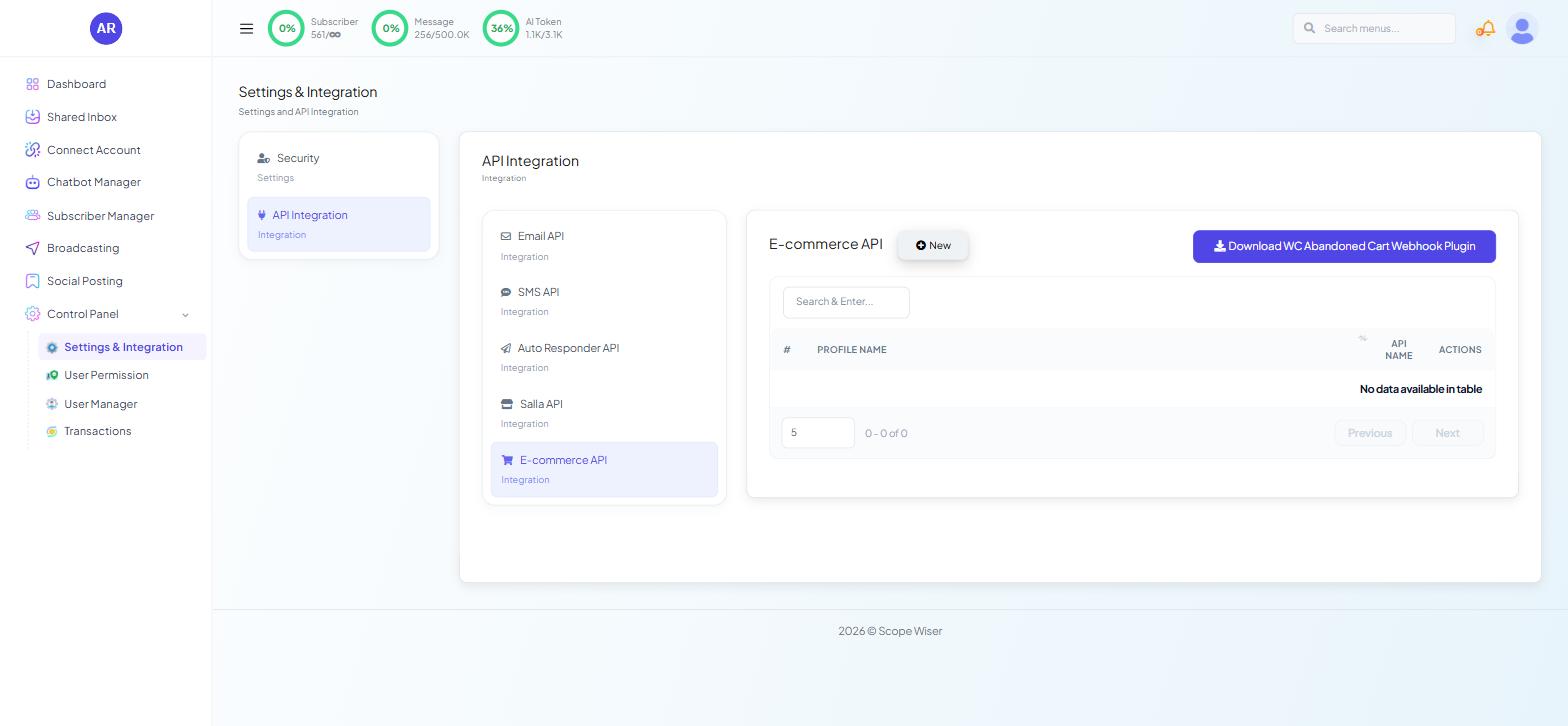
The WC Abandoned Cart Webhook Plugin download is under Control Panel → Settings & Integration → API Integration → E-commerce API (see Abandoned Cart Recovery).
What the connection unlocks
With the store connected, Store Automation (Chatbot Manager → Commerce → Store Automation) gives you Order Notification, COD Verification and Order Update Notification from one form — start with Order Notifications: WooCommerce & Shopify. Use a Webhook Workflow when you need a rule such as "only COD orders" — see WooCommerce and Shopify: Which Route to Use and What to Build First.
Abandoned carts on WooCommerce
Abandoned Cart Recovery is not in the WooCommerce action list on Store Automation. On WooCommerce it runs through the plugin above and a Webhook Workflow — see Abandoned Cart Recovery.
When the connection fails
"Invalid signature" or authentication errors. The store URL does not match the site that approved the connection — for example
wwwis missing, or you typedhttpwhere the site useshttps. Connect again with the exact address.Works in a browser, fails from Scope Wiser. A security plugin or firewall on your WordPress site is blocking outside requests. Fix it on the store, not in Scope Wiser.
Everything stops weeks later. Someone revoked the key in WordPress, or the site moved to a new domain. Connect again.
Fixing WooCommerce API Errors goes through these in more detail.
What to do next
Build Order Notifications: WooCommerce & Shopify first. If you also run a Shopify store, see Connecting Shopify.