
Displaying Store Products Inside WhatsApp
Pull live products out of a WooCommerce store and show them as a WhatsApp list: read-only API keys, the HTTP API wizard, dynamic rows, and the ten-row limit.
This article is for developers, or for store owners working with one.
It covers WooCommerce products, fetched live from your store and shown as a WhatsApp interactive list, so the bot is right every time a price changes. The general mechanics of dynamic rows are covered in Displaying Dynamic Lists From an API — read that first if you have never built one.
Is this the right tool?
Two other Commerce features overlap with this one, and both are worth ruling out before you start.
WhatsApp Product Catalog — Chatbot Manager → Commerce → Product Catalog — shows products as native WhatsApp product cards, with an order flow and an orders table behind it. If your catalogue is stable and you want customers to buy inside WhatsApp, use that; Connecting Your WhatsApp Catalog covers it.
Store Automation sends messages on store events; it does not show products.
HTTP API plus a dynamic list is the right choice when the data changes constantly, when it is filtered per customer, when stock status matters, or when what you want is browsing and enquiry rather than checkout. It is more work and it is live.
Step 1: read-only API keys
Generate a second key pair for this, separate from the one your order automations use, and give it Read permission only. Nothing here writes to the store, and a read-only key limits what a mistake can do.
In WordPress Admin, go to WooCommerce → Settings → Advanced → REST API.
Click Add key.
Describe it as something like "Scope Wiser — product browse".
Set Permissions to Read, and generate.
Copy the consumer key and consumer secret. The secret is shown once.
Your product list address is your store address followed by /wp-json/wc/v3/products, for example https://yourshop.com/wp-json/wc/v3/products. You can filter it by category, which is how you keep a list down to a manageable size.
Step 2: build the HTTP API connection
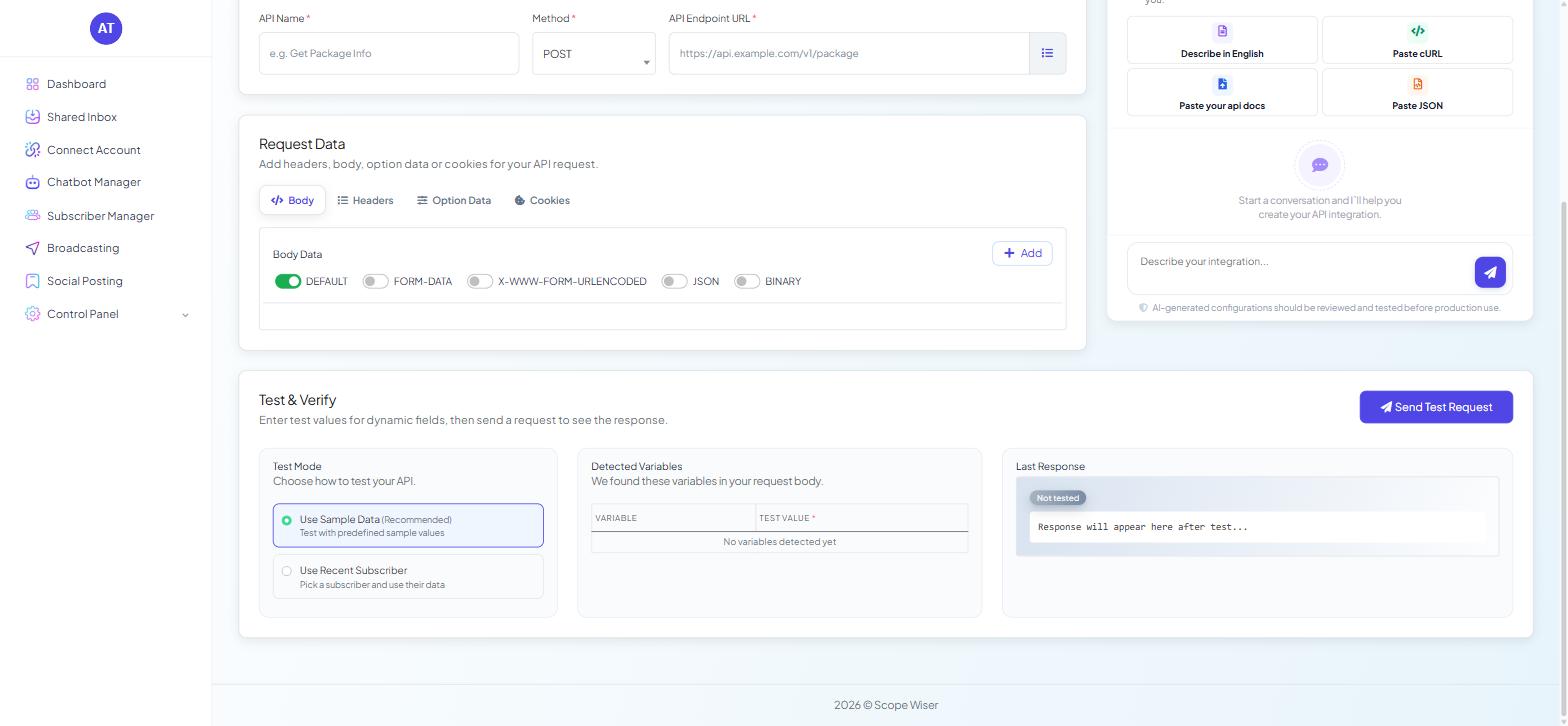
On the WhatsApp bot, go to Chatbot Manager → Integrations → HTTP API — "Connect and manage outbound HTTP APIs for flows and automations." — and click Create. That opens the Add HTTP API wizard, "Connect and manage your WhatsApp HTTP APIs", with four steps: API Details, Request Data, Test & Verify and Response Mapping.
API Details — "Enter the basic information about the API you want to connect."
API Name * — placeholder "e.g. Get Package Info". Name it after the category, not the store:
Products — furniture.Method * — set to GET.
API Endpoint URL * — placeholder "https://api.example.com/v1/package". Your products address, with any category filter on it.
Request Data — "Add headers, body, option data or cookies for your API request." — has four tabs: Body, Headers, Option Data and Cookies. WooCommerce authenticates with the consumer key and secret. Put them on the Headers tab rather than in the address.
Test & Verify — "Enter test values for dynamic fields, then send a request to see the response." Choose a Test Mode: Use Sample Data (Recommended) — "Test with predefined sample values" — or Use Recent Subscriber — "Pick a subscriber and use their data." Any placeholders in your request appear in the Detected Variables table (VARIABLE, TEST VALUE *).
Click Send Test Request and read what comes back in Last Response, which carries a Not tested badge until you do. This is the most important step on the page. Every mapping decision after it depends on the actual shape of the response.
Response Mapping — "Map response fields" — is where the list is written into a custom field. Map the whole list to one field, not one field per product.
Or paste a sample product response into AI API Builder and let it fill the form — check the result.
Step 3: show the list in a flow
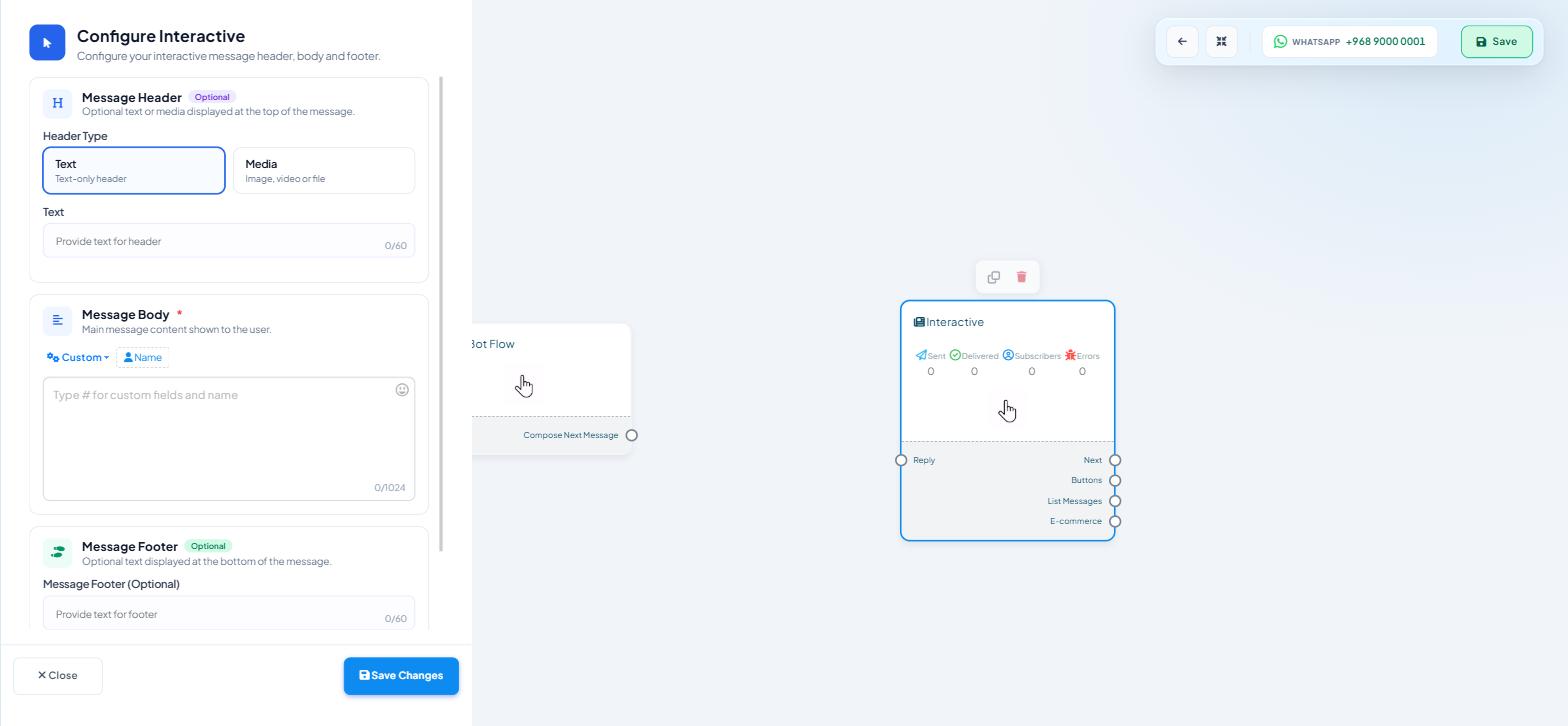
In the Flow Builder on the WhatsApp bot, drag an HTTP API block from the INTEGRATIONS group onto the canvas, ahead of the message that will display the list, and select the connection you just built. Then add an Interactive block for the list itself.
The Configure Interactive drawer — "Configure your interactive message header, body and footer." — covers the parts around the list: Message Header (Text or Media), Message Body with a 1,024-character limit, Message Footer, and a collapsible Delivery Options section for reply delay and typing indicator.
The body accepts custom fields. Its placeholder tells you how: "Type # for custom fields and name" — a single hash, not two.
The ten-row limit
WhatsApp allows a maximum of ten rows in one interactive list message. This is Meta's limit, not Scope Wiser's, and there is no setting that raises it.
Design around it with two levels: a first list of categories — six or eight of them — then a second list of the products in whichever category was tapped. Save what the customer tapped into a custom field, then reference that field in the next address's category filter, and the same flow serves every category without a branch per category.
Keeping it fast and honest
Add ?per_page=10 to the end of the address so only ten products come back.
Show stock status. A list that offers something out of stock produces a conversation you did not want. If the field is in the response, put it in the row description.
Handle the empty case. A category with nothing in it returns an empty list, and an interactive message with no rows will not send. Branch on it with a Condition block and say something sensible.
What to do next
Calling External APIs From a Flow covers the HTTP API block in more depth, including error handling and what happens to a flow when an endpoint is slow — which matters more here than anywhere else, because the customer is watching.