
Assigning Agents and Joining Conversations
How conversation ownership works in the Scope Wiser Shared Inbox: assigning an agent, taking over from the bot, restricting agents to their own chats, and handing a conversation on cleanly.
This guide covers how a conversation is given to one named agent, how that agent takes it off the bot, and what to do with it at the end of a shift.
Assigning a conversation
Open Shared Inbox and select the conversation.
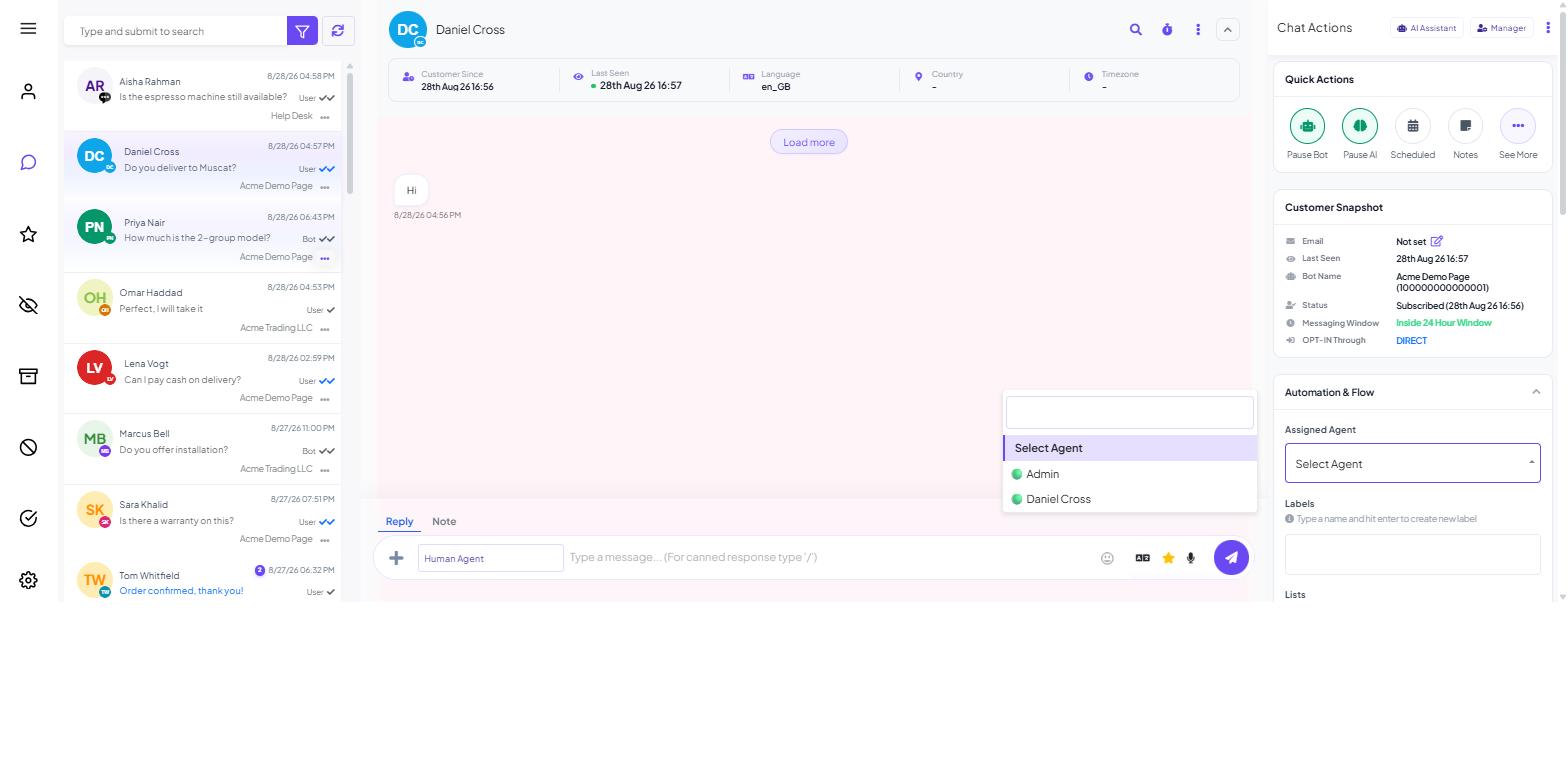
In the Chat Actions panel on the right, scroll to Assigned Agent.
Open the Select Agent dropdown and choose a person.
One agent holds a conversation at a time. Choosing a new agent replaces the previous one.
People only appear in that dropdown if they exist as a team member with inbox access. Adding Team Members & Access Control covers creating them: build a role under Control Panel → User Permission with the LIVE CHAT permission on it, then create the person under Control Panel → User Manager and give them that role.
Making assignment mean something
Two settings decide whether agents actually work from their own queue.
The Mine filter. The top icon on the inbox's left rail is Mine — the conversations assigned to you. Agents should start their shift on Mine rather than All.
Allow Only Assigned Chat in Livechat. This is a toggle on each person's record in Control Panel → User Manager, on by default. With it on, that agent sees the conversations assigned to them and nothing else. With it off, they see everything. Leave it on for agents; turn it off only for supervisors who need the whole board.
Taking over from the bot
Assignment says who owns a conversation. It does not stop the automation talking.
Before you start typing, use the Quick Actions buttons at the top of the Chat Actions panel:
Pause Bot stops the scripted automation — keyword replies and flows — for this contact.
Pause AI stops the AI agent replying.
Use both when you take over. Otherwise the bot may reply on top of your message.
Restarting automation afterwards is the mirror image of the same two buttons.
Routing conversations to a person automatically
Two mechanisms hand a conversation towards a human without an agent watching for it.
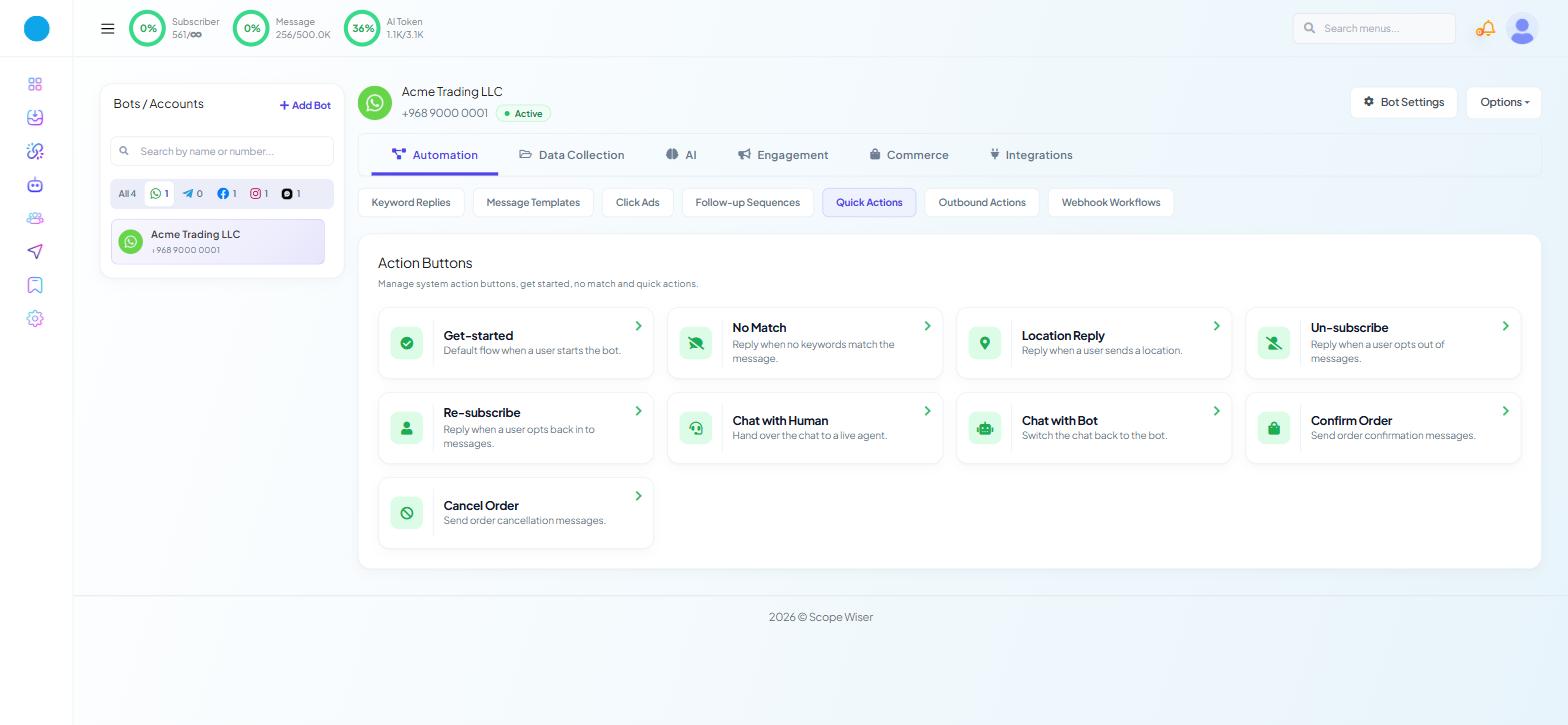
The Chat with Human quick action. Under Chatbot Manager → Automation → Quick Actions there is a card called Chat with Human — "Hand over the chat to a live agent." Its counterpart, Chat with Bot, switches the conversation back. Wire a button or keyword to Chat with Human so that a customer can ask for a person.
The Chat with Human email address. Bot Settings → General → CHAT WITH HUMAN EMAIL: enter the address to be emailed when a customer asks for a human. Fill it in on any bot that runs outside your working hours.
Bot Settings is the eight-tab panel opened by the Bot Settings button in Chatbot Manager, and changes there need Publish Changes before they take effect.
Handing a conversation on
Three habits stop context being lost at a shift change.
Write a note before you hand over. The composer has two tabs: Reply and Note. Anything typed on the Note tab stays internal. One line — what the customer wants, what you have promised, what you are waiting for — saves the next agent reading forty messages.
Reassign rather than abandon. Change Assigned Agent to the person taking over. A conversation still assigned to somebody who logged off two hours ago is invisible to everybody working from Mine.
Set a follow-up if the answer is not ready. The timer icon in the conversation header opens Set Follow-up, which schedules a reminder with a reason attached. See Follow-Up Notifications: Reminders That Survive a Busy Inbox.
Where a signature message is configured, the customer is also told that a different person has picked up their conversation. See Signature Messages, Automatic Labels and Chat Handover.
Closing a conversation
When the question is answered, mark the conversation Resolved so it leaves the working list. Archived is for conversations you want out of the way without claiming they were solved, and Blocked is for people you do not want to hear from again.
Resolving is not deleting. The thread stays available under the Resolved filter, along with its notes, labels and follow-up history.
A workable pattern for a small team
Every agent has Allow Only Assigned Chat in Livechat on, and one supervisor has it off.
The supervisor works from All and assigns anything unassigned as it arrives.
Agents work from Mine, pause the bot and the AI when they reply, and resolve when finished.
Anything that cannot be answered today gets a follow-up and a note.
What to do next
Set up signature messages next, so customers know when a person has joined — Signature Messages, Automatic Labels and Chat Handover. If you have not yet created your agents, start instead with Adding Team Members & Access Control.