
Follow-Up Notifications: Reminders That Survive a Busy Inbox
Schedule a reminder on any Scope Wiser conversation from the Set Follow-up drawer — quick duration chips, a required reason, an optional note — and find it again in Follow-up History.
A follow-up is a reminder attached to the conversation itself rather than to your memory. It survives the end of your shift and it is visible to whoever picks the conversation up next.
Setting one
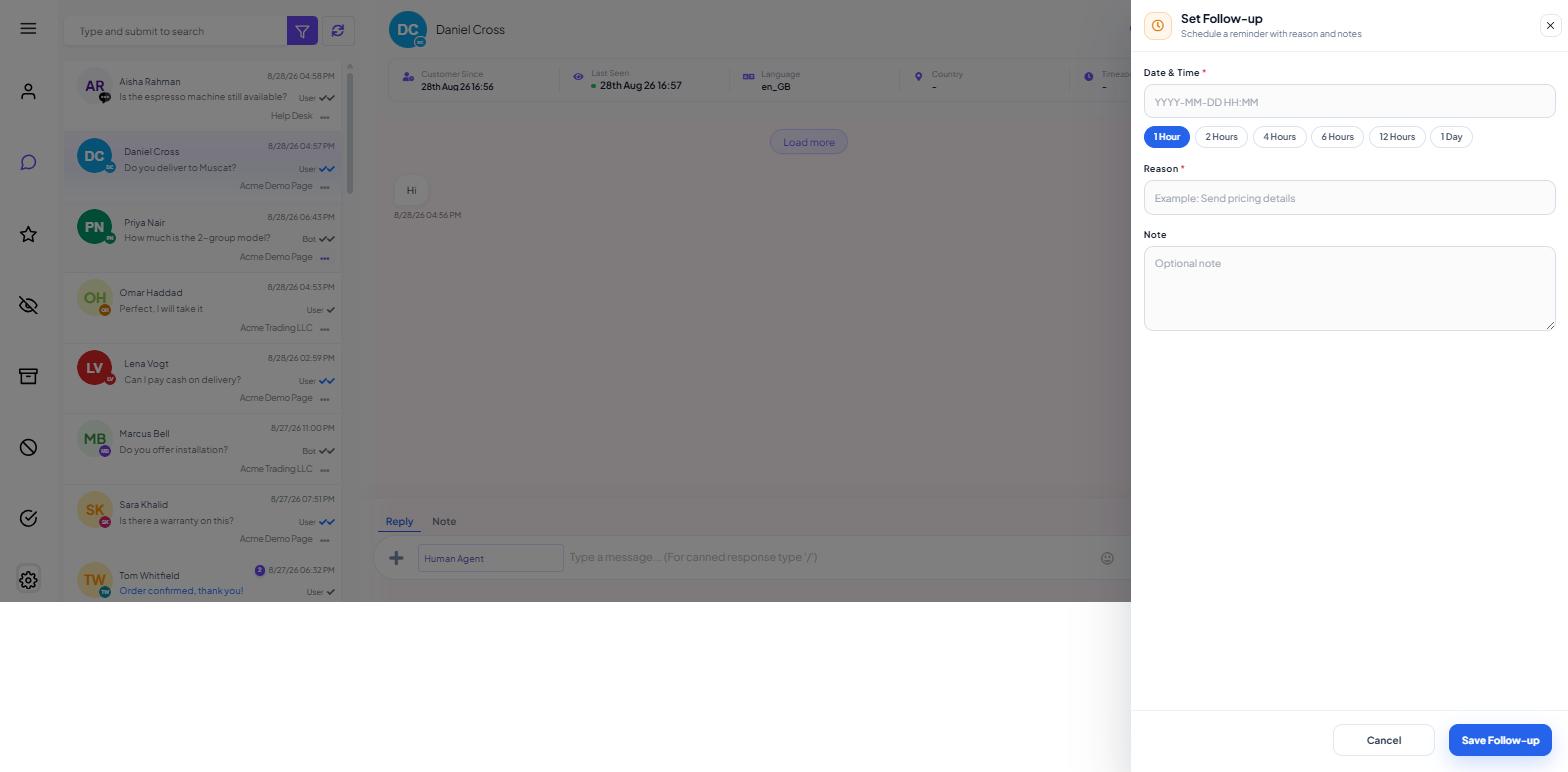
Open the conversation in Shared Inbox and click the timer icon in the conversation header, alongside the search and kebab icons. A panel headed Set Follow-up — "Schedule a reminder with reason and notes" — slides in from the right.
Choose when. Six quick chips cover most cases: 1 Hour, 2 Hours, 4 Hours, 6 Hours, 12 Hours and 1 Day. 1 Hour is selected by default. Clicking a chip fills in the field below it.
Date & Time * takes an exact moment in
YYYY-MM-DD HH:MMform if none of the chips fit — for instance when you need Monday morning rather than eighteen hours from now.Reason * is required, with the placeholder "Example: Send pricing details". Write the action, for example Send pricing once warehouse confirms stock.
Note is an optional free-text box — "Optional note" — for anything longer.
Click Save Follow-up. Cancel and the close (×) discard it.
Finding follow-ups again
Two places in the conversation show them.
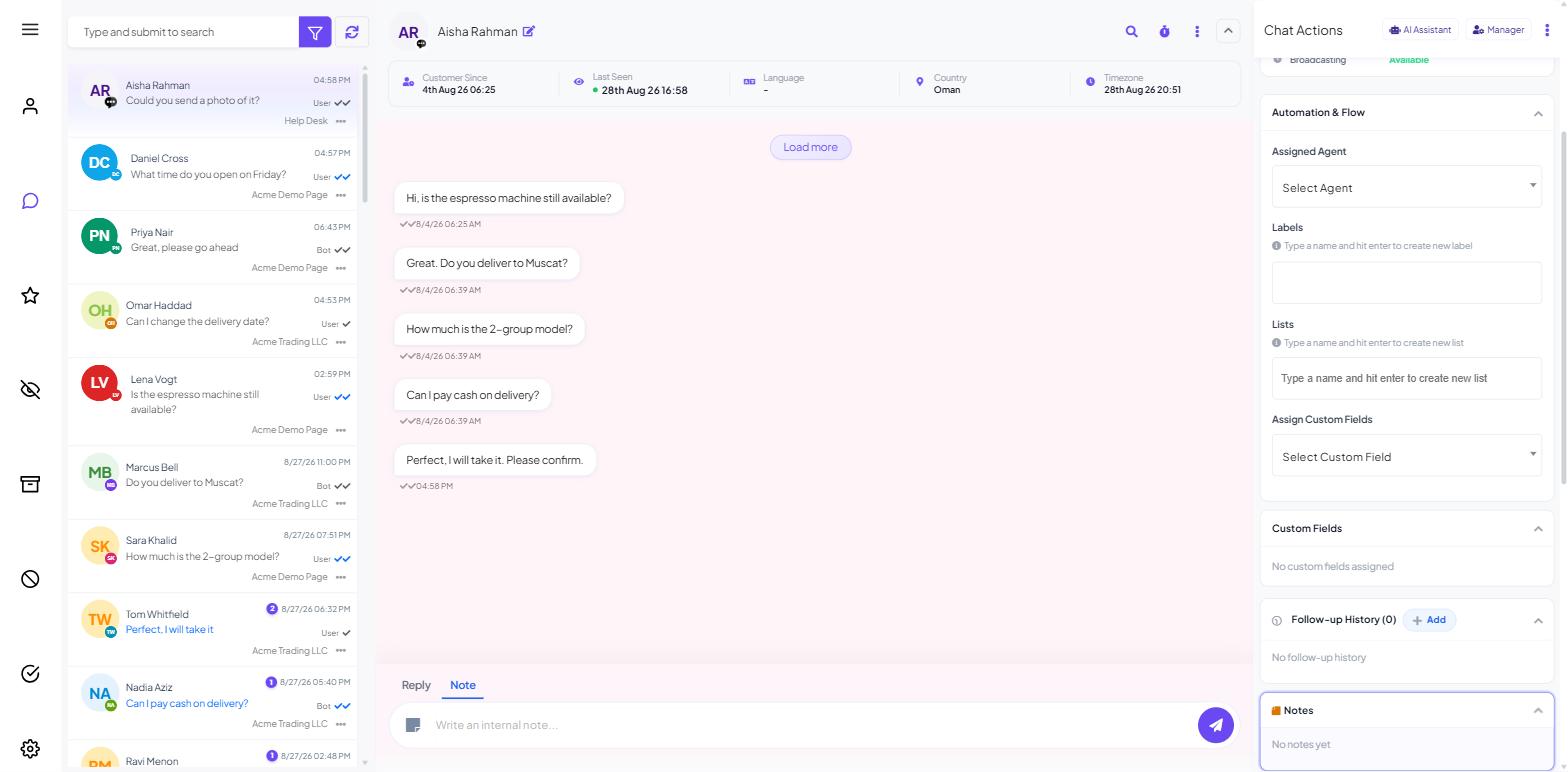
Follow-up History in the Chat Actions panel carries a count in its heading — Follow-up History (0) when there are none — and a + Add button that opens the same drawer as the timer icon. An empty section reads "No follow-up history". Past follow-ups stay listed, so the section also shows how many times a customer has already been put off.
Scheduled is one of the five Quick Actions buttons at the top of the same panel, next to Pause Bot, Pause AI, Notes and See More.
The 24-hour trap
On WhatsApp you can only send a free-form message while the conversation is inside its 24-hour window. The Customer Snapshot section of the Chat Actions panel shows this as Messaging Window — either Inside 24H with a live countdown, or a red Outside 24H Window.
Set a follow-up for tomorrow on a conversation whose window closes tonight, and the reminder will arrive on time to tell you that you cannot reply. Check the Messaging Window countdown before choosing a time:
Comfortably inside the window — any chip works.
Close to the edge — send a short holding message before the window closes so you can still reply later.
Already outside, or the answer genuinely cannot come today — set the follow-up anyway, and plan to reopen with an approved message template. WhatsApp Rules You Must Know: 24-Hour Window & Template Messaging explains which templates are usable for this.
Facebook, Instagram and Webchat have their own messaging rules, so check the same row before assuming a delayed reply will land.
Follow-ups, notes and sequences
Three features in this product schedule something for later, and they are not interchangeable.
A follow-up reminds you. Nothing is sent to the customer.
A conversation note records context. No time, no alert — it sits in the thread for whoever reads it next. Use it alongside a follow-up, not instead of one.
A follow-up sequence messages the customer automatically. That is a different tool, set up per bot and triggered by labels or events rather than by an agent. See What Follow-up Sequences Are.
One habit worth keeping
Reassign at the same time if you are going off shift. A reminder on a conversation assigned to someone who has gone home is a reminder nobody is looking at. See Assigning Agents and Joining Conversations.
What to do next
Live Chat and the Shared Inbox: Complete Overview covers the rest of the Chat Actions panel, and WhatsApp Rules You Must Know: 24-Hour Window & Template Messaging is the one to read if your follow-ups keep landing outside the window.