
Signature Messages, Automatic Labels and Chat Handover
Switch signature messages on at Bot Settings › Shared Inbox, write your own on your account page, and use session expiry and delivery-failure labels to keep handovers clean.
A signature message tells the customer that a person has joined the conversation. Setup happens in two places, and both are needed: the switch lives on the bot; the words live on the agent's own account.
Step 1 — Switch it on for the bot
Open Chatbot Manager and select the bot.
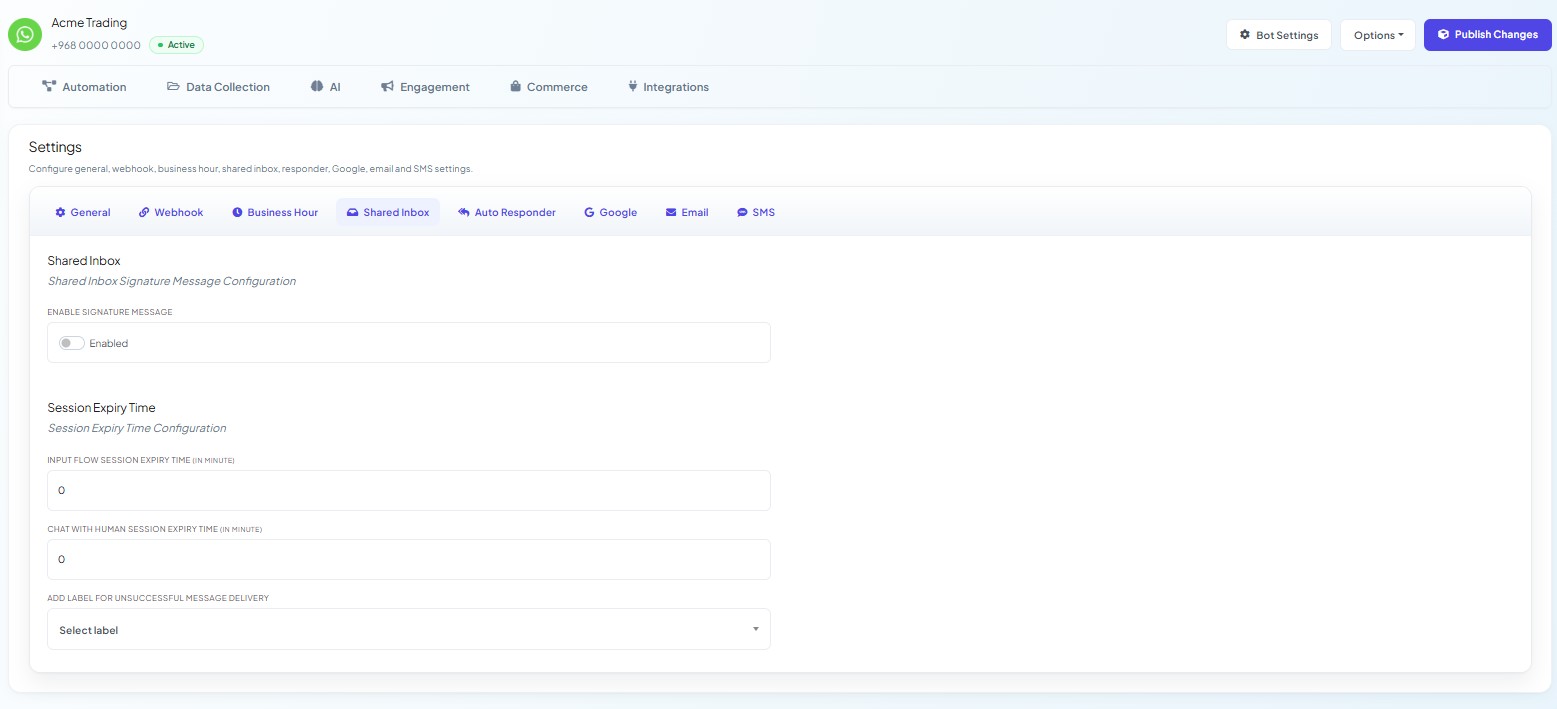
Click Bot Settings and choose the Shared Inbox tab. It holds two sections, Shared Inbox and Session Expiry Time.
Turn on ENABLE SIGNATURE MESSAGE. The toggle is labelled Enabled.
Click Publish Changes. Nothing on any Bot Settings tab takes effect until you do.
This is a per-bot setting. If you run a WhatsApp bot and a Facebook bot, switch it on for each one you want it on for.
Step 2 — Write your own signature
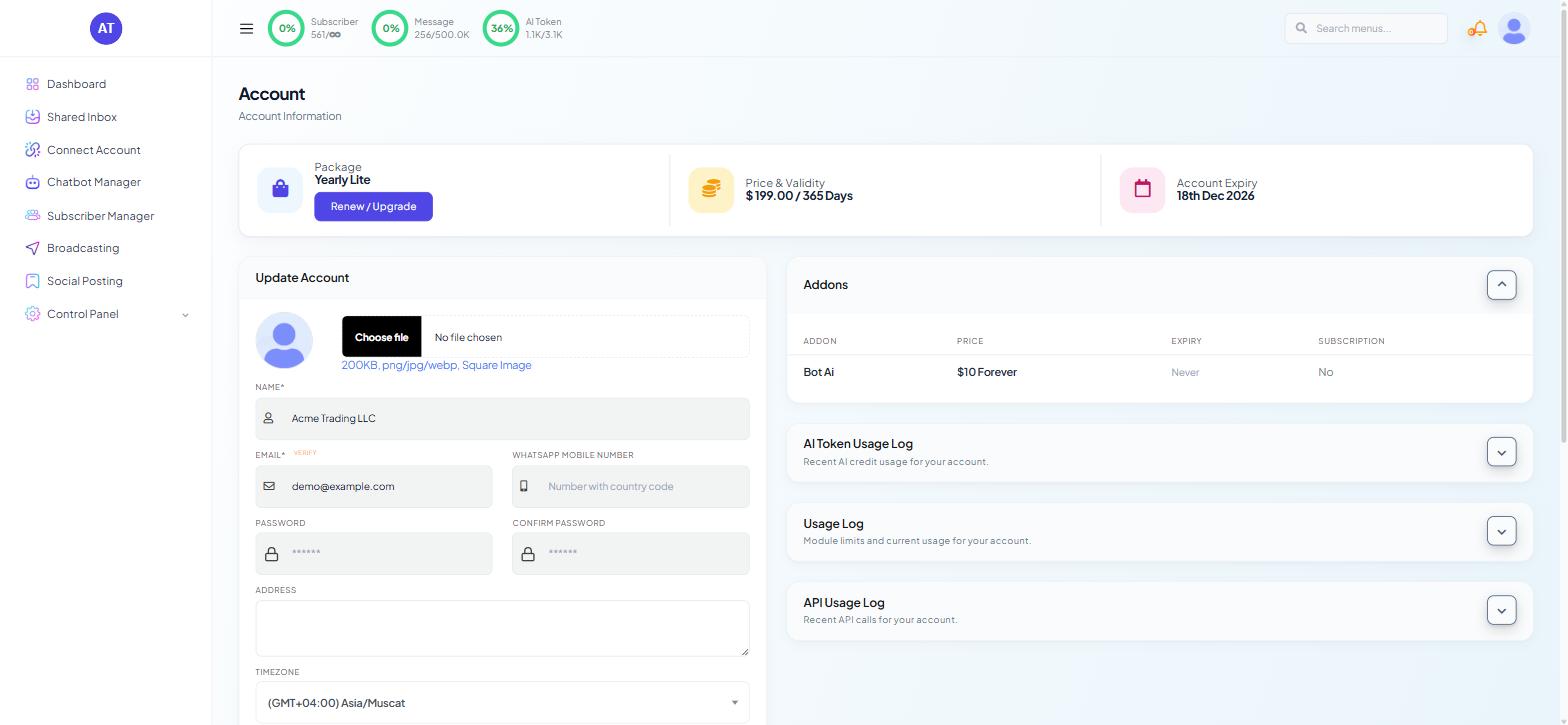
Each agent writes their own text on their own account, so a signature reads as a person rather than as a department.
Open the profile menu at the top right and choose Account.
Scroll the Update Account form to SIGNATURE MESSAGE.
Type your line and click Update.
Keep it short and factual. Something like:
Hi, this is Sam from Acme Trading. I'll take it from here.
Two things to avoid:
Do not restate the customer's question back at them.
Do not promise a response time. The signature is sent the moment you join, before you have read the thread.
What the customer sees
The signature arrives in the conversation as a message from your business, so it counts as a message like any other. On WhatsApp that means it can only be sent while the messaging window is open.
Check the Messaging Window row in the Customer Snapshot section of the Chat Actions panel before you rely on it. Inside 24H with a running countdown means an ordinary message will be delivered. A red Outside 24H Window means it will not, and your signature will fail alongside everything else you try to send freely.
Session expiry — the setting next to it
The same Shared Inbox tab carries two fields under Session Expiry Time:
INPUT FLOW SESSION EXPIRY TIME (IN MINUTE)
CHAT WITH HUMAN SESSION EXPIRY TIME (IN MINUTE)
Both ship at 0. Set CHAT WITH HUMAN SESSION EXPIRY TIME to 30–60 minutes: how long the bot stays quiet after a human takes over. Too short and the automation interrupts a live conversation; too long and a customer who comes back hours later gets no automated reply.
Automatic labels on failed delivery
Also on the Shared Inbox tab is ADD LABEL FOR UNSUCCESSFUL MESSAGE DELIVERY, a dropdown that starts at Select label.
Create the label first if it does not exist — something plain such as
delivery-failed.Choose it in the dropdown.
Click Publish Changes.
Any message that fails to reach a contact now tags them with that label, so failed deliveries become one filterable list instead of disappearing.
Handing a conversation between people
Note first, label if needed, reassign last. See Assigning Agents and Joining Conversations.
What to do next
Assigning Agents and Joining Conversations covers ownership and the permissions behind it. If you are still finding your way around the eight Bot Settings tabs, Bot Settings Explained: All Eight Tabs runs through all of them.