
Using the Shared Inbox on Android, iOS and Desktop
Install the Scope Wiser Shared Inbox as an app on a phone, tablet or desktop, and set BOT REPLIES WHILE AGENT ON MOBILE APP so automation and mobile agents do not talk over each other.
The Shared Inbox can be installed as an app on a phone, tablet or desktop. It is the same inbox, the same login and the same conversations — what changes is that it lives behind an icon with its own window, instead of a browser tab that gets closed with everything else.
Installing it
The inbox installs the way any installable web application does, using the browser's own controls.
Desktop. Sign in, open Shared Inbox, and use your browser's install control — in Chromium-based browsers this appears in the address bar. The inbox then opens in its own window with its own icon.
Android. Sign in through Chrome and open Shared Inbox. Use the browser menu's Add to Home screen or Install option. The result behaves like any other app on the device.
iPhone and iPad. You must use Safari. Open Shared Inbox, tap the Share icon, scroll to Add to Home Screen and tap Add. Other browsers on iOS cannot install web applications, so an agent who uses Chrome on their iPhone will need Safari for this one step.
The setting that actually matters
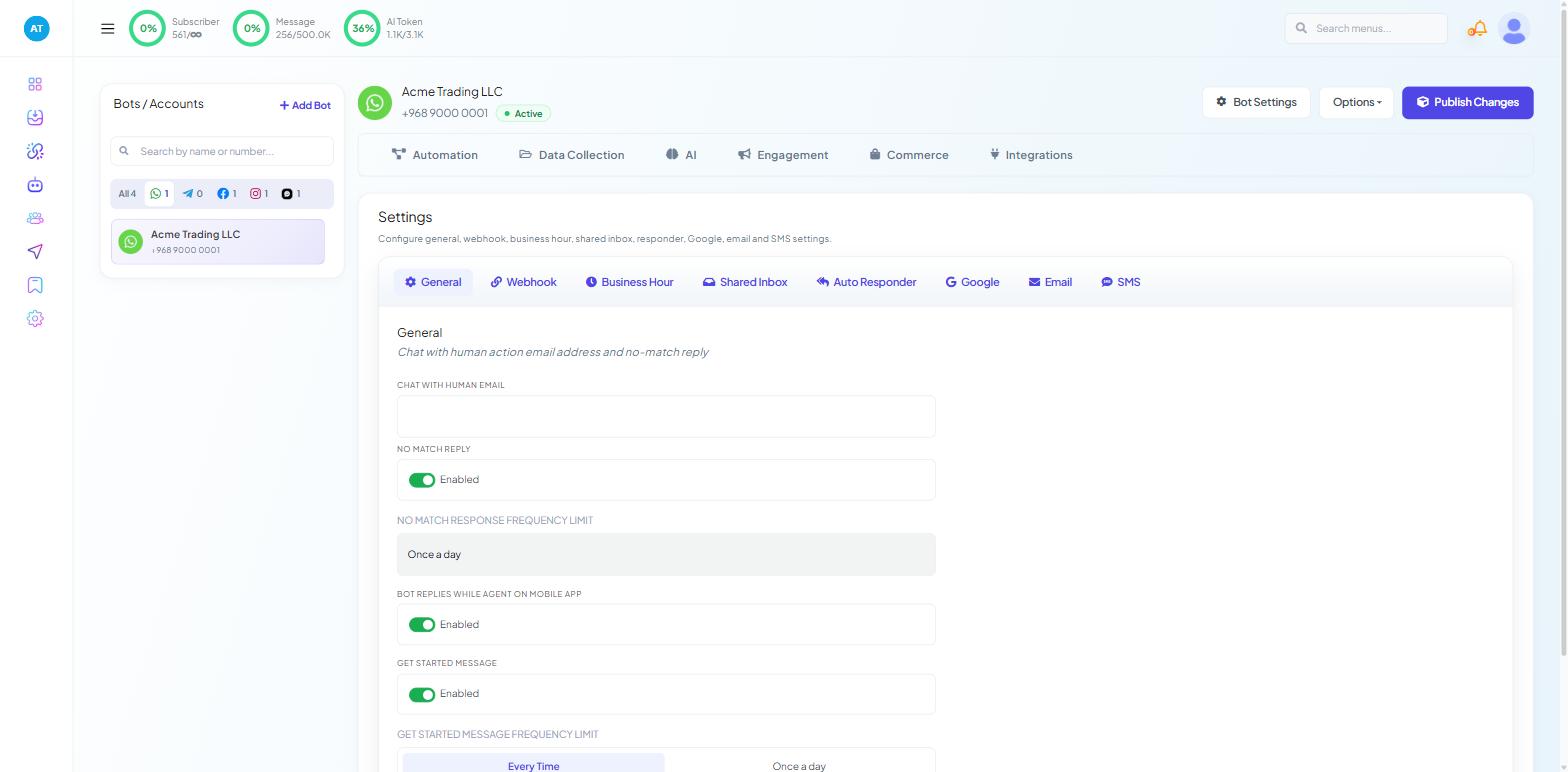
Installing is the easy part. The decision that affects customers is on Bot Settings → General, on the bot itself.
The toggle reads BOT REPLIES WHILE AGENT ON MOBILE APP, and it ships Enabled.
With it on, automation keeps answering even while an agent has the conversation open on a phone. Switch it off and the bot stays quiet.
Leave it on when the phone is a safety net — nobody is watching continuously, and an automated reply is better than silence. This is the right setting for most small teams.
Turn it off if agents answer from phones during a shift, so the bot does not reply on top of them.
Bot Settings is the eight-tab panel behind the Bot Settings button in Chatbot Manager, and changes there need Publish Changes before they take effect. The setting is per bot, so apply it to each bot your mobile agents cover.
See Bot Settings Explained: All Eight Tabs for the rest of that panel.
Working from a phone
What works well. Reading a thread, answering a short question, checking the Messaging Window countdown before you reply, and setting a follow-up so a proper answer happens tomorrow at a desk.
What is awkward. The Chat Actions rail is long — Quick Actions, Customer Snapshot, Automation & Flow, Assigned Agent, Labels, Lists, Message Sequence, Assign Custom Fields, Custom Fields, Follow-up History, Notes, and the AI Assistant panel below all of that. Reaching the bottom of it on a phone takes a lot of scrolling.
What to avoid. Long replies, anything requiring a document or a screenshot, and anything you would want to reread before sending.
For out-of-hours cover: read everything, answer what is genuinely quick, and for the rest send a short holding reply and set a follow-up. That keeps the WhatsApp messaging window open — it is the countdown in Customer Snapshot — and buys you until morning.
Signing in on a personal device
An installed inbox on a personal phone is a logged-in session on a device you do not control.
Enable two-factor authentication on the account — Account Security: 2FA, Passwords & Email Verification covers it. And where agents handle numbers you would rather not have copied, switch on LIVE CHAT - NUMBER MASK in their role under Control Panel → User Permission, which hides customer phone numbers from the agent entirely.
When somebody leaves, disabling their login in Control Panel → User Manager ends the session wherever it is installed. Removing the icon from their phone does not.
What to do next
Live Chat and the Shared Inbox: Complete Overview is the tour of everything the inbox holds. If mobile cover is new for your team, read Assigning Agents and Joining Conversations first.