
Typing Indicators and Read Receipts
Show a typing indicator before a bot replies using Delivery Options in the Flow Builder, and read the delivery ticks in the Shared Inbox to see whether your last message arrived.
A typing indicator shows "…" before the bot's reply so it feels less robotic.
Turning it on for a bot message
Typing indicators are set per message block, in the Flow Builder, not in a global switch.
Open the flow that contains the message — from Chatbot Manager → Automation → Keyword Replies, or wherever the flow lives.
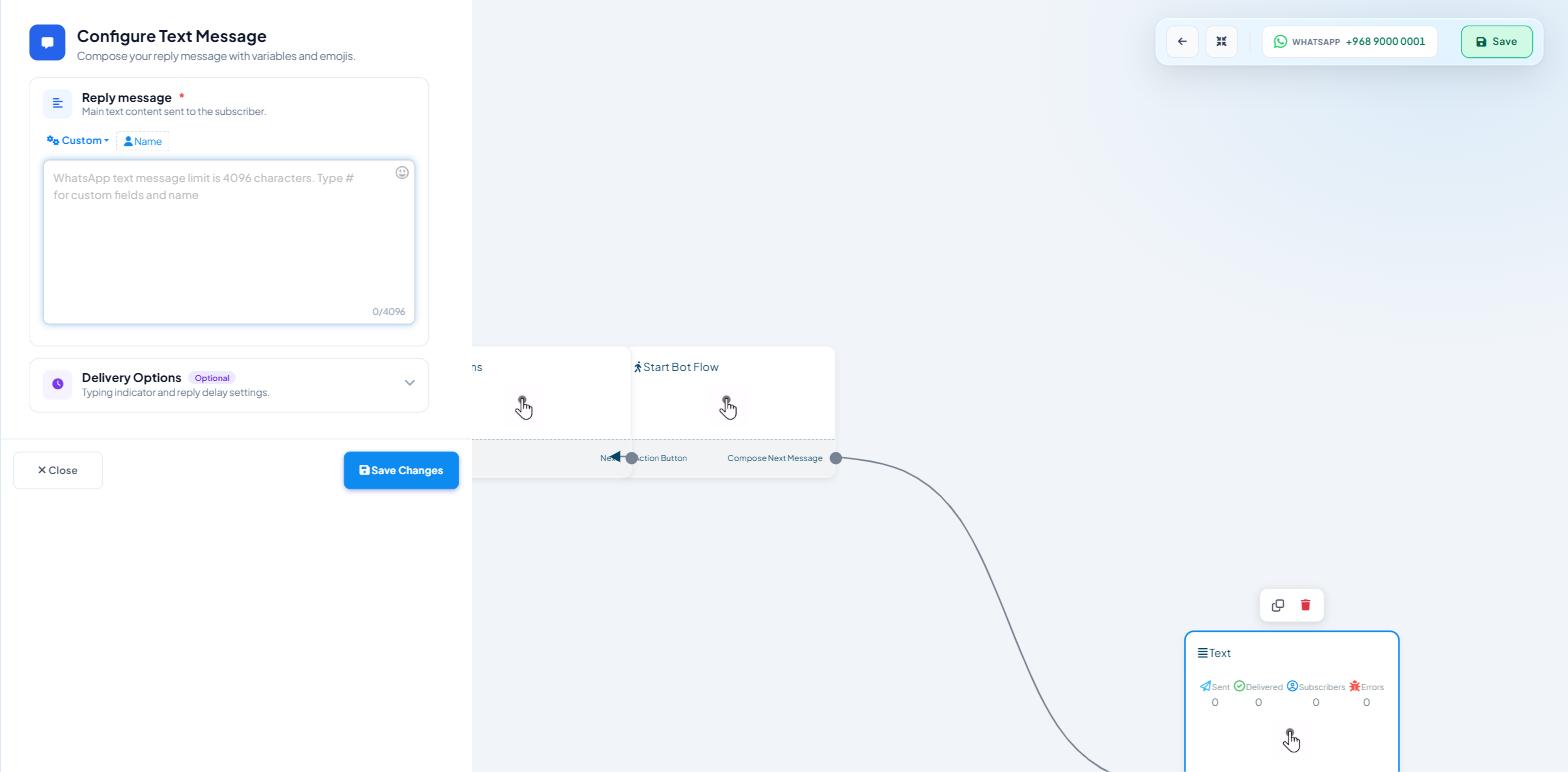
Click the message block on the canvas to open its configuration drawer.
Expand Delivery Options, marked Optional and described as "Typing indicator and reply delay settings." It is collapsed by default.
Turn on Typing on display — "Show typing indicator before the bot replies."
Set Delay in reply — "Wait before sending the next message" — using the Hours, Minutes and Sec sliders.
Save the flow.
Delivery Options appears on message blocks generally, so the same two settings are available on a text block, an image block or an interactive block. The delay sliders top out at 23 hours, 59 minutes and 59 seconds.
Only enable it on blocks that actually send a message.
Choosing a delay
The delay and the indicator work together: the indicator shows while the delay runs, then the message sends.
One to three seconds suits a short answer.
Three to six seconds suits a longer message, or one that would plausibly take a person a moment to look up.
Anything above about ten seconds is a wait, not a typing indicator. WhatsApp removes the indicator after roughly 25 seconds if no message has been sent, so a longer delay leaves the customer looking at nothing.
To space a sequence of messages out rather than signal typing, see Delaying Bot Replies with Delivery Options.
Reading delivery status in the inbox
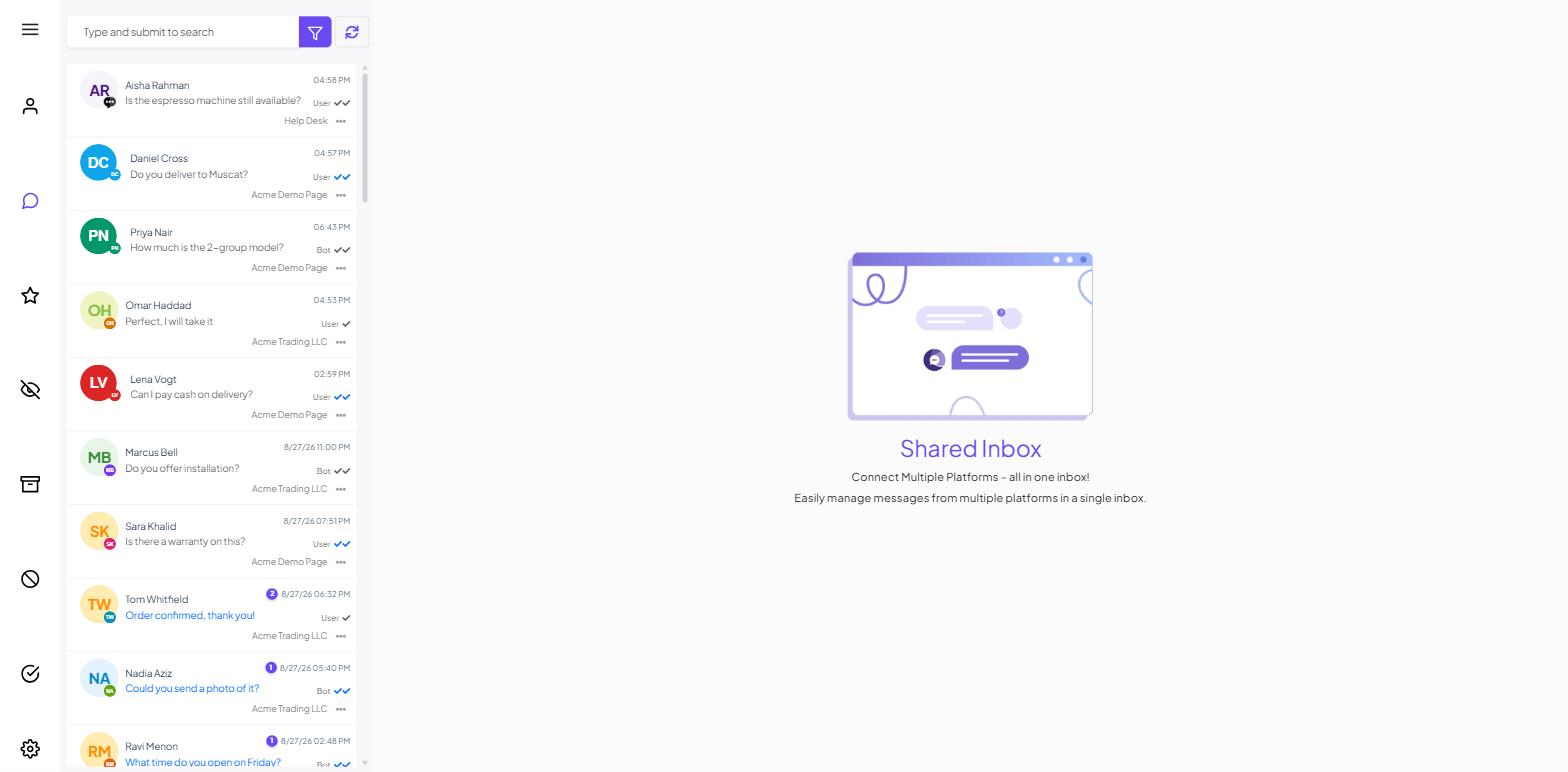
Each row in the conversation list carries a sender tag — Bot, User or Admin — with delivery ticks beside it. That tag is the fastest thing to scan: User means the customer spoke last and nobody has answered.
The ticks are the status of your last outgoing message: sent, delivered, and read. They are the first place to look when someone reports that a reply "did not arrive".
Stopped at sent — the message left Scope Wiser but the platform has not confirmed delivery. On WhatsApp this is usually a phone that is off or offline, and it often resolves on its own.
Delivered but never read — it reached the device. Nothing is wrong at your end.
Failed — worth acting on. Set ADD LABEL FOR UNSUCCESSFUL MESSAGE DELIVERY on the Bot Settings → Shared Inbox tab and failures tag themselves automatically, which turns a scattered problem into one filterable list.
A repeated pattern of messages that never leave sent on one channel is a connection problem rather than a customer problem. See Why Your WhatsApp Bot Isn't Responding.
Honest use
Show a typing indicator only where a reply is genuinely coming. Do not show one on a flow that ends without a message, or on a branch that hands to a human who may not be there for an hour. If nobody is available, send a short automated message giving your hours instead.
There is also a BOT REPLIES WHILE AGENT ON MOBILE APP toggle that decides whether the bot keeps answering while an agent works from a phone. See Using the Shared Inbox on Android, iOS and Desktop.
What to do next
Delaying Bot Replies with Delivery Options covers the timing side of Delivery Options in depth. If messages are not arriving at all rather than arriving slowly, go to Why Your WhatsApp Bot Isn't Responding.