
Connecting Your WhatsApp Catalog
Link a Meta product catalogue to your WhatsApp bot in Scope Wiser: what a catalogue can and cannot do, where it actually lives, connecting it during signup or afterwards from Commerce, and what to check when nothing appears.
The single thing that trips people up here: the catalogue is not a Scope Wiser object. It is a Meta object. Your products live in Meta's Commerce Manager, the catalogue is attached to your WhatsApp Business Account inside Meta's WhatsApp Manager, and Scope Wiser holds a reference to it so your flows and order tables can use it.
If products don't show in chat, the problem is usually on Meta's side — use the table below to see which part to check.
Layer | What it holds | Where you change it |
|---|---|---|
Meta Commerce Manager | The products themselves — images, titles, descriptions, prices, availability | Meta's business tools |
Meta WhatsApp Manager | The link between that catalogue and your WhatsApp Business Account | Meta's business tools |
Scope Wiser | The catalogue reference, order records, and the flows that send products | Chatbot Manager → Commerce |
Before you start
WhatsApp connected to Scope Wiser. If you have not done that yet, start with How to Connect WhatsApp to Scope Wiser: Complete Setup Guide — nothing on this page works without it.
A catalogue created in Meta Commerce Manager, with at least one product in it. You can build it by hand, upload a data feed, or connect a store platform; that choice is Meta's, not Scope Wiser's, and it does not change anything on this side.
The catalogue connected to your WhatsApp Business Account in Meta's WhatsApp Manager. A catalogue that exists but has never been attached to the WABA cannot be sent in a chat.
The Catalog ID. Meta shows it against the catalogue; it is a long numeric string.
Whether the catalogue icon appears in the chat header, and whether customers get a basket in the product view, are controlled by Meta on the WhatsApp Business Account — not by any setting in Scope Wiser. If products send correctly from a flow but the header icon is missing, look there.
What a catalogue does not do
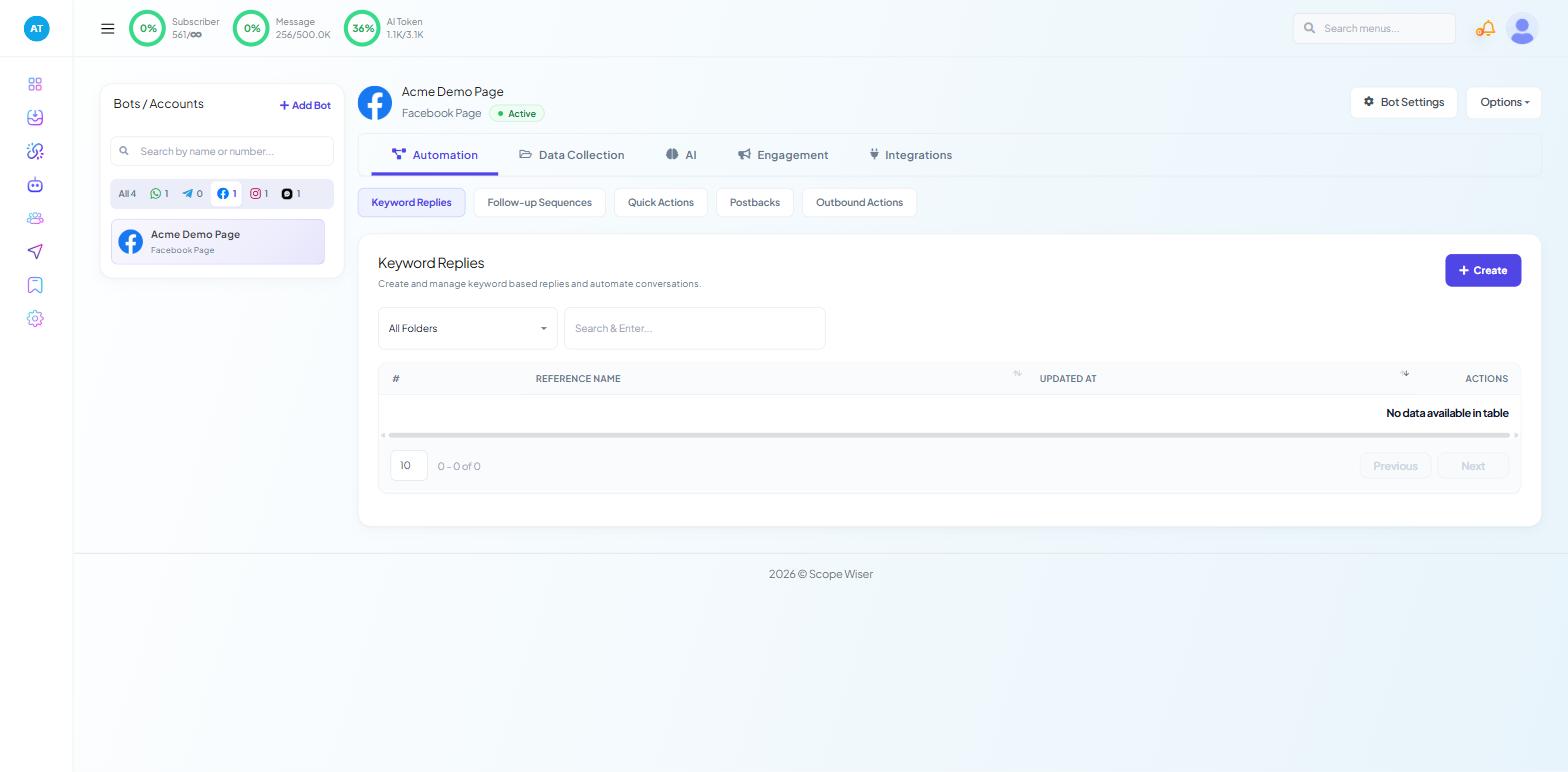
It is WhatsApp only. The Commerce tab in Chatbot Manager exists on WhatsApp bots and nowhere else. Facebook, Instagram and Webchat bots have no Commerce tab, and there is no catalogue equivalent there.
The products are Meta's, not Scope Wiser's. You maintain them in Meta's Commerce Manager. Scope Wiser sends them, records the orders and automates around them.
It is not inventory management. There is no stock system here. If you oversell, the catalogue will not stop you.
It is not a shop that finds customers. A catalogue reaches people who already message you. Getting them to message you in the first place is a separate job — click-to-WhatsApp ads, a chat widget on your site, your number in your bio.
Payment options are not universal. What a customer can pay with depends on your market, your payment provider and what Meta has enabled for WhatsApp there. In-chat payment is not available in every country.
How the pieces fit together
Piece | Where it lives | What it does |
|---|---|---|
The catalogue | Meta Commerce Manager, referenced under Commerce → Product Catalog | Holds products, images and prices |
The message that sends products | Flow Builder, Interactive block | Shows products inside a conversation |
The trigger | Automation → Keyword Replies, a template button, or a broadcast | Decides when products get sent |
The order record | Commerce → Product Catalog → Catalog Orders | Buyer, amount, status, shipping address |
The follow-up | Automation → Quick Actions → Confirm Order / Cancel Order | What the buyer hears after ordering |
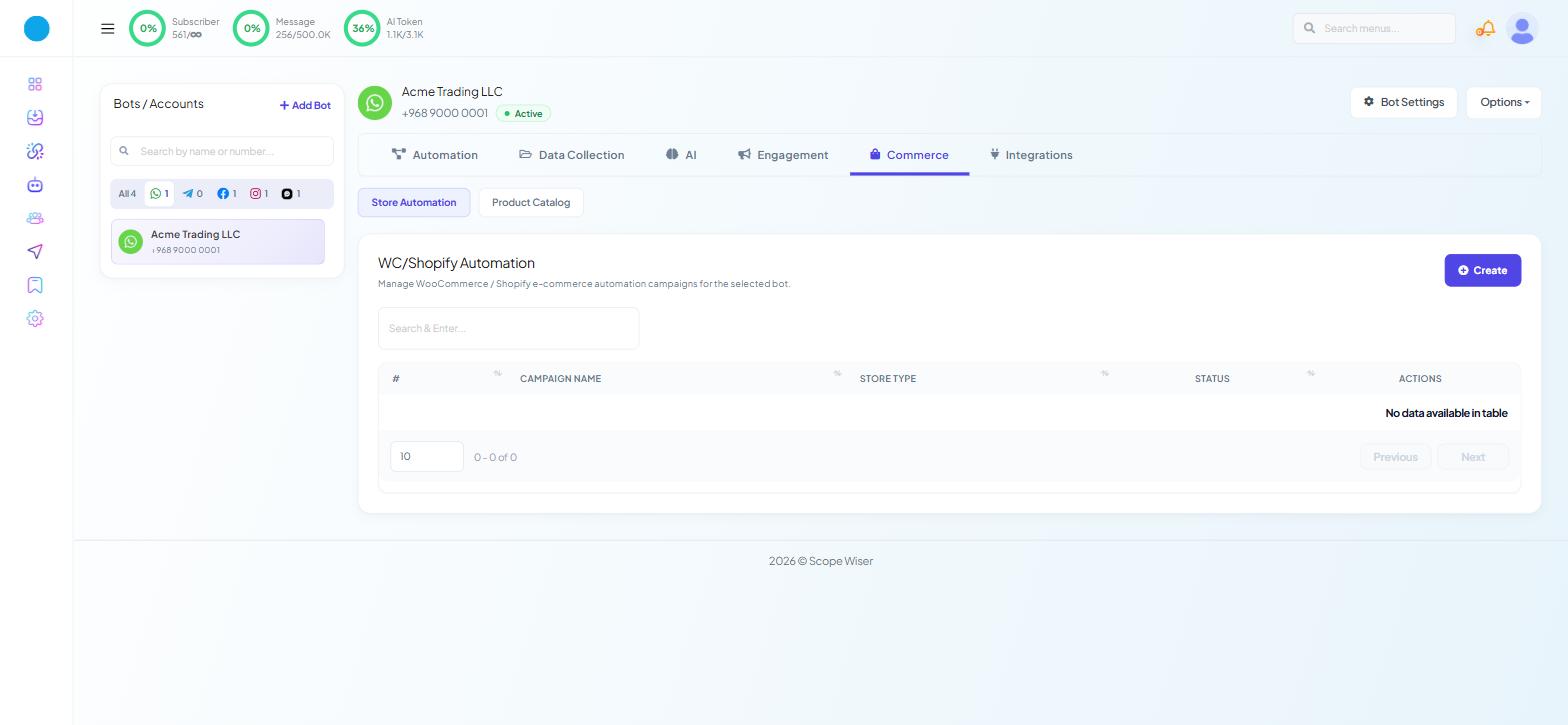
Store sync | Commerce → Store Automation | Drives WhatsApp messages off events in a Shopify or WooCommerce store already connected from Connect Account |
Store Automation — headed "WC/Shopify Automation" — is a different feature from the catalogue. It drives WhatsApp messages off events in your store, with actions including Order Notification, Order Update Notification, COD Verification and, for Shopify, Abandoned Cart Recovery. If you already run a shop, that is often a faster win than rebuilding the storefront inside WhatsApp.
Option 1: connect the catalogue while you connect WhatsApp
If you are setting up the channel now, do it in one pass.
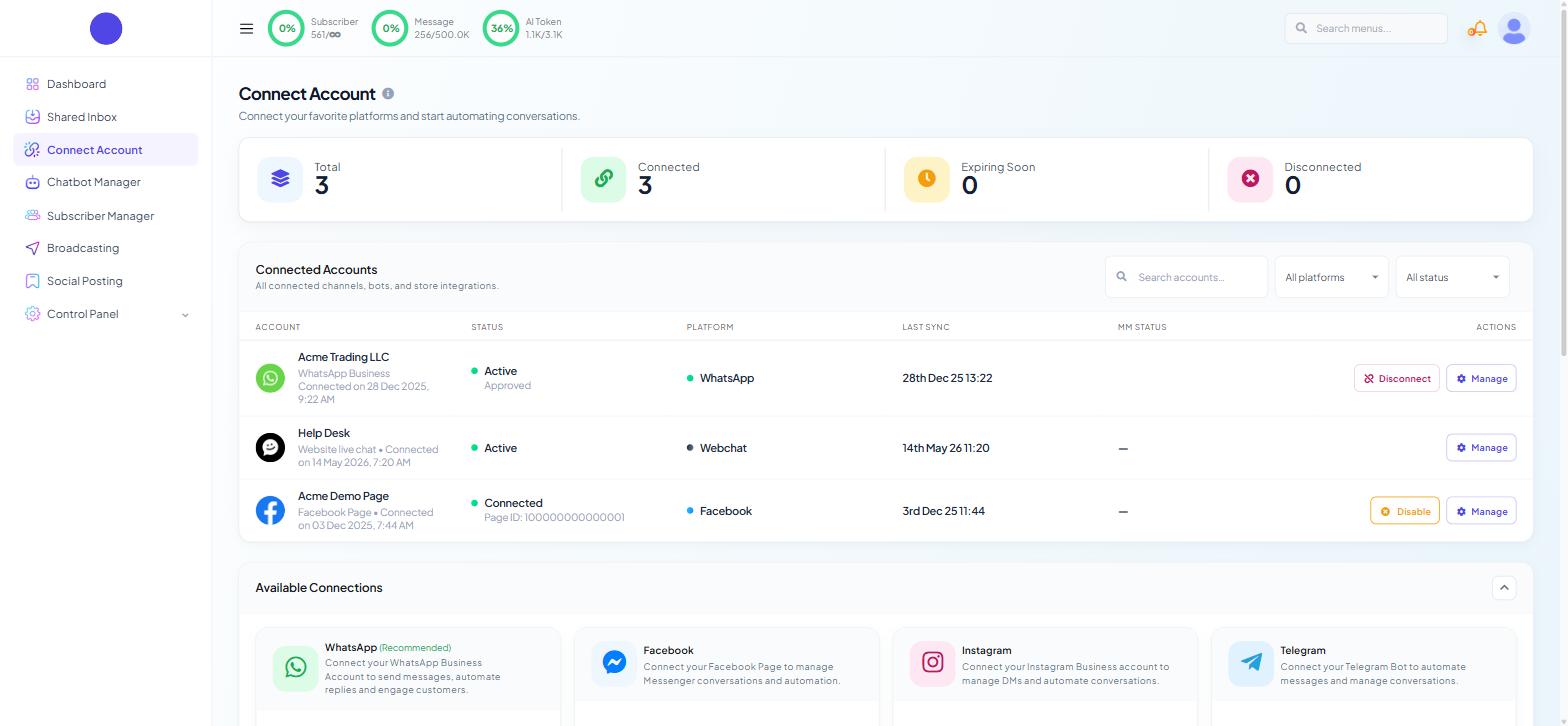
Go to Connect Account → Connect WhatsApp.
On the Embedded Onboarding (One Click) card, click Connect with Embed Onboarding →. The button splits into two choices: Connect With Catalog and Connect Without Catalog.
Choose Connect With Catalog.
In Meta's dialog, the "Select the business assets to share with Scope Wiser" step has four dropdowns — Business portfolio, WhatsApp Business account, Catalog and Instagram Account. Pick your catalogue in the Catalog dropdown and carry on.
Even if you are not ready to sell, choose this option. An empty catalogue costs nothing, and choosing it now saves you a second pass through Meta's consent flow later.
Option 2: integrate a catalogue into a bot you already have
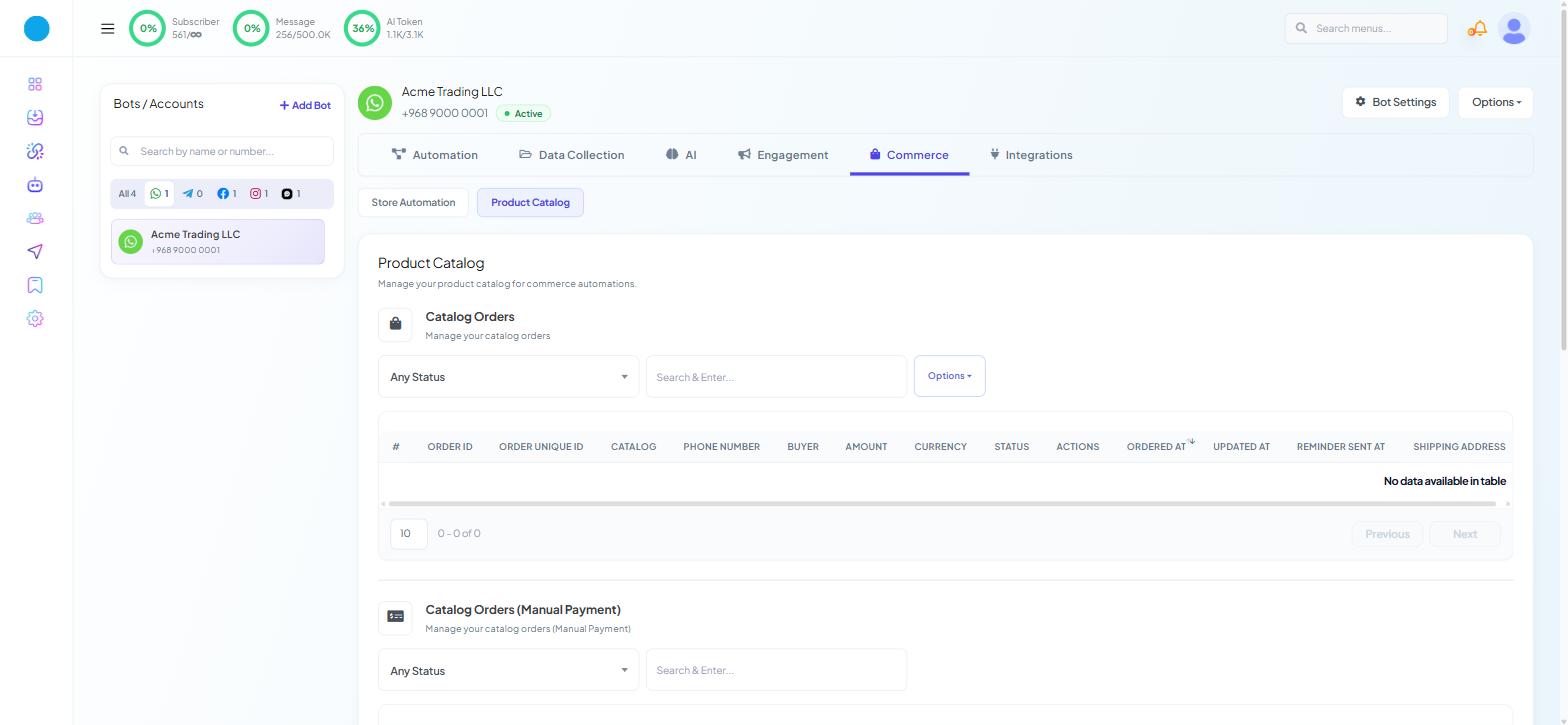
1. Open the Commerce tab. Go to Chatbot Manager, select your WhatsApp bot in the Bots / Accounts panel, then open the Commerce tab and the Product Catalog sub-tab.
Commerce is a WhatsApp-only tab. If you have a Facebook, Instagram or Webchat bot selected you will not see it at all. On a WhatsApp bot it can still be missing for a permission reason: WHATSAPP - CATALOG is its own toggle under Control Panel → User Permission, and a team member whose role lacks it sees no Commerce tab and no error.
2. Scroll to Integrate New Catalog. Product Catalog is one long page with several stacked sections. The last of them is Integrate New Catalog, headed "Integrate your catalog to Scope Wiser", and it names the account you are attaching to on a banner line — "WhatsApp Account: Acme Trading". Check that line.
3. Fill in the two fields.
Catalog ID * — placeholder "Example : 76256114220XXXX". Paste the ID from Meta exactly; it is not the catalogue name and it is not the Business Account ID.
Catalog Name * — placeholder "Give it a name to track it later". This one is yours. It is a label for your own listing, so name it for how you will search for it later.
4. Click Integrate Catalog.
What you get on the Product Catalog page
Once a catalogue is integrated, four sections on this page do the work.
Catalog Manager — "Manage your eCommerce catalogs". Your list of connected catalogues. A catalogue that appears here with the right name is connected. There is also a New Catalog button.
Catalog Orders — "Manage your catalog orders". Every order placed against the catalogue, with a row per order. It filters on Any Status and has a Search & Enter... box and an Options dropdown.
Catalog Orders (Manual Payment) — a separate table for orders paid outside an automated gateway. It has an ATTACHMENT column, which is where a customer's proof of payment lands.
Integrate New Catalog — the form you just used. You can integrate more than one catalogue against the same account.
The columns in both order tables are listed in Cash on Delivery & Online Payments in Chat.
Checking it actually worked
Three checks, in order, because each one rules out a different layer:
The catalogue row appears in Catalog Manager with your name against it. If not, the Catalog ID was wrong or belongs to a different business portfolio.
Products send from a flow. Build a small test flow with an Interactive block and try it on your own number — Triggering Catalog Products From a Bot Flow covers this.
An order lands in Catalog Orders. Place a test order yourself. If products display but no row appears, the problem is order handling, not the catalogue connection.
When it goes wrong
Nothing appears in Catalog Manager after Integrate Catalog. Almost always the ID. Copy it again from Meta rather than retyping it, and confirm the catalogue sits in the same business portfolio as the WhatsApp Business Account.
The catalogue is listed but a flow sends nothing. Check in Meta WhatsApp Manager that the catalogue is attached to your WhatsApp Business Account. Integrating it in Scope Wiser does not perform that attachment.
Products display but prices or images are missing. That is catalogue data, fixed in Commerce Manager. Scope Wiser reads the products; it does not store them.
You changed products in Commerce Manager and Scope Wiser looks stale. Product data comes from Meta at send time, so refresh the page.
A second number cannot see the catalogue. Each bot integrates its own catalogue. Repeat Integrate New Catalog against that bot, and watch the WhatsApp Account: banner line.
What to do next
A connected catalogue does nothing on its own — something has to send it. Go to Triggering Catalog Products From a Bot Flow to build the flow that puts products in front of a customer, then Sending Catalog Purchase Data to Google Sheets once orders start arriving and you need them somewhere your fulfilment team can see.