
Flows Form Troubleshooting
WhatsApp Flow not triggering, not saving, or not arriving? Work through the causes in the order they actually occur — keywords, templates, publishing, webhook capture and mapping, phone number formatting, and what the workflow report tells you.
A WhatsApp Flow has more moving parts than it looks like it does — the form, the publish state, the bot flow that opens it, the trigger that runs that flow, and on WhatsApp, the 24-hour rule sitting over all of it. When something fails, the symptom rarely points at the cause.
Work through this by symptom, and change one thing at a time. Changing three and retesting tells you nothing about which one mattered.
First, find out how far it gets
Before diagnosing anything, establish which of these five stages is the last one that works:
The trigger fires — the bot responds at all.
A message arrives carrying the button or the flow.
The form opens when tapped.
The form submits.
The answers land where you expected.
Almost every cause below belongs to exactly one stage.
The form will not save
A Submit Button is missing. In the classic Whatsapp Flows Form builder, the form cannot be saved without a Submit Button dragged into the canvas. Save appearing to do nothing is the usual presentation of this, not an error message.
A label was pasted from a formatted document. The builder warns above the canvas: "*Do not use any copy paste formatted text on label name". Pasting from a word processor carries hidden formatting that breaks the label. Retype the label by hand, or paste through a plain-text editor first.
A Screen Unique Name contains a space. SCREEN UNIQUE NAME* is an internal identifier, not a title. Spaces produce an error.
In Flows Studio, an ID or field name clashes. The panel states the rule plainly: "Screen IDs must be unique letters only (no spaces). Field names must be unique across the whole flow." Check each screen's field names; no two can match.
The flow does not trigger on a keyword
Check the keyword is on the right flow. Open Chatbot Manager → Automation → Keyword Replies, edit the reply, and confirm the Whatsapp Flows block is in that flow and the correct published flow is selected in it.
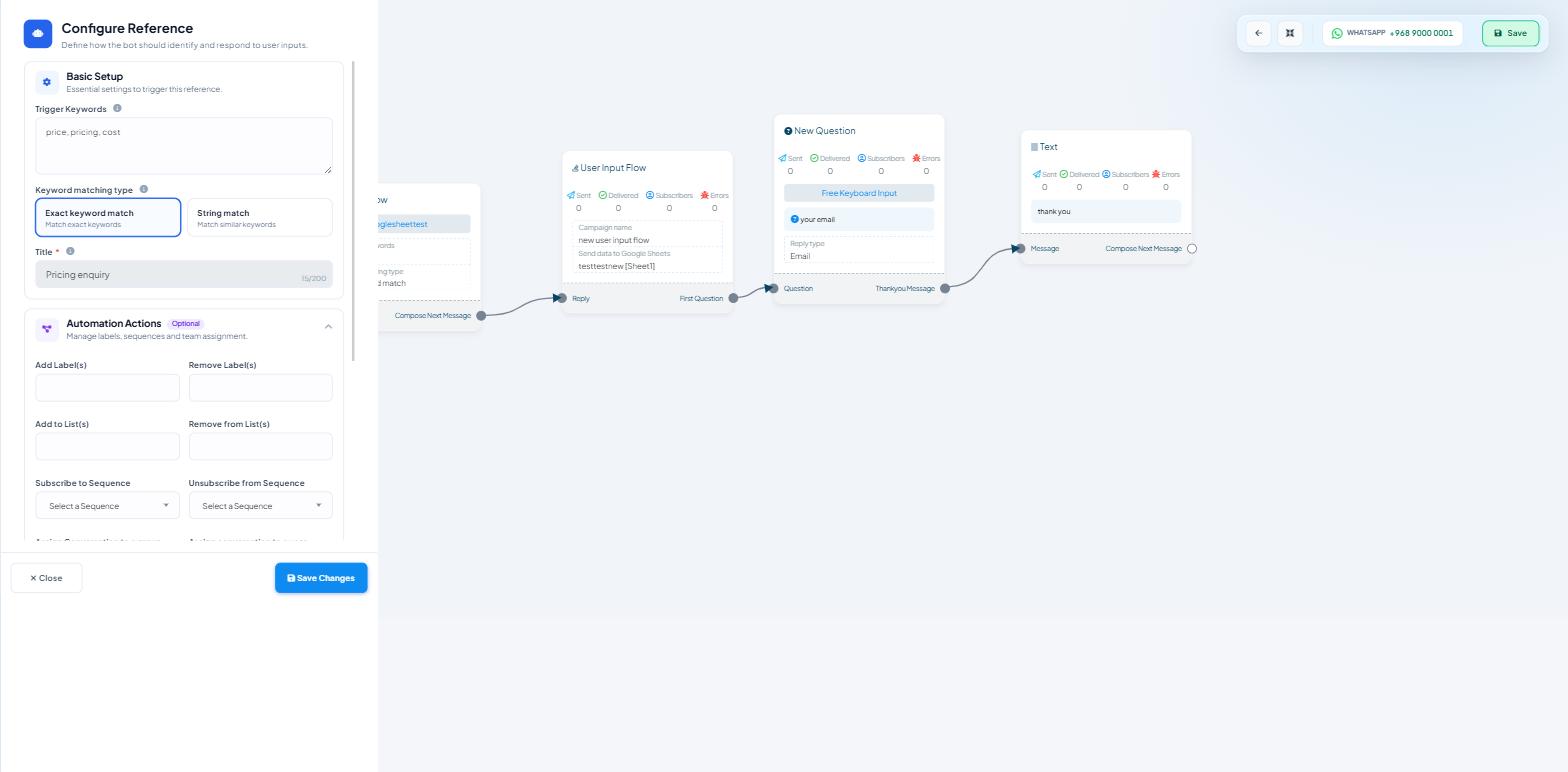
Check the matching type. On the Start Bot Flow node, Configure Reference offers Exact keyword match ("Match exact keywords") and String match ("Match similar keywords"). Exact match is unforgiving — an extra word, a full stop or a different case in the customer's message is enough to miss. For anything a person phrases in their own words, use String match.
Check nothing else claims the keyword. Two keyword replies competing for the same word produce inconsistent behaviour that looks intermittent. Preventing Bot Conflicts and Duplicate Replies covers this pattern.
Check the bot responds at all. If no keyword works, the problem is the bot, not the flow — go to Why Your WhatsApp Bot Isn't Responding.
The template arrives but the button does nothing
This is stage 2 working and stage 3 failing, and there are only two realistic causes.
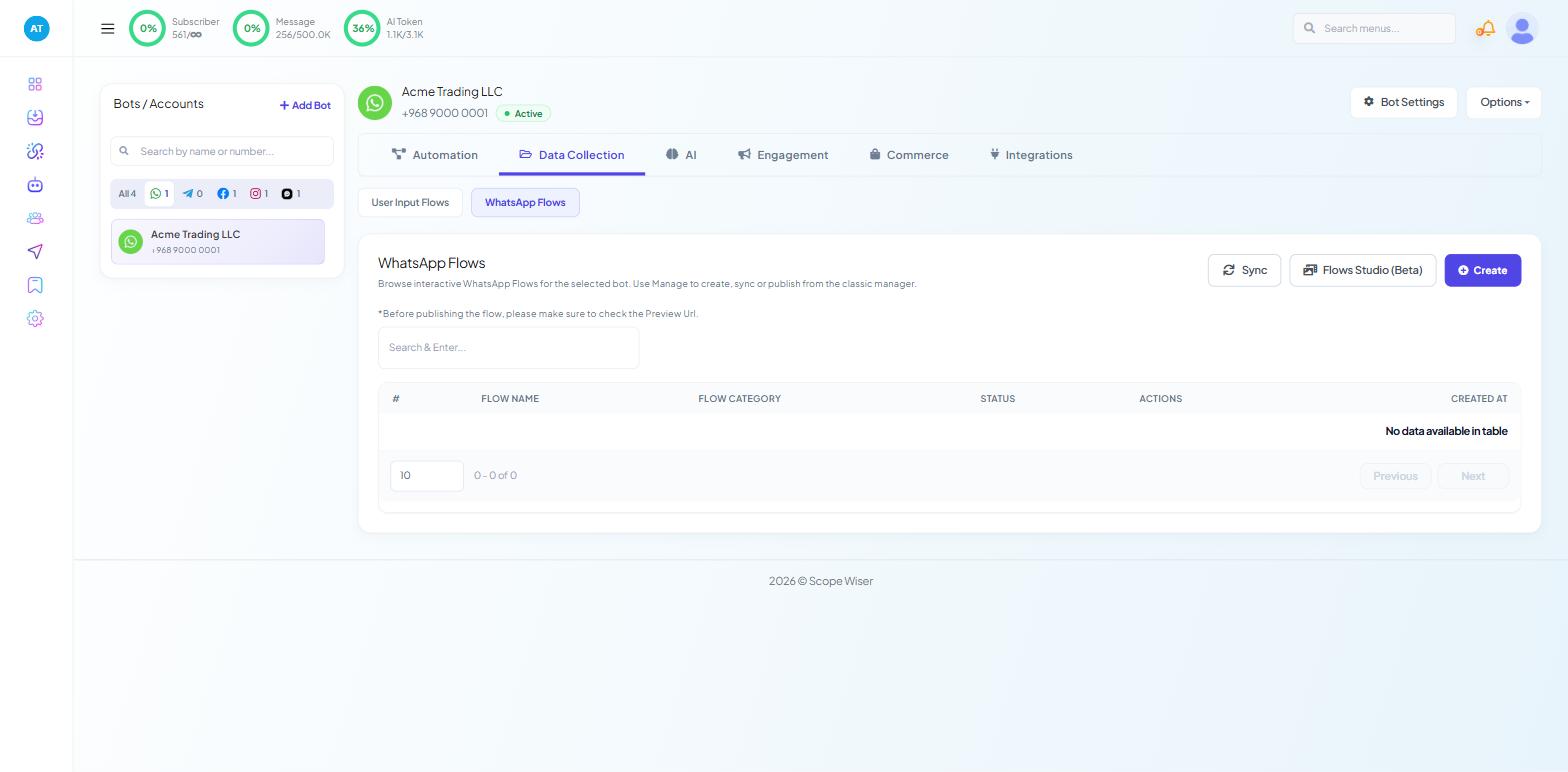
The flow is not published. Open Data Collection → WhatsApp Flows and check the STATUS column for that flow. A draft flow will not open, and the page's own warning is the reminder: "*Before publishing the flow, please make sure to check the Preview Url."
The button is not linked to a bot flow. A template button that carries no action does exactly nothing when tapped. Edit the template → the button → choose the bot flow.
The flow is triggered but no message arrives
The contact is outside the 24-hour window. Ordinary bot messages can only be sent within 24 hours of the customer's last message. Outside that, only an approved template will deliver. This is Meta's rule and nothing in Scope Wiser overrides it — see WhatsApp Rules You Must Know: 24-Hour Window & Template Messaging.
The template is not approved. Templates carry a STATUS, and the Broadcast Center says it directly: "Approved and pending templates are listed. Pending templates cannot be sent until WhatsApp approves them." A pending template in a workflow sends nothing and reports nothing.
The template has no button. A template used to start a flow must carry a call-to-action or quick reply button. Text-only templates deliver, but there is nothing to tap.
The contact is unsubscribed. Check the subscriber's status in Subscriber Manager. An unsubscribed contact will not receive anything.
You tested from a number inside the window. Your own phone has usually messaged the bot recently, so your test bypasses the exact rule your customers hit. Test from a number that has not messaged the bot for a day.
The website form does not produce a WhatsApp message
Almost always one of three things, in this order of likelihood.
The phone number is not in international format. The number must carry its country code with no spaces or brackets — +96890000001, not 9000 0001. A form that lets people type freely will produce unsendable numbers every day. Add a country selector or validation.
The webhook URL is not in the form's submit action. Check the URL was pasted into your form tool's after-submit webhook setting, and that it saved.
No sample submission was ever captured. Open the workflow → Configure Webhook Data → Real-time Response → Capture Webhook Response after a test submission; the mapping rows appear only after that.
A workflow that has received data shows a green Yes under VERIFIED, and the Any Verification filter separates verified from Non-verified in bulk.
Then check the mapping itself: the field names your site sends have to match what the workflow expects. Renaming a field on your website silently breaks this, and nothing on the Scope Wiser side will report it.
To compare what you assume was sent against what actually arrived, open the workflow and read the Raw Data panel — "The original webhook data received in raw format" — which keeps the captured payload pretty-printed. Check those field names against the rows in Webhook Response Mapping. Changing a mapping afterwards is Edit Connection in the workflow row's kebab menu.
The template sends and nothing follows it
There is no field for attaching a bot flow to a webhook workflow. Sending the template is the whole of a workflow's job, and what the button does is set on the template — see the section above.
What a workflow can do after a successful call is assign the conversation to a team role or member, add or remove a label, set the subscriber's name from a mapped field, and add or remove a follow-up sequence. ASSIGN SEQUENCE is the one to reach for when you want a chase rather than a one-off message.
The delay is not working
It is on the wrong block. Delay is not a separate block — it is Delivery Options on a message block, "Typing indicator and reply delay settings", collapsed by default. Expand it on the block that precedes the one you want delayed.
The value is out of range. The sliders run Hours 0–23, Minutes 0–59 and Sec 0–59, so the maximum delay is 23 hours 59 minutes 59 seconds. Not 24 hours.
The flow does not appear when an agent tries to send it
Check publish state first, then which bot the flow belongs to, then the agent's role. Flows are per-bot; one built against a different WhatsApp number will not appear in a conversation on this one. And WHATSAPP - FLOWS is its own toggle under Control Panel → User Permission — if the flow is there for you and missing for one agent, that toggle on their role is the first thing to check.
The answers do not reach custom fields
The field was never mapped. In Flows Studio, each field block carries a Custom Field dropdown — "Select Custom variable". Unmapped fields are stored with the submission but do not attach to the subscriber's profile, so they will not show under Subscriber Manager → Custom Fields and cannot be used in a broadcast filter.
You are looking at the wrong subscriber. Someone who submits a form from a number other than the one in the conversation creates a mismatch. Search Subscriber Manager by the number that actually submitted.
The custom field did not exist when the flow was built. Create the field first, then map it, then republish.
Reading the workflow's own numbers
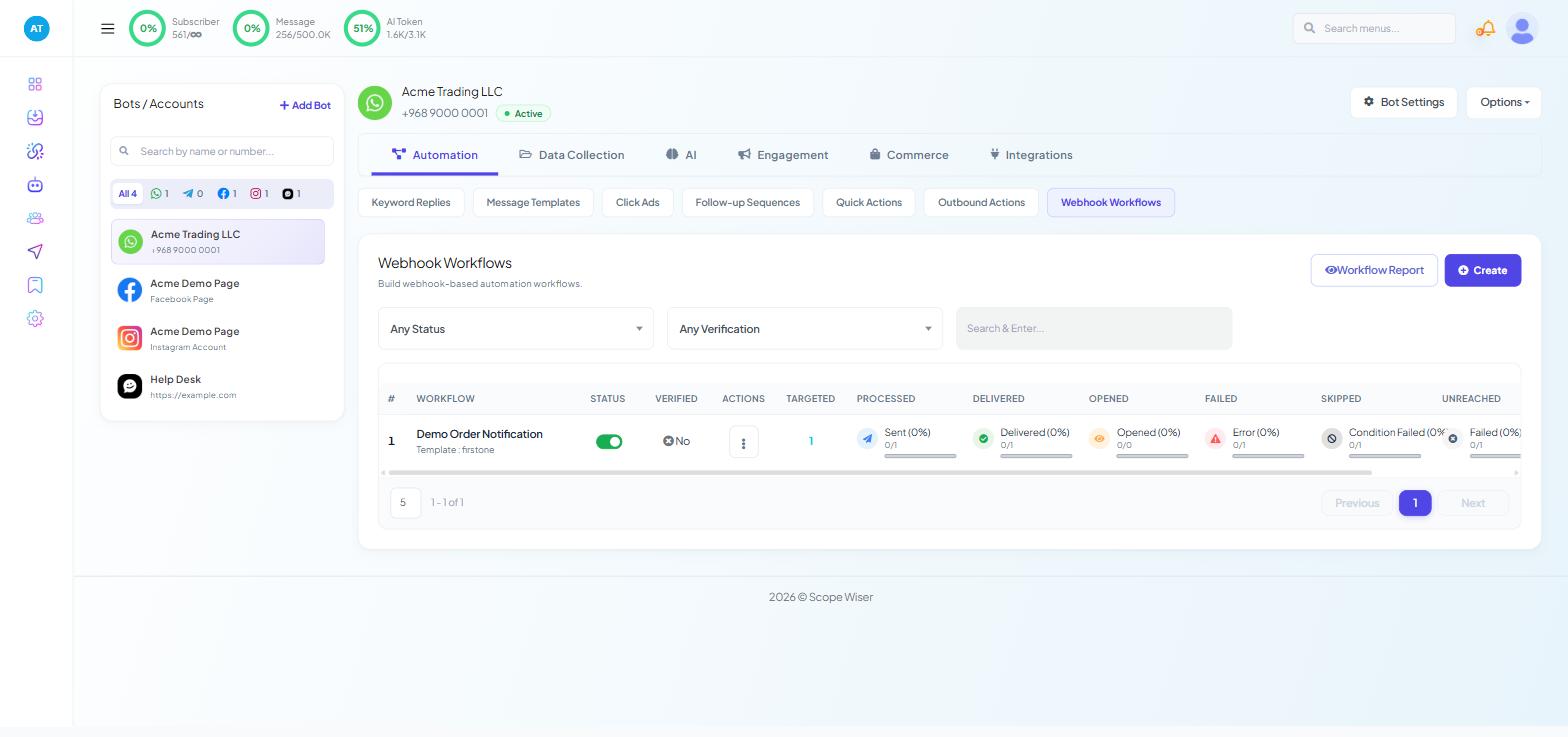
Webhook Workflows report on themselves, and the columns separate three failure modes that people routinely lump together:
FAILED: the send errored.
SKIPPED: your conditions filtered it out (nothing is broken).
UNREACHED: the message never reached the person.
A count climbing under SKIPPED when you expected sends means your conditions are wrong, and no amount of checking templates or phone formats will help.
For per-person detail, use Workflow Report at the top right of the Webhook Workflows list. It repeats the workflow table with a LAST CALLED AT column and, beneath it, a delivery log carrying one row per recipient: PHONE NUMBER, STATUS, SCHEDULED AT, DELIVERED AT, OPENED AT, FAILED AT and RESPONSE. That last column holds the platform's reply for the send, which is where a rejection states its reason.
Where a batch failed for something you have since fixed, the row's kebab menu offers Resend All Failed Webhook as a bulk retry, plus Download Report.
When you have run out of ideas
Reduce the problem until it is trivial. Build a two-field flow, publish it, trigger it with a keyword from a second phone, and confirm it opens. That takes ten minutes and tells you whether the fault is in the form, the flow, the trigger or the delivery route. Then reintroduce one piece at a time.
What to do next
If the flow itself is sound and the problem is reaching people, Collecting Data With Multi-Step Flows Forms covers the delivery routes and their individual constraints. Where the bot is silent across the board rather than only on flows, start at Why Your WhatsApp Bot Isn't Responding instead.