
Sending Catalog Purchase Data to Google Sheets
Connect Google to Scope Wiser, create or attach a sheet, and send the order-related data that can be written out automatically — plus which of the several Google Sheets settings is the one you want.
Rows in Chatbot Manager → Commerce → Product Catalog → Catalog Orders cannot yet be sent to a Google Sheet automatically. This guide covers the order-related data that can: details you collect in a flow, and your buyers as subscribers.
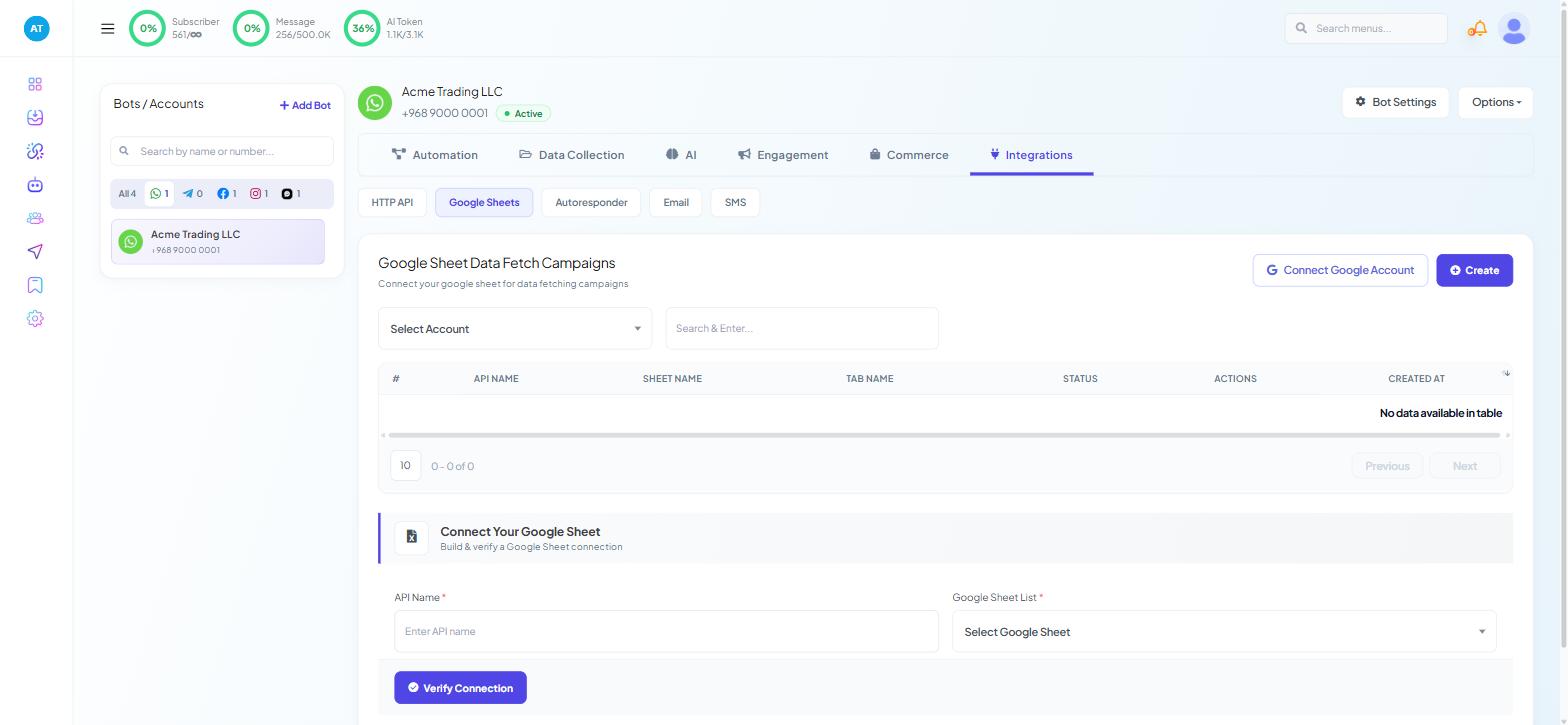
One warning before you start, because it costs people an afternoon: Scope Wiser has several different Google Sheets settings and they do different jobs. The one under Integrations → Google Sheets is called Google Sheet Data Fetch Campaigns and it reads from a sheet into your bot. That is the opposite direction to the one you want here.
What data there is to send
Build your sheet around the Catalog Orders columns — order IDs, catalogue, phone number, buyer, amount, currency, status, timestamps and shipping address. The full column lists for both order tables are in Cash on Delivery & Online Payments in Chat.
Orders paid outside an automated gateway land in the separate Catalog Orders (Manual Payment) table, whose columns differ, so plan for two sheets or a column that says which table a row came from.
Step 1: Connect your Google account
From the sidebar go to Connect Account.
In Available Connections choose Connect Google. You land on Google Integration — "Connect and manage your Google accounts, sheets, and calendars."
Click Sign in with Google on the Connect Google Account card and complete Google's consent screen.
If you cannot see Connect Google, ask the account owner to enable CONNECT ACCOUNT and the GOOGLE permissions on your role.
Four counters at the top tell you what the connection actually granted:
Google Accounts — how many accounts are linked
Sheets Access
Calendar Access
Limited Access — the one to watch. A count here means Google withheld some permission, and a sheet write will fail later without an obvious reason.
If Limited Access is not zero and sheets are not listing or a write has failed, disconnect and sign in again, ticking every permission Google asks for.
Step 2: Create or attach the sheet
Below the counters sits Google Sheets — "List of Google Sheets" — with two buttons:
Create New Sheet — makes a fresh sheet in the connected account
Add Existing Sheet — attaches one you already keep
The table lists SHEET TITLE, ACTIONS, CREATED AT and MODIFIED AT.
Set up a header row before you connect anything to it. Match the Catalog Orders columns, and add whatever your own process needs on the right-hand side — a Packed column, a courier reference, initials of whoever handled it. Keep your own columns to the right of the imported ones so a change in what arrives does not shift them.
Step 3: Pick a route to the sheet
Sync from a flow. Several Flow Builder configuration panels carry a Sync Data to Google Sheets field — the Configure Reference panel on a Start Bot Flow node has one under Data & Integrations ("Store data in custom fields or send to external tools."), and so does the Configure User-Input-Flow panel under its Integrations card ("Webhook and Google Sheets options."). If you collect delivery details with a User Input Flow after the order rather than relying on the catalogue's own address capture, this writes them straight out.
Send subscribers to a sheet. Bot Settings → Google holds a Google Sheet section headed "Send collected subscriber to google sheet", with a GOOGLE SHEET LIST field and a GOOGLE CONTACTS ACCOUNT dropdown. Click Publish Changes — Bot Settings does not take effect until you do. This gives you buyers as contacts, not orders as rows.
Order details collected through a WhatsApp Flows form have their own sheet field on the form itself — see Creating a WhatsApp Flows Form.
For developers
Automation → Outbound Actions and Automation → Webhook Workflows both move data out to an external endpoint. If your operations already run through a tool that writes to Sheets, sending the payload there gives you transformation and error handling that a direct write cannot.
Testing it
Place a real test order against your own number, then check three things in order:
A row appeared in Catalog Orders. If not, the problem is upstream and no sheet setting will help — go back to Triggering Catalog Products From a Bot Flow.
A row appeared in the sheet. Check the sheet in the same Google account you connected, not a copy someone shared with you.
The columns line up. Phone numbers are the usual casualty: a leading
+can be eaten by Sheets' own formatting. Format the phone column as plain text before you go live.
When it goes wrong
Nothing arrives and there is no error. Check Limited Access on the Google Integration page. A partial grant fails quietly.
Rows arrive with columns shifted. Someone inserted a column in the middle of the sheet. Rebuild the header row and keep custom columns on the right.
It worked and then stopped. Google access tokens expire and get revoked — a password change or a security review on the Google account is enough. Reconnect from Connect Account → Connect Google.
You are looking at the wrong screen. If the page you are on says "Connect your google sheet for data fetching campaigns", you are in the read-from-a-sheet feature. Go back.
What to do next
With order data flowing somewhere useful, work on what the buyer sees after the order: Cash on Delivery & Online Payments in Chat covers order statuses, confirmations and the manual-payment table. For non-commerce data, Exporting Flow Data to Google Sheets covers the same connection from the flow side.