
Collecting Data With Multi-Step Flows Forms
Five ways to put a WhatsApp Flow in front of a customer in Scope Wiser — keyword, template button, broadcast, quick action and a website form — and where the answers end up afterwards.
A published form must be sent by one of the routes below.
A WhatsApp Flow is not the same thing as a User Input Flow — see Creating a WhatsApp Flows Form for the difference and for building the form itself.
Route 1: a keyword
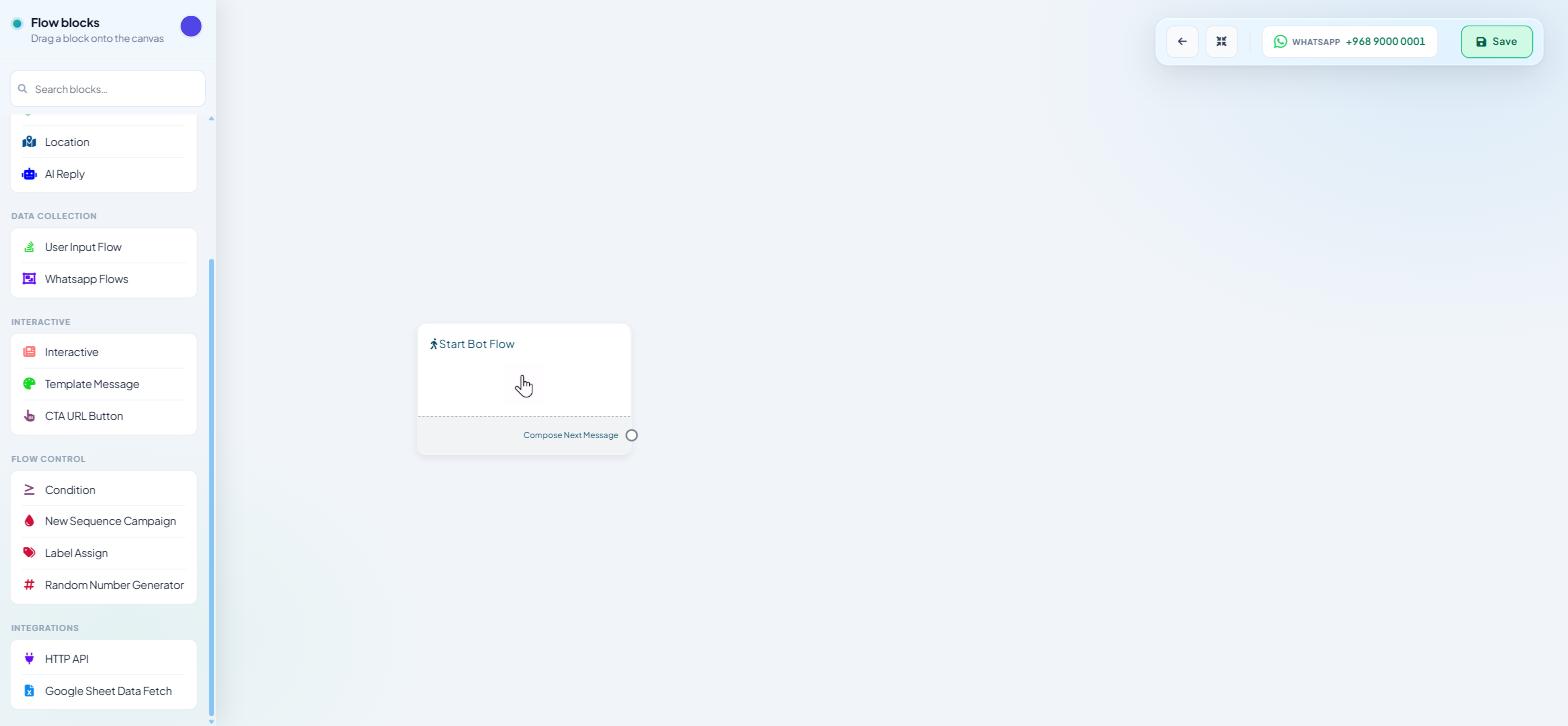
The simplest trigger. Build a flow under Automation → Keyword Replies, set Trigger Keywords on the Start Bot Flow node, then drop the Whatsapp Flows block from the DATA COLLECTION group of the palette into the flow.
Set Keyword matching type to String match ("Match similar keywords") rather than Exact keyword match for anything a customer might phrase in their own words. Someone typing "I want to register for the class" should still reach your registration form.
Best for: customer-initiated requests — bookings, registrations, quote requests. Limitation: only reaches people who message you first.
Route 2: a message template button
To start the conversation yourself, or to reach someone whose last message was more than 24 hours ago, you need an approved template with a button that starts a bot flow.
Go to Automation → Message Templates and use the Create menu, which offers General Template, WP Template, Mixed Template, Carousel Media Template, Carousel Product Template and Default Template.
Add a button to the template and set it to start the bot flow that contains your Whatsapp Flows block.
Wait for approval. Only approved templates can be sent — the list's STATUS column is where you check.
Best for: first contact, follow-ups outside the 24-hour window, re-engaging people who went quiet. Limitation: template approval takes time, and the wording is fixed once approved.
Route 3: a broadcast
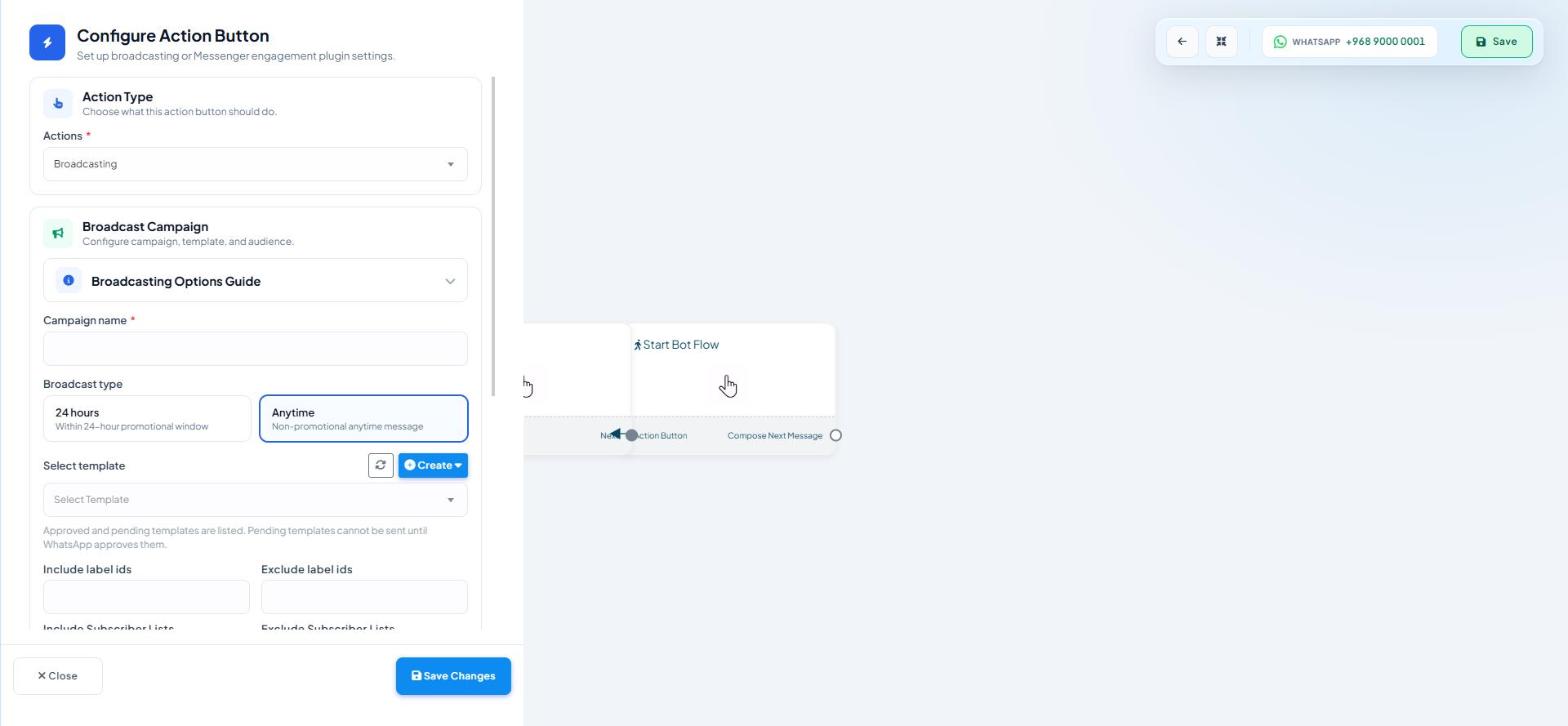
Broadcasts are composed in the Flow Builder, not in a separate composer. Broadcasting → Broadcast Center → + Create Campaign opens the Flow Builder with a Configure Action Button drawer, and the Broadcast Campaign section — "Configure campaign, template, and audience." — holds Campaign name, Broadcast type, Select template, label and list include/exclude fields, a country filter, custom-field filters and an Assign label after broadcast field.
The note beside Select template: "Approved and pending templates are listed. Pending templates cannot be sent until WhatsApp approves them."
Use Assign label after broadcast. It gives you the exact audience that received the form, which you will want when you compare who received it against who submitted.
Best for: collecting the same information from a known list — a survey, an onboarding round, a renewal check. Limitation: volume is capped by your WhatsApp Business Account conversation limit, which the drawer shows as "Daily WhatsApp Business Account (WABA) conversation limit".
Route 4: a quick action
Automation → Quick Actions carries system cards — Get-started, No Match, Location Reply, Un-subscribe, Re-subscribe, Chat with Human, Chat with Bot, Confirm Order and Cancel Order. Each opens its own flow, and any of them can contain a Whatsapp Flows block.
Two are unusually good places for a form. Get-started can qualify a new contact the moment they arrive. Confirm Order can collect delivery details straight after a purchase — delivery preference, a gift note, a question about fit.
Best for: capturing information at a moment the customer already cares about. Limitation: you get one shot per event; keep the form short.
Route 5: a website form
A submission on your own site can trigger a Flow on WhatsApp through Automation → Webhook Workflows — "Build webhook-based automation workflows." This is the route with the most moving parts and it has its own guide: Triggering a Flows Form From Your Website.
Best for: turning a web lead into a WhatsApp conversation within seconds. Limitation: needs an approved template, a correctly formatted phone number, and field mapping that survives a change to your web form.
Where the answers go
Custom fields. Each field in Flows Studio has a Custom Field dropdown — "Select Custom variable". Map it, and the answer lands on the subscriber's profile, visible under the Custom Fields tab in Subscriber Manager. This is the destination that makes the data useful later: custom fields can be filtered on in the Subscriber Manager and used as broadcast conditions.
Google Sheets. Both builders carry a sheet field — Whatsapp Flow Data in Google Sheet in the classic builder, GOOGLE SHEETS in Flows Studio.
A CSV export. Subscriber Manager → Export/Import → Export all as CSV gets subscriber data including custom fields out in bulk.
For developers
Submissions can also be sent to an HTTP API, using the SELECT HTTP API / HTTP API setting on the form. Build the connection first under Integrations → HTTP API.
Designing a form people finish
Map every field to a custom field as you build. Retrofitting means re-asking the customer.
Say what happens next in the REPLY AFTER SUBMIT message. A form that ends in silence reads as broken.
What to do next
If you have not built the form yet, Creating a WhatsApp Flows Form covers both builders. For the web-to-WhatsApp route in full, go to Triggering a Flows Form From Your Website.