
Auto-Broadcasting Blog Posts to WhatsApp Subscribers
Send every new WordPress post to your WhatsApp subscribers automatically: build a WP Template, connect your site with an API key, and let each publish create its own broadcast.
Connect WordPress once and every new post is sent to your WhatsApp subscribers automatically, carrying the title and the link.
What you need first
A WordPress site you can install plugins on.
A connected WhatsApp bot with subscribers who have opted in to hear from you.
Enough message credits for the volume you publish at. Every post becomes a broadcast.
Decide who should receive this. A label such as blog_updates, offered as an opt-in somewhere in your flows, is a better audience than every subscriber you have.
Step 1: Create a WP Template
A new-post notification goes to people well outside their 24-hour window, so it must be an approved template. There is a template type built for this job.
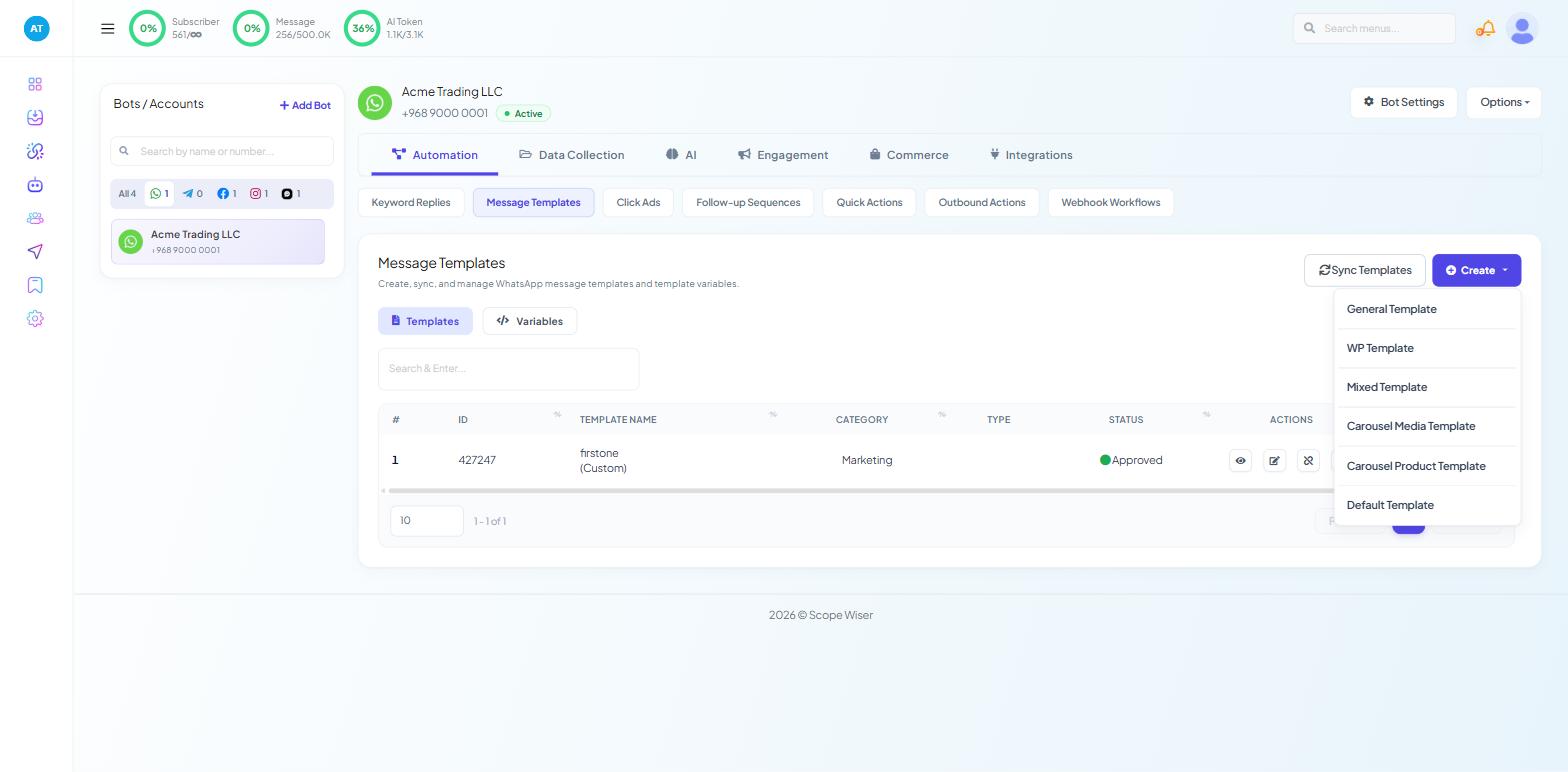
Go to Chatbot Manager, select your WhatsApp bot, then Automation → Message Templates.
Click Create and choose WP Template.
TEMPLATE NAME * — something like
new_blog_post.LOCALE * — the language you publish in.
TEMPLATE CATEGORY * —
Marketing, since a content notification is promotional.HEADER TYPE * —
No Headerkeeps it simple;Imageif you want a standing banner.MESSAGE BODY (1024)* — the message. It needs two moving parts: the title of the post and its link. Insert them from the variable picker (type
#!) rather than typing placeholder text.FOOTER TEXT — optional.
BUTTON —
Call To Actiongives you a tappable Read the post button.Save the template, then click Sync Templates and read the
STATUScolumn.
Expect Pending at first — Meta's review takes minutes to a few hours — so re-sync after a wait rather than rebuilding the template, and go on once it reads Approved. Nothing downstream works until it does.
Step 2: Get your API key
An API key is a long password that lets the plugin talk to your account.
Click your avatar at the top right to open the profile menu.
Choose API Developer. That entry only appears for a role granted API DEVELOPER under Control Panel → User Permission; if your menu is missing it, ask an account owner to generate the key for you.
In the developer console, generate an API key if you do not already have one, then copy it.
Treat it as a password. Anyone holding it can send messages from your account, so keep it out of shared documents and out of anything you paste into a support ticket.
Step 3: Install the WordPress plugin
Scope Wiser publishes a content-automation plugin for WordPress. Install and activate it on your site as you would any plugin, then open its settings page from the WordPress Settings menu.
Step 4: Connect the plugin to your account
The settings page works in four steps, and the order matters: the account list cannot load before the key is saved, and the template list cannot load before the account is chosen.
Paste the API key and save it.
Select the WhatsApp account from the dropdown that appears, and save.
Choose a label if you want to broadcast to one segment only. Leaving it blank sends to every subscriber on that account.
Select the message template you created in step 1, and save.
Step 5: Publish and check
Publish a post — or use an existing draft you can safely publish and unpublish. A broadcast campaign is created for it and scheduled for 30 minutes after publication, which is the built-in grace period for the typos you notice immediately after hitting publish.
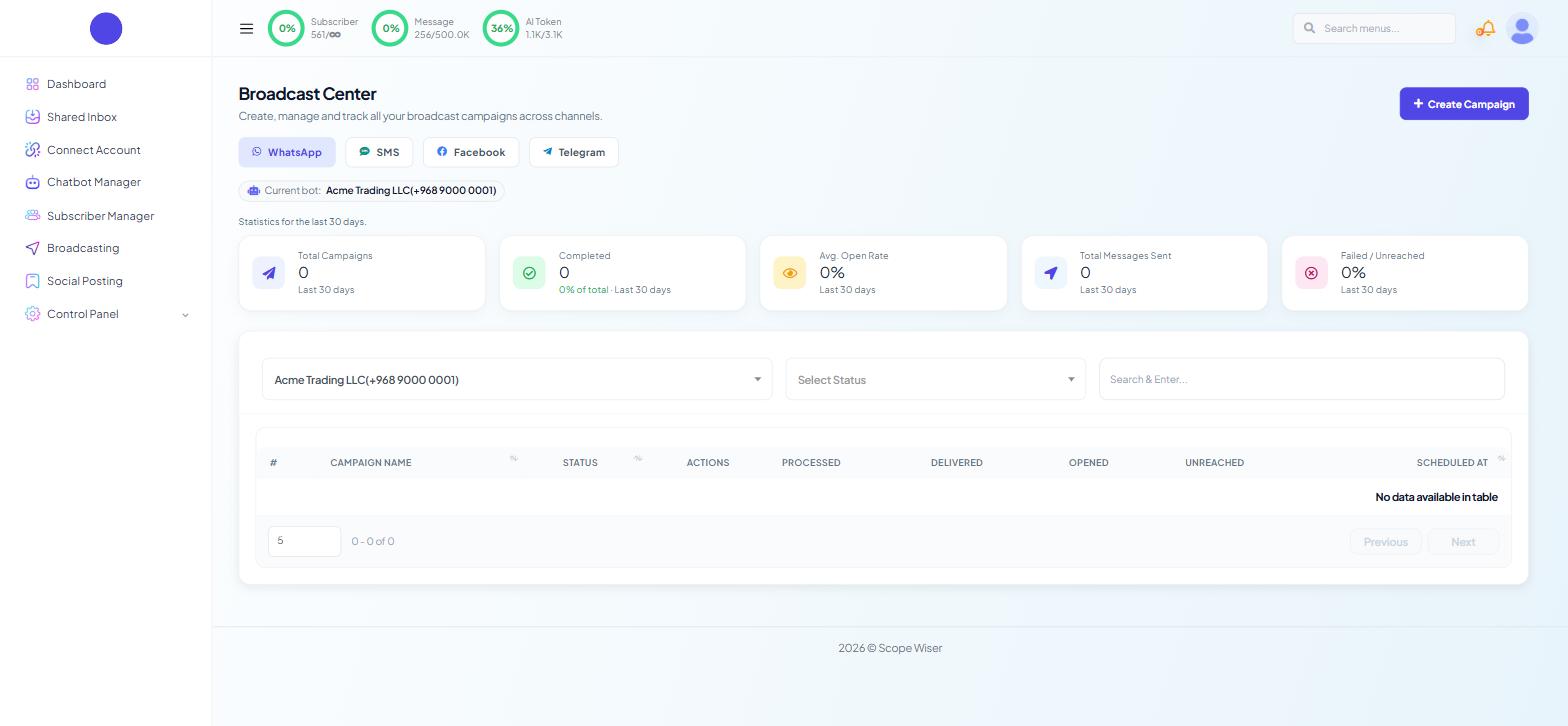
Open Broadcasting in Scope Wiser, confirm the Current bot: chip names the right account, and look for the campaign in the table. Its SCHEDULED AT value should sit half an hour ahead. Once it runs, the usual counts appear under PROCESSED, DELIVERED, OPENED and UNREACHED.
Living with it
Check the first three sends by hand. After that, a monthly glance at the campaign table is enough.
Watch your publishing rhythm. Four posts in a day is four broadcasts. If you publish in bursts, restrict the label to people who want that volume.
Re-approval means re-selection. Changing the template's structure sends it back through Meta's review; re-select it in the plugin afterwards.
Unpublishing does not recall a sent message. The 30-minute delay is your only window.
Watch the unreached count. A weekly content broadcast is a steady drain on your quality rating if a large share of the list never receives it.
If your site does not run WordPress
The same result is possible without the plugin, but it needs someone who can set up a webhook.
For developers
Any system that can call a URL on publish can supply the post title and link to a Webhook Workflow — Chatbot Manager → Automation → Webhook Workflows — which then sends the template. Personalised Broadcasts From Google Sheets walks through building a workflow of that shape.
What to do next
Once posts are flowing, WhatsApp Broadcast Analytics & Reporting covers reading which ones people actually opened. For campaigns you compose yourself, Running a WhatsApp Broadcast Campaign is the manual equivalent.