
WhatsApp Carousel & Dynamic-URL Templates
Build scrolling card templates and per-recipient links on WhatsApp: Carousel Media, Carousel Product, and call-to-action buttons whose URL changes for every subscriber.
A carousel puts several products or offers into one message as a row of swipeable cards. A dynamic URL gives every recipient the same button pointing at a different link. Both are built in the template composer, and both have a rule that catches people out the first time.
Read Creating & Getting WhatsApp Templates Approved first if you have not built a template before.
Carousels are templates, not flow blocks
There is no Carousel block in the WhatsApp Flow Builder. On a WhatsApp bot the palette's INTERACTIVE section holds Interactive, Template Message and CTA URL Button — no Generic Template, no Carousel. On WhatsApp a carousel reaches the customer as an approved template, sent either by a broadcast or by the Template Message block.
So the build order is always: create the carousel template, wait for approval, then use it.
Carousel Media Template
Go to Chatbot Manager → Automation → Message Templates and click Create.
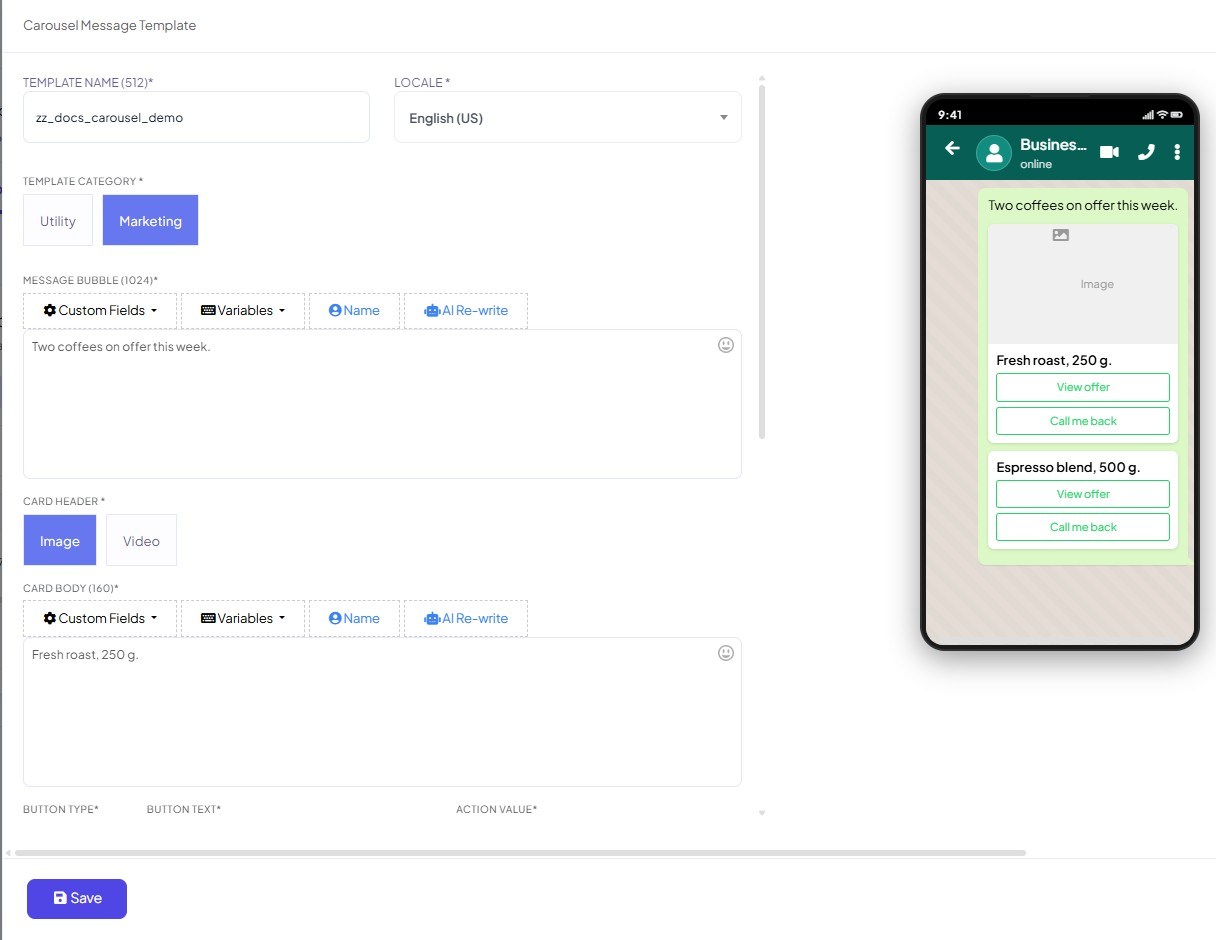
Choose Carousel Media Template. A form headed Carousel Message Template opens. If the Carousel entries are not in the dropdown, WHATSAPP - CAROUSEL TEMPLATE is its own toggle under Control Panel → User Permission.
TEMPLATE NAME — an internal name you will recognise later.
LOCALE — the language this template is written in.
TEMPLATE CATEGORY —
UtilityorMarketing. ChooseMarketing: a carousel showing products is promotional whatever else it does.MESSAGE BUBBLE — the text that appears above the cards. Customers read this first, so say what the cards are.
CARD HEADER —
ImageorVideo. Upload the media for the first card.CARD BODY — the short line of text on that card.
BUTTON TYPE, BUTTON TEXT and ACTION VALUE — the card's button and where it goes.
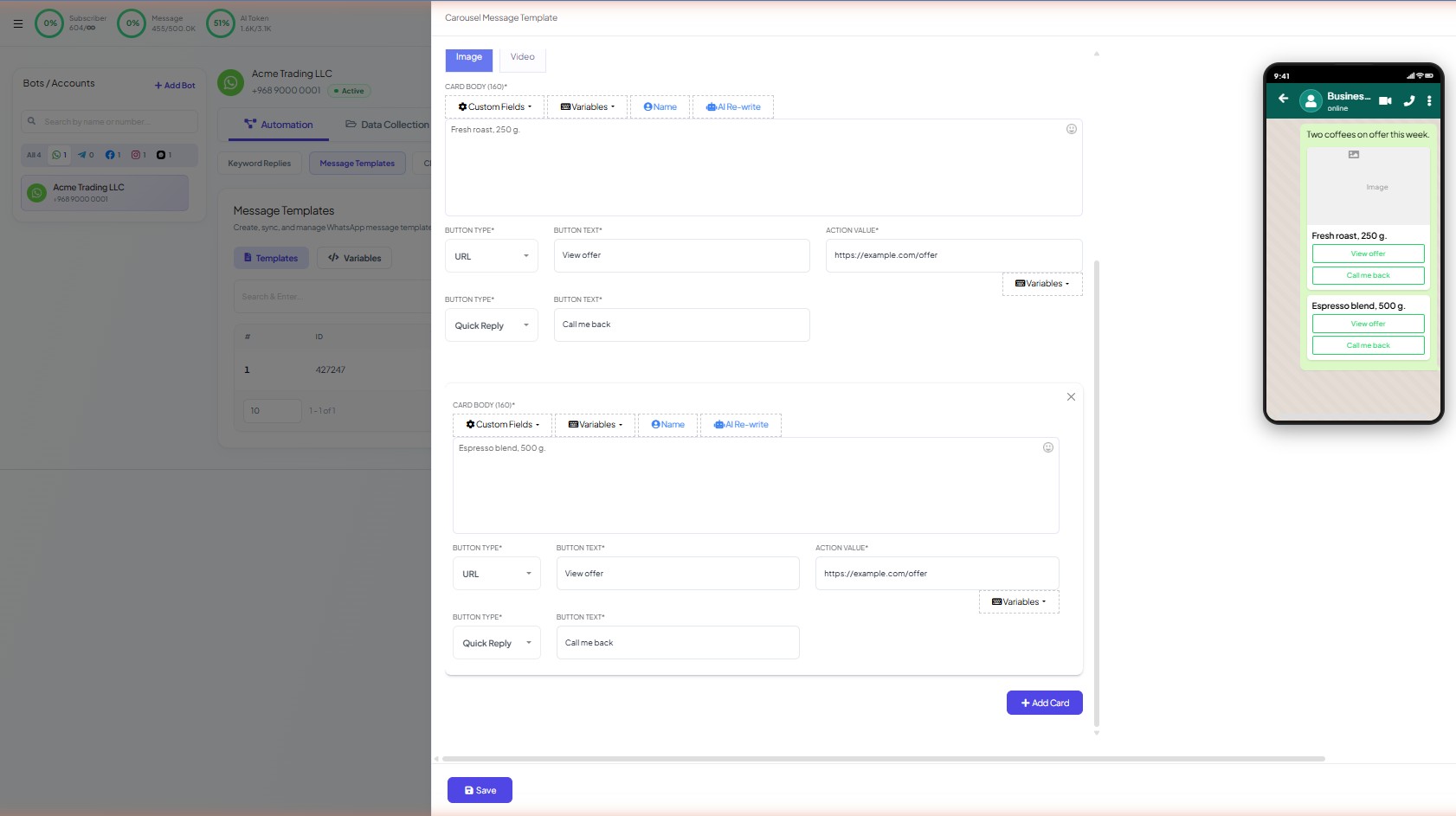
Click + Add Card and repeat steps 7 to 9 for each further card.
Click Save. This sends the template to Meta for review.
The rule that trips everyone: every card must use the same button pattern in the same order. If card one has a URL button followed by a quick reply, cards two and three must be the same. Mix the order and the template will not save.
To switch an image carousel to a video carousel, change CARD HEADER from Image to Video. Everything else stays the same.
Carousel Product Template
The product variant pulls cards from your catalogue instead of having you build them by hand, which makes it the right choice for a store with more than a handful of items.
It has a prerequisite: your store must be connected and your catalogue populated first. See Chatbot Manager → Commerce, which has Store Automation and Product Catalog sub-tabs. Commerce exists on WhatsApp bots only.
With the catalogue in place, choose Carousel Product Template from the Create menu. Rather than composing cards, you set how many products the carousel should show; the actual products are selected later, when you use the template in a flow or a broadcast. One approved template then serves any set of products you pick at send time, so a seasonal change does not mean a new review.
Dynamic URLs: one button, a different link each time
A static call-to-action button sends everyone to the same page. A dynamic one is a fixed link plus one changing part — for example, a link ending .../orders/ followed by the order number — so each person lands somewhere meaningful to them. Only the tail varies, which is what allows Meta to approve the button once.
Building one in Scope Wiser
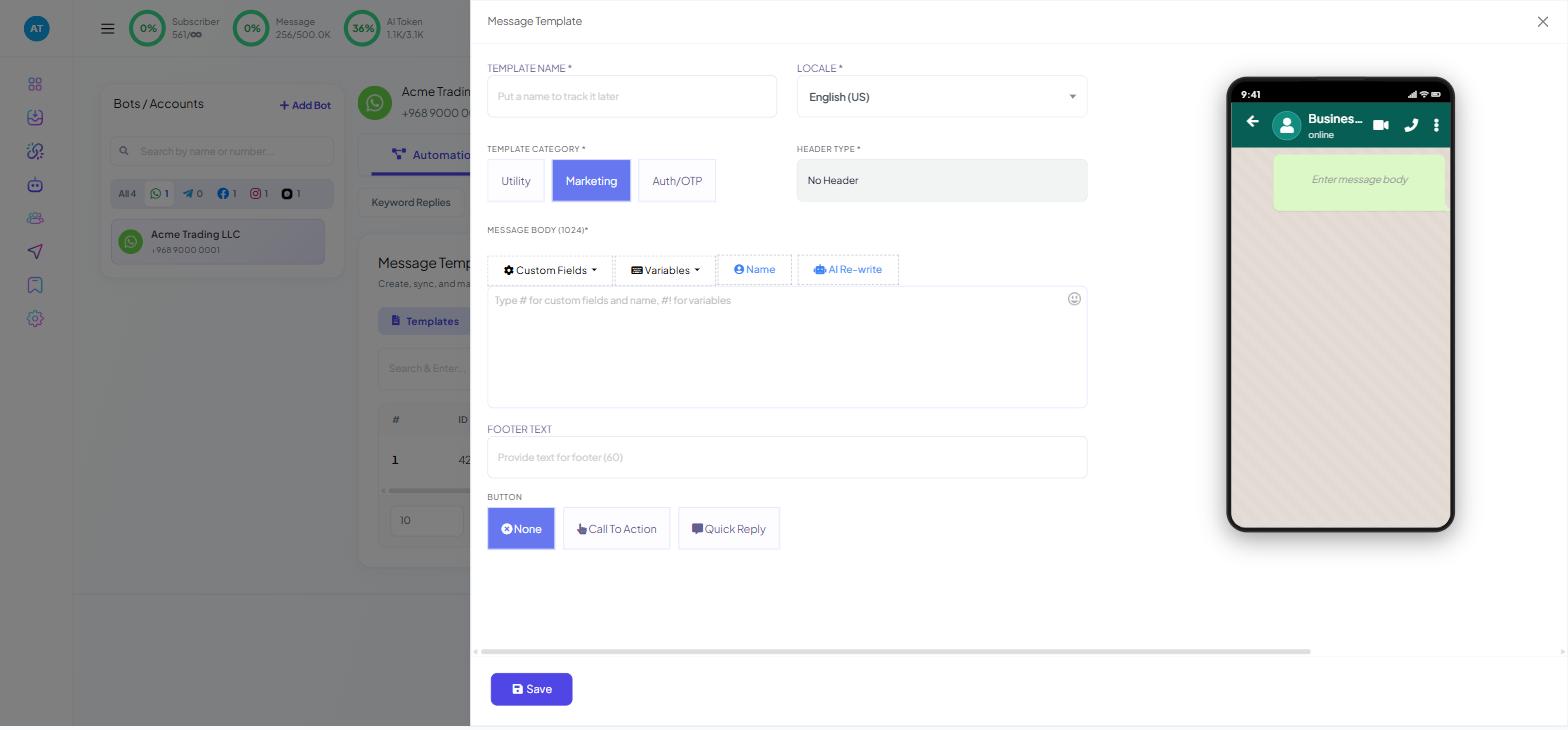
In the template composer, set BUTTON to
Call To Action.Enter the button text. Keep it to a verb and a noun, such as Track order.
In the button's URL field type the fixed part of the link, then press
#!and pick the variable for the changing part.
Building one in WhatsApp Manager instead
Meta's own composer calls it a Visit Website button with a URL type of dynamic: you supply the fixed part of the link and a sample of a complete link so reviewers can see where it goes. Submit it for review there, then click Sync Templates in Scope Wiser to bring it across. The variable then needs associating with a Scope Wiser field, as any synced template does.
Supplying the values
A dynamic URL is only as good as the data behind it. The value must already be saved on each subscriber — a custom field or an imported column — for every recipient in the segment.
Recipients missing the value are the failure case to plan for. Filter them out of the audience rather than letting the send fail on them: the broadcast drawer's Custom Field and Custom field contains value pair exists for this, and Personalised Broadcasts From Google Sheets covers the wider pattern.
Testing before you send
Send one to yourself first and check three things:
The images load. A broken card in a carousel looks worse than no carousel.
The link resolves. Tap the button and confirm you arrive at a real page with the variable filled in, not at the fixed part of the link with a placeholder stuck on the end.
The cards scroll. Confirm the whole set is reachable on a phone, not just the first card.
Common refusals
On top of the usual template rejection reasons, two are specific to these types:
Cards whose buttons are in a different order from one another.
Link shorteners, or a domain unrelated to your business — reviewers cannot verify where the link goes, so they decline it.
Why Message Templates Get Rejected has the full list.
What to do next
With an approved carousel or dynamic-URL template in hand, Running a WhatsApp Broadcast Campaign covers selecting it and targeting an audience. To send the same template from inside a conversation flow, see Quick Replies, Buttons & CTA URLs.