
WhatsApp Rules You Must Know: 24-Hour Window & Template Messaging
The Meta rules that decide whether your WhatsApp broadcast is delivered at all: the 24-hour service window, approved templates, opt-in, quality rating and daily conversation limits.
Two Meta rules decide whether a WhatsApp message is delivered at all: the 24-hour service window and approved templates. Neither is a Scope Wiser setting and neither can be switched off. This article explains both, along with opt-in, quality rating and what Meta charges.
The 24-hour service window
Meta lets you send free-form messages — plain text, images, buttons, anything you like — only within 24 hours of a customer's last message to you. That period is the service window, and it governs WhatsApp and Facebook Messenger alike.
Three details matter in practice:
The customer starts the clock, not you. Sending a message does not open a window. Only an inbound message from them does.
Every inbound message resets it to a full 24 hours. A one-word reply buys you another day.
When it closes, free-form messaging stops. No error appears in the customer's chat. The message simply is not delivered.
A customer reply reopens the window, so everything you send after that reply is free-form and cheaper.
To see the state of the window for one person:
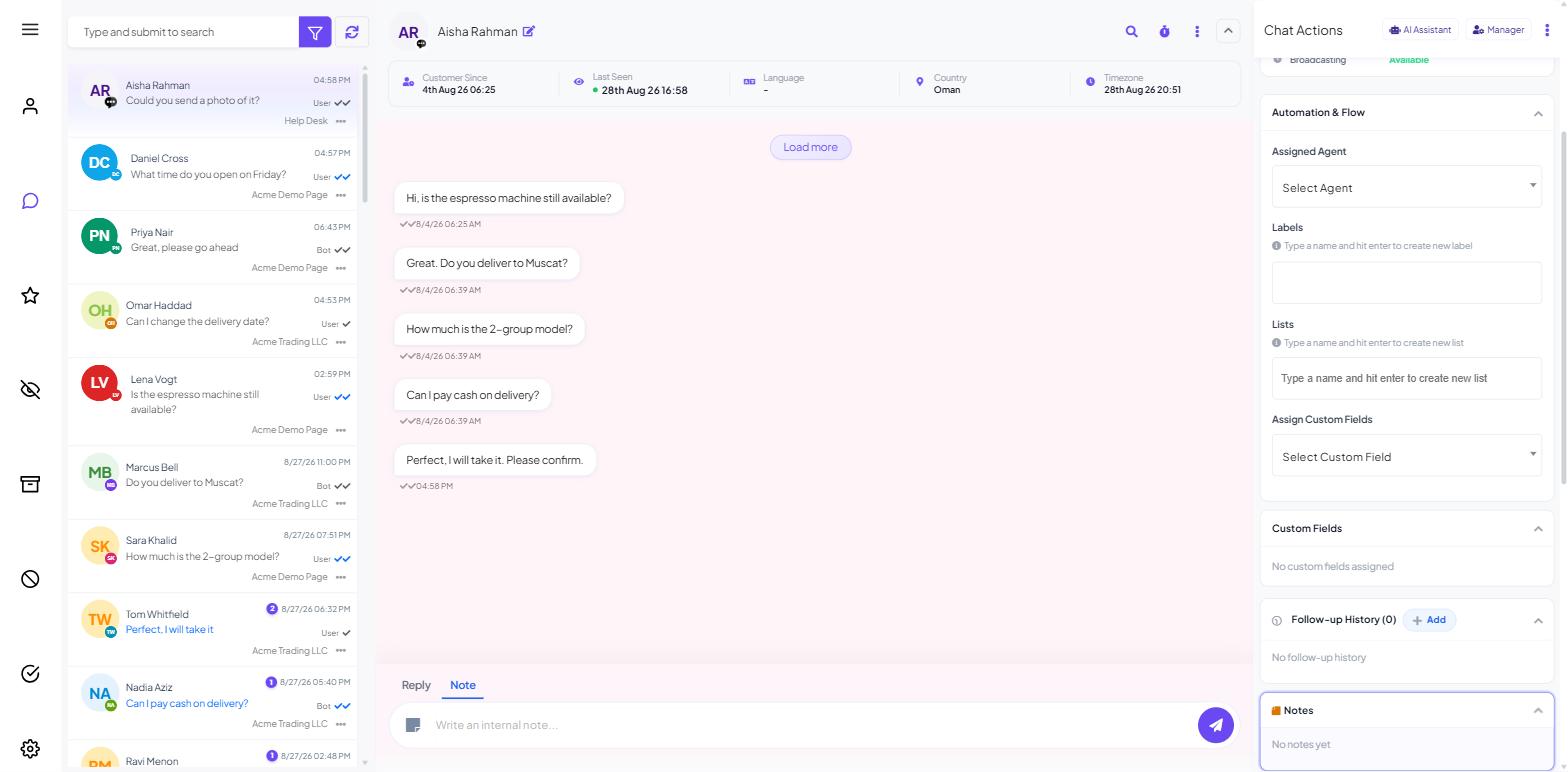
Open Shared Inbox and select the conversation.
Look at Customer Snapshot in the Chat Actions rail on the right.
The Messaging Window row reads
Inside 24Hwith a live countdown, or shows that the window has closed.Directly under it, OPT-IN Through records how that person became a subscriber.
Outside the window, only templates are delivered
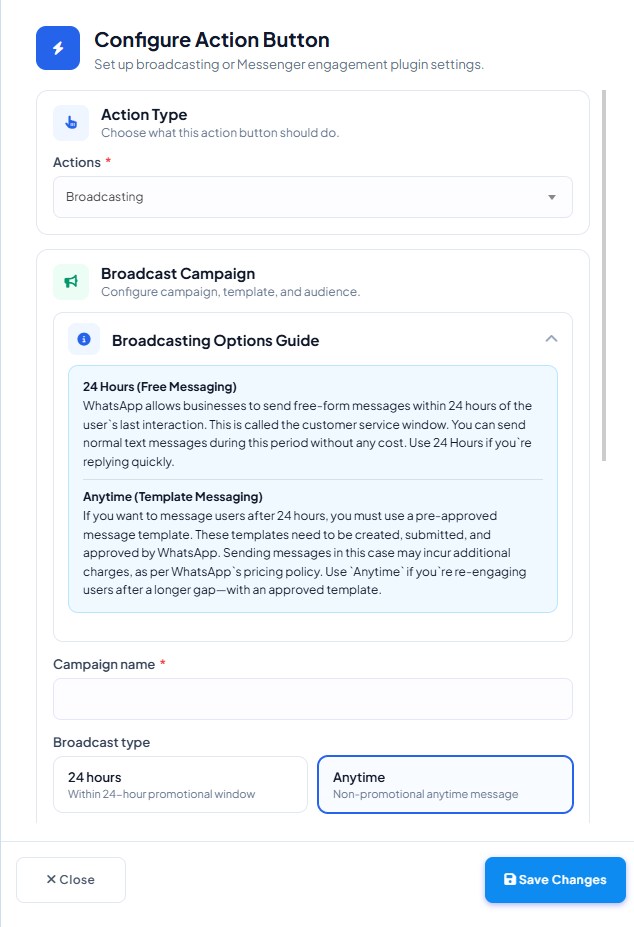
Once the window closes, the only message WhatsApp will accept from a business is an approved message template: a fixed piece of copy, reviewed by Meta in advance, with variable slots for the parts that change per recipient.
Every template carries a category, chosen when you create it. The TEMPLATE CATEGORY control offers three:
Category | Use it for |
|---|---|
| Something the customer already has a relationship with — an order update, a booking confirmation, a payment receipt |
| Offers, launches, reminders to come back, anything promotional |
| One-time codes and login verification |
Categorise honestly. Marketing content submitted as a utility template is the most common reason a template is rejected.
Two more rules catch people out. An approved template cannot be edited and stay approved — a changed template goes back through review. And approval is per language: the same message in Arabic and English is two templates, each reviewed separately.
Creating and submitting templates is covered in Creating & Getting WhatsApp Templates Approved. The content rules that cause refusals are in Why Message Templates Get Rejected.
Opt-in is a requirement, not a courtesy
You must have consent before sending a promotional or non-transactional message. Meta does not prescribe a single mechanism, but it does expect you to be able to show where consent came from — which is what the OPT-IN Through field records against each subscriber.
Buying a list and importing it does not create consent. Neither does someone having bought from you once. If you cannot point at a moment where a person asked to hear from you, leave them out of a marketing broadcast.
What you need in place before a broadcast will run
A WhatsApp Business Account connected to Scope Wiser, and a phone number connected through Meta's official WhatsApp API (done during setup).
Meta business verification completed for the business portfolio that owns the account.
A display name approved by Meta that matches your actual business identity.
Two-factor authentication enabled on the number.
At least one approved template, if you intend to message anyone outside their window.
Connection and verification are covered in Connect WhatsApp to Scope Wiser and WhatsApp Business Profile, Verification & Messaging Limits.
Quality rating and the daily conversation limit
Meta scores each phone number on how customers react to it. Blocks and "report business" taps push the rating down.
Go to WhatsApp Integration → Business Accounts → Phone Numbers. QUALITY shows High/Medium/Low; MESSAGING LIMIT shows how many conversations you may start per day. Both stay blank until the number has sent messages.
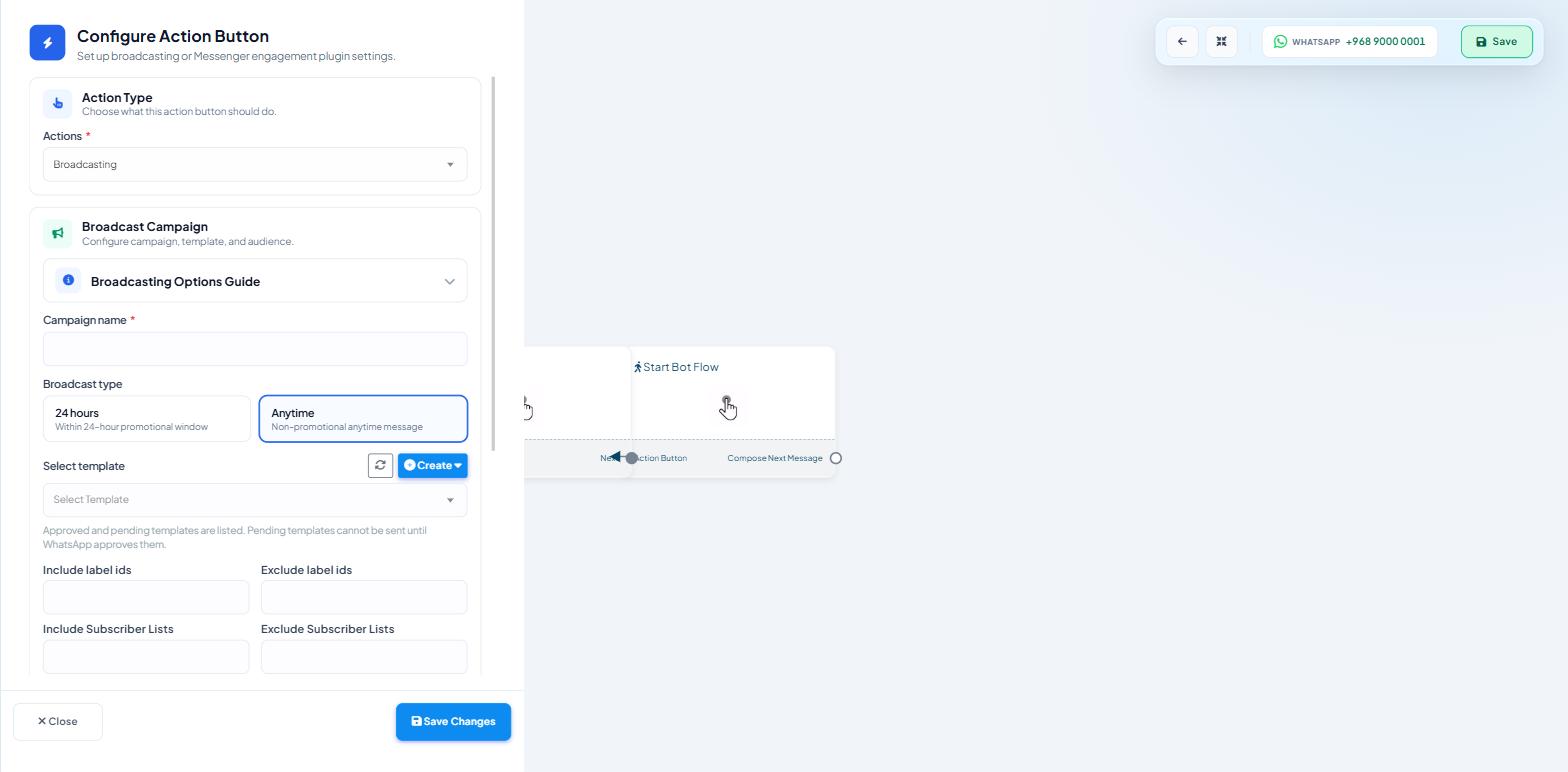
The broadcast drawer prints your targeted audience and that daily limit side by side, and anything above the limit is not delivered that day — see Running a WhatsApp Broadcast Campaign.
A rating that has slipped recovers on its own if you message more selectively. Broadcasting less often, to smaller and better-chosen segments, is the fix; there is no button that repairs it.
What WhatsApp will not carry at all
Meta's Commerce and Business Policies prohibit a defined list of categories — gambling, tobacco, alcohol, adult content and certain financial products among them. Templates in those areas are refused at review, and repeated attempts put the account itself at risk.
Cold messaging is separately prohibited. Sending to people who never opted in is a policy breach even if every individual message is an approved template.
What this costs
Meta charges per 24-hour conversation, not per message; marketing costs more than utility. Check Meta's price list for your country.
Scope Wiser's own message credits are separate from Meta's charges and are covered in Message Credits & AI Tokens.
Messenger has its own 24-hour window and solves it a different way — see Facebook RCN Broadcasting Explained.
What to do next
Go to Creating & Getting WhatsApp Templates Approved and get one template through review before you plan a campaign. Approval is the step with the unpredictable wait. Once you have an approved template, Running a WhatsApp Broadcast Campaign takes you through the send itself.