
RCN Postback Manager: Collecting Opt-Ins
Build the Messenger opt-in flow that grows a Facebook broadcast audience: where RCN Postback Manager lives, how the RCN block works, labelling opt-ins, and getting people to tap accept.
A Facebook broadcast can only reach people who have granted permission in Messenger, so the opt-in flow is the whole audience. This article covers building that flow, labelling the people who accept, and giving them chances to find it.
RCN stands for Recurring Notifications. Facebook RCN Broadcasting Explained covers what the permission is and why Messenger requires it.
Where the screen is
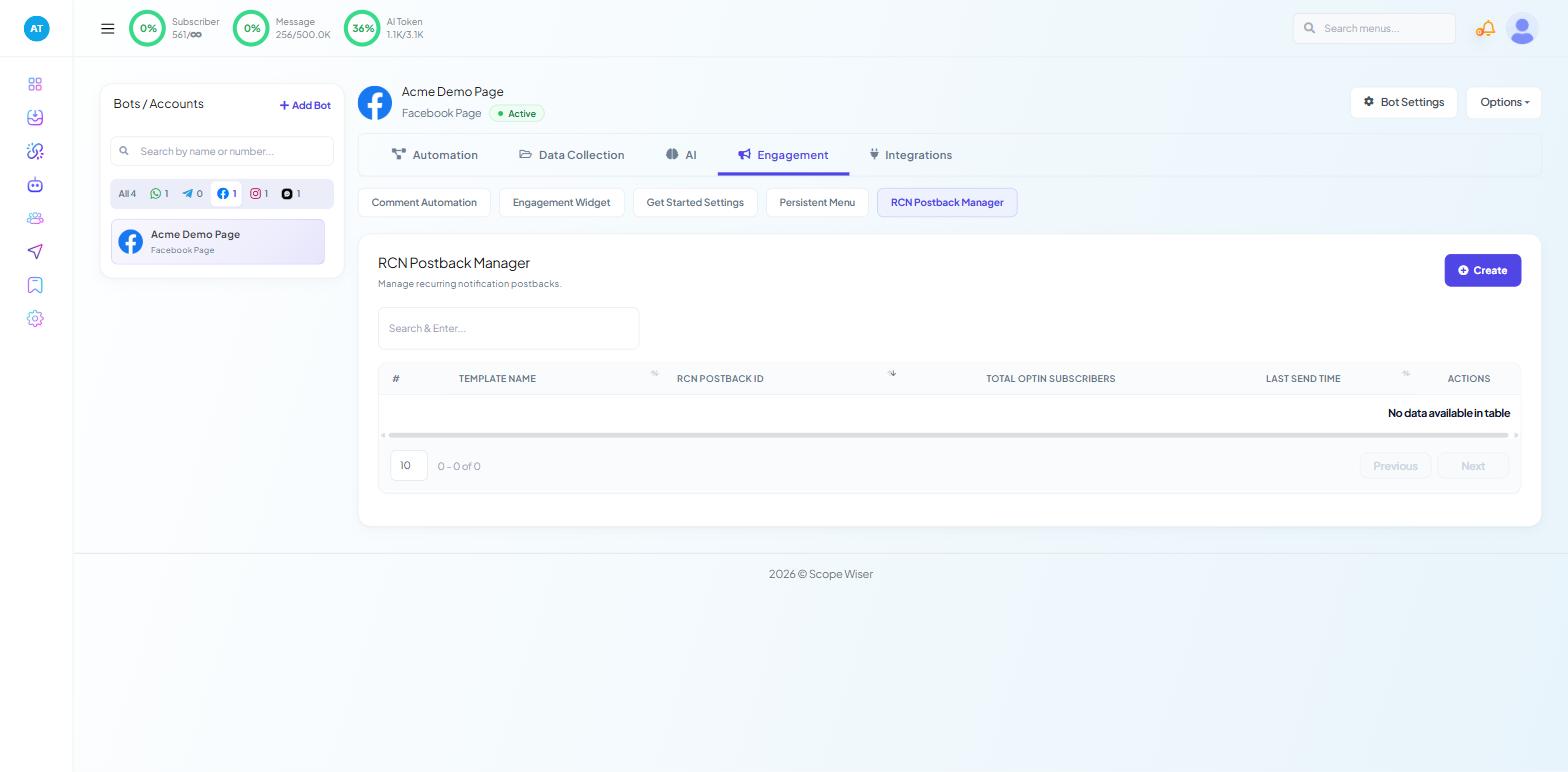
Open Chatbot Manager and select your Facebook bot in the Bots / Accounts panel. The channel filter chips make this quicker if you have several accounts.
Open the Engagement tab, then the RCN Postback Manager sub-tab.
Engagement on a Facebook bot holds Comment Automation, Engagement Widget, Get Started Settings, Persistent Menu and RCN Postback Manager. That last one appears on Facebook bots only — selecting an Instagram or Webchat bot removes it, which is the usual reason people cannot find it.
This screen lists the opt-in flows you have built, and lets you edit them afterwards.
Build the opt-in flow
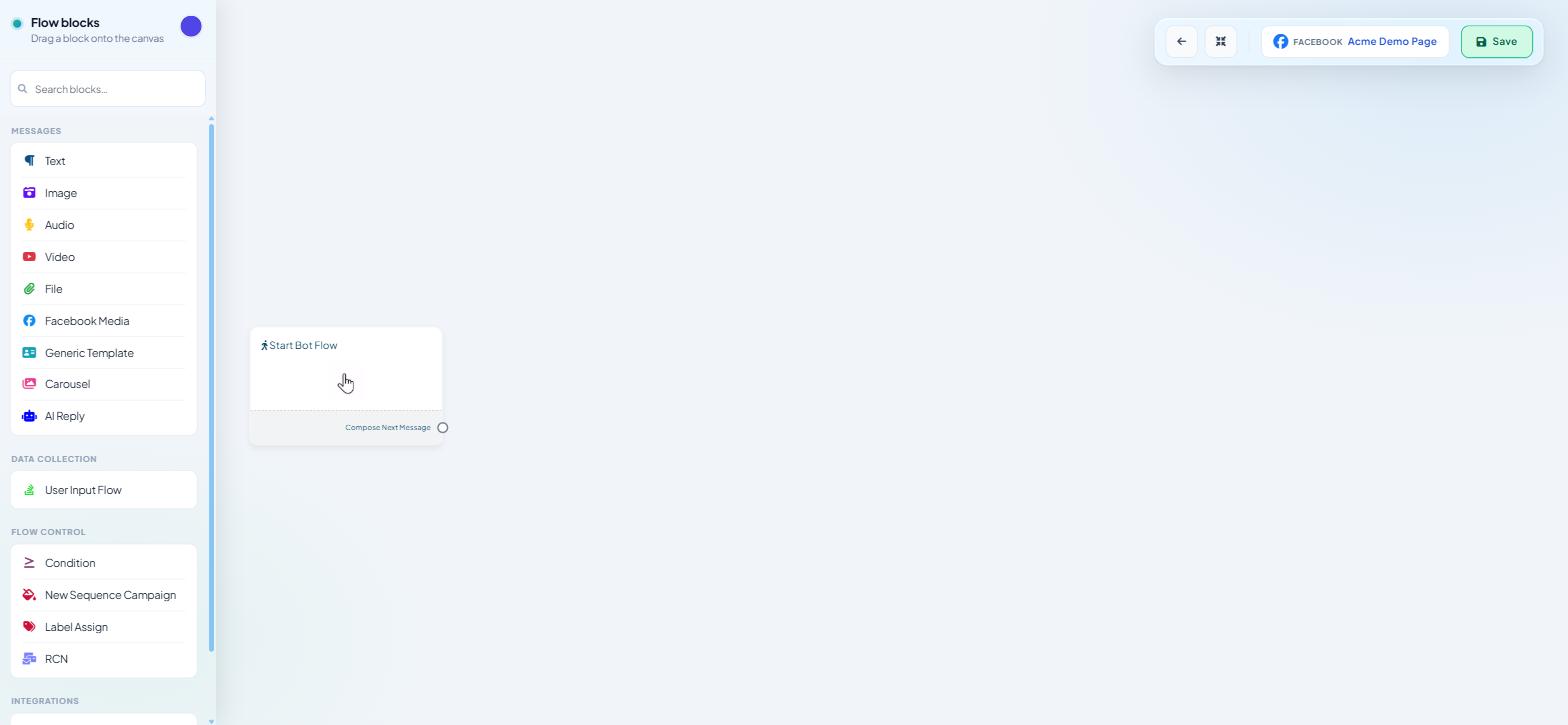
Creating a postback from this screen opens the Facebook Flow Builder. What you build there is an ordinary flow with one special block in it.
1. Configure the entry point
Double-click the Start Bot Flow node. Give it a title you will recognise later, add the trigger keywords that should start this flow, and add a label if you want everyone who reaches the flow tagged — not only those who accept. Save the node.
Keep the title descriptive of the topic, because it is what you will look for in a dropdown when you build the campaign: weekly_offers_optin beats rcn1.
2. Add the RCN block
From the entry point, use Compose Next Message and drag the RCN block onto the canvas. It sits in the palette's FLOW CONTROL section, alongside Condition, New Sequence Campaign and Label Assign.
Then:
Double-click the block and give it a title.
Choose New RCN.
Upload the image that appears with the request. It is most of what the person sees before deciding, so use something that reads clearly at thumbnail size and matches what you are promising.
Save the block.
Reopen it and name the RCN template it created, and set the label to apply to everyone who accepts. That label is how the broadcast will find them.
Save.
3. Say thank you
Add a Text block after the RCN block with a short confirmation — what they have subscribed to, how often it will arrive, and how to stop. Toggling Typing on display in the block's Delivery Options makes the reply feel like part of the conversation.
4. Save the flow
Click Save at the top right of the canvas.
What the subscriber experiences
Someone messages your Page with the trigger keyword. Your flow replies with the request, and Messenger draws its own confirmation prompt over it. Tapping accept both grants the permission and applies your label; ignoring it changes nothing.
The important detail: sending a message is not opting in. Only the tap counts. A Page with a thousand conversations and no button taps has an audience of zero for broadcasting.
Getting more people to tap
Put the flow behind more than one door. Trigger keywords, the Get Started Settings flow for first-time contacts, the Persistent Menu, and comment-automation replies are each another chance.
Delay the ask. The Delay in reply control in a block's Delivery Options lets the conversation breathe before the request arrives.
Keeping topics apart
Create one postback per topic — weekly offers, service announcements, event reminders — because Messenger treats them as different permissions.
Give each its own label, so a broadcast targets the topic rather than the whole Page. Labels, Lists & Segments covers managing the labels themselves.
Checking it works
Message your own Page with the trigger keyword from a personal account. Confirm the request appears with the right image, tap accept, then check that subscriber in Subscriber Manager for the label you assigned.
No label usually means the accept-label on the RCN template was not saved. Check that slot before rebuilding the flow: the label on the Start Bot Flow node is a different one, and it tags everyone who reaches the flow rather than only those who accept. Until the right slot is set, every opt-in you collect is invisible to your campaigns.
What to do next
With opt-ins arriving, Running an RCN Broadcast Campaign covers sending to them. To add more entry points into this flow, Keyword Replies & Postbacks covers the triggers that start it.