
Email Providers: Mailgun, Postmark and Domain Verification
Use a dedicated sending service with Scope Wiser: how to verify your domain, which credentials Mailgun and Postmark give you, and where they go.
A dedicated sending service (Mailgun or Postmark) delivers more reliably than your web host's mail server. This guide covers the domain verification both need, the credentials each one gives you, and where those go in Scope Wiser.
The Email API form offers five ways to send: SMTP, Mailgun, Postmark, SES and Mandril. SMTP suits any provider that hands you a mail server; the other four connect to that service over its own API. This article covers the two most common API choices.
Step 1: Verify your domain
Every dedicated sending service refuses to send as your domain until you prove the domain is yours. Do this first — nothing else works until it is done.
In the provider, add the domain you will send from. Verify a subdomain such as
mail.yourbusiness.comso problems never affect your normal company email.The provider shows you a set of DNS records. Four kinds usually appear:
Record | Type | What it does |
|---|---|---|
SPF | TXT | Lists which servers may send as your domain |
DKIM | TXT | Publishes the key that signs your outgoing mail |
MX | MX | Routes replies and bounces back to the provider |
Tracking | CNAME | Optional. Rewrites links so opens and clicks can be counted |
Add them at whoever hosts your domain's DNS, exactly as shown, including any trailing dots your DNS host requires.
Wait for the provider to report the domain as verified. DNS changes take minutes on a good host and up to 24 hours on a slow one.
The sender address in your profile must be on the same domain you verified. If you verified mail.yourbusiness.com, then hello@mail.yourbusiness.com will send and hello@gmail.com will not.
Step 2: Add the credentials in Scope Wiser
Both providers go in the same place.
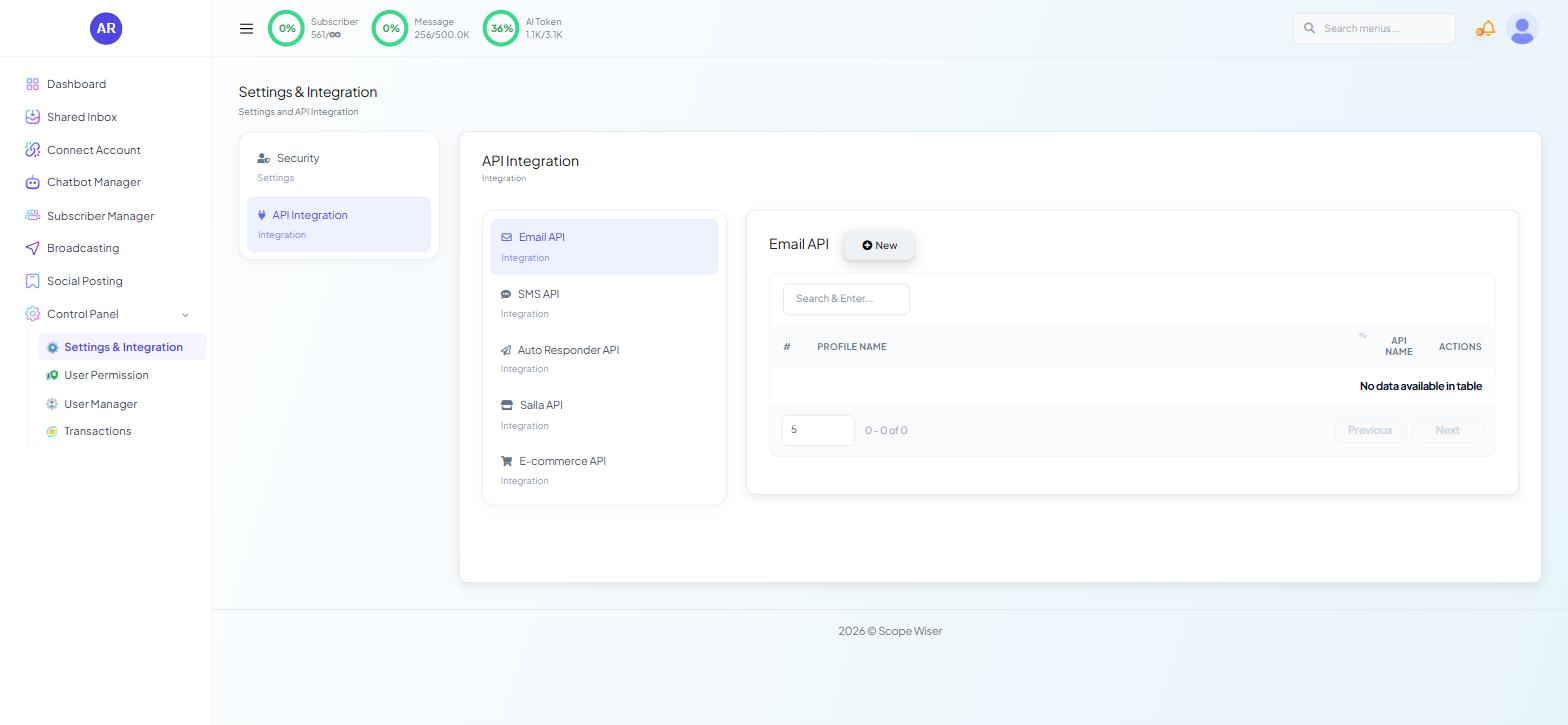
From the sidebar, open Control Panel → Settings & Integration.
Choose the API Integration card, then Email API from the list.
Click New and fill in the values from the provider section below.
Save the profile.
Mailgun
Once your domain shows as verified in Mailgun, its domain page carries SMTP credentials:
Credential | Typical value |
|---|---|
SMTP login |
|
SMTP password | Generated with the domain. Resettable from the same page |
SMTP host |
|
SMTP port |
|
Those four, plus a sender name and a sender address on the verified domain, are what the Email API profile needs.
Check the region. Mailgun runs separate US and EU infrastructure, and the SMTP hostname differs between them. A domain created in the EU region will not authenticate against the US hostname.
If you lose the password, reset it on the Mailgun domain page and update the profile in Scope Wiser. The old one cannot be retrieved.
Postmark
Postmark gives you a server API token, generated per server in your Postmark account, and SMTP credentials. The sender address must be a verified sender signature or sit on a verified domain.
Do not use it for marketing. Postmark suspends accounts that push promotional mail through its transactional stream. For booking confirmations and receipts it is ideal; for a monthly offer, use an autoresponder instead.
Which to choose
Confirmations, receipts, password resets, nothing else? Postmark.
A mix of transactional and occasional bulk, or one provider for everything? Mailgun.
Sending a few dozen emails a month? Your host's SMTP is fine — see Email Setup and SMTP Configuration.
Step 3: Attach the profile to a bot and test
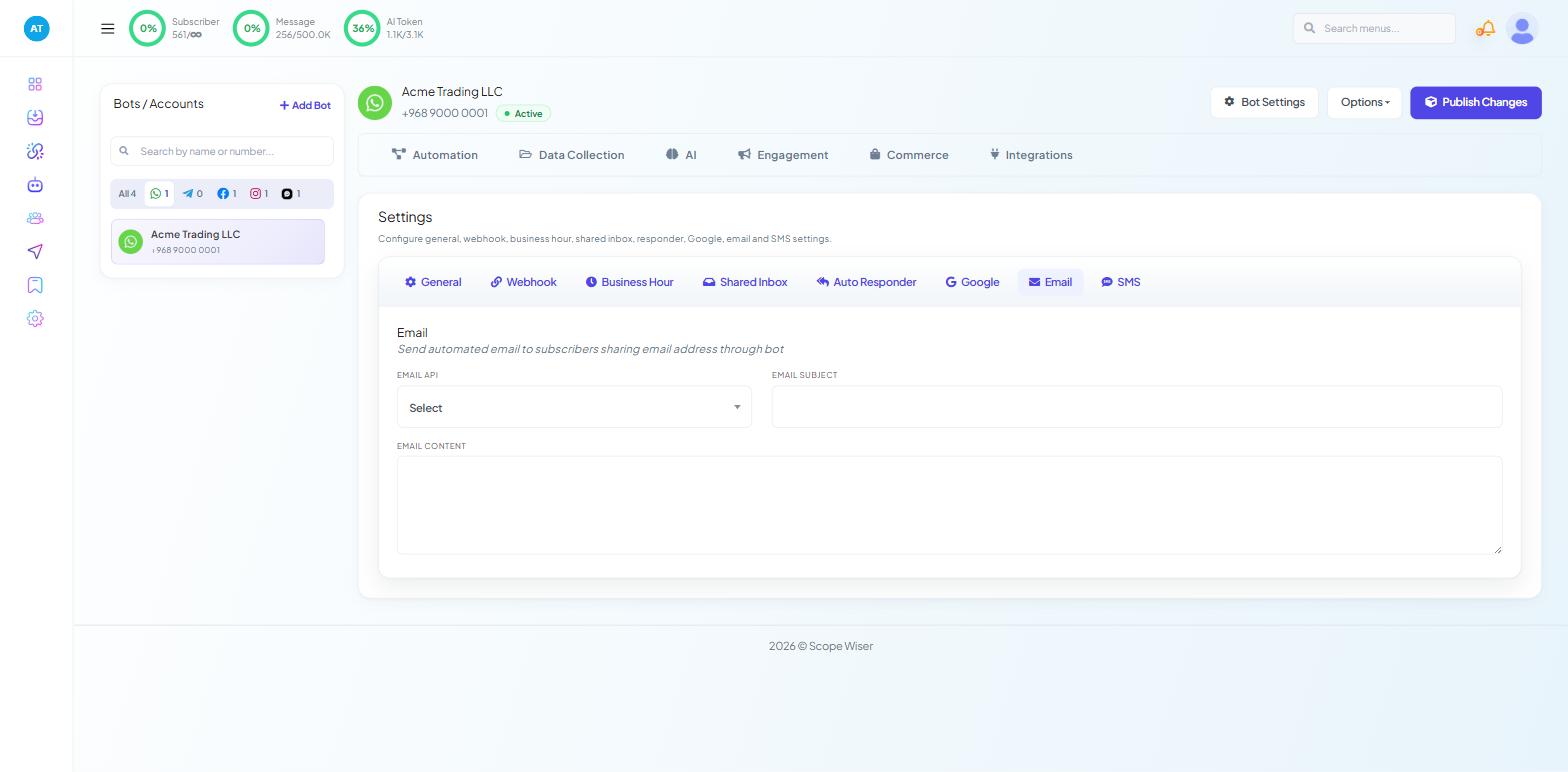
Attach the profile in Bot Settings → Email — see Email Setup and SMTP Configuration, Step 2.
Then trigger the flow with your own address at two different mailbox providers and look at where the message lands. Check the provider's own log afterwards — that is where a bounce reason or a spam complaint appears, and neither is visible from inside Scope Wiser.
Troubleshooting
"Connection failed" when saving. Host, port and encryption mismatched, or the wrong Mailgun region.
Saves fine, nothing delivers. The sender address in your profile must be on the same domain you verified.
Delivers to spam. SPF or DKIM missing or wrong. Recheck the records at your DNS host.
Worked, then stopped. A reset SMTP password, an exhausted free-tier allowance, or a suspension for content the provider classifies as marketing.
Some domains accept, others reject. Confirm the sender domain in the profile matches the domain you verified.
What to do next
If you have not yet built the flow that collects an email address, Email Setup and SMTP Configuration covers the User Input Flow and the Bot Settings fields end to end. For mailing lists and welcome sequences, Autoresponders: Mailchimp, Brevo, ActiveCampaign and Mautic is the right destination instead.