
Outbound Actions: Push Bot Data to Any CRM
Send chatbot data to Zapier, a CRM or your own endpoint as soon as it is collected: trigger events, the field picker, and how it differs from other webhooks.
What you'll do: send the details a bot collects to your CRM or Zapier the moment they are collected. When a bot event fires, Scope Wiser sends the data you choose to a URL you choose. The other end can be Zapier, Make, a CRM that accepts webhooks, or an endpoint you wrote yourself.
Time: 20–30 minutes, including a test.
Is this the right feature? Outbound Actions fires and forgets. If your flow needs the answer (a stock level, an order status, a price), use the HTTP API block instead, covered in Calling External APIs From a Flow. Four features in Scope Wiser involve a URL; the table under Reference shows which one you want. Choosing the wrong one costs an afternoon.
Before you start
☐ The data is collected first. An outbound webhook can only send what the bot has. The usual pattern is a User Input Flow: a trigger keyword, a short prompt, then questions whose answers save to fields (name, email, phone). Set each question's reply type to match what you are asking for, so an email question rejects something that is not an email before it ever reaches your CRM. What User Input Flows Are and When to Use Them covers the build.
☐ The flow has a name you will recognise in a dropdown later. You will be selecting it by name when you wire up the webhook.
☐ A receiving URL (section 1).
1. Create the receiving URL
If you are sending to Zapier, create the catch hook first so you have a URL to paste:
Create a new Zap.
Choose Webhooks by Zapier as the trigger app.
Select Catch Hook as the event.
Continue, and copy the webhook URL it generates.
Make, Pabbly and most CRMs offer the same shape of thing under a name like webhook trigger or inbound webhook. Any endpoint that accepts a POST will do, including your own, if you would rather not add a middleman.
2. Open Outbound Actions
Click Chatbot Manager and select a bot.
Stay on the Automation tab.
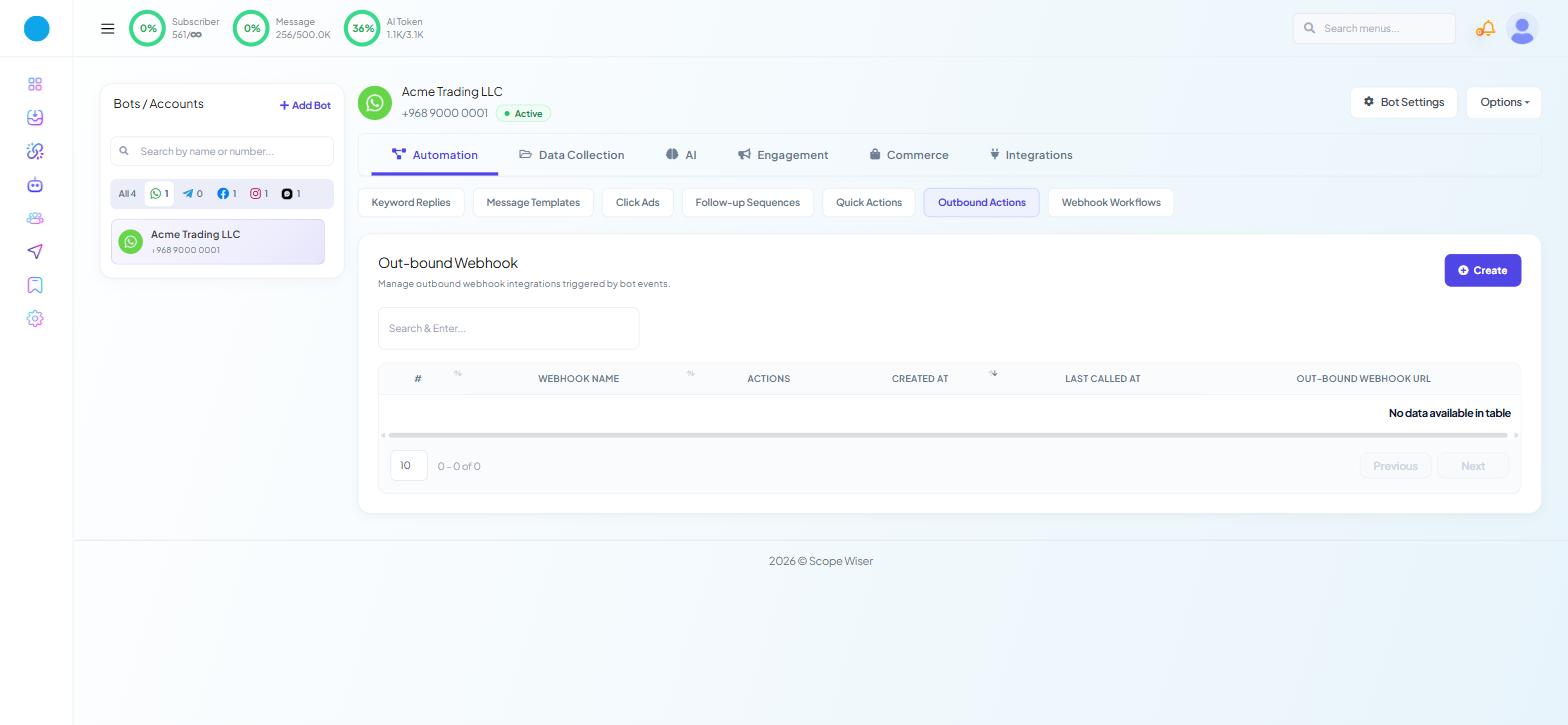
Open the Outbound Actions sub-tab, subtitled "Manage outbound webhook integrations triggered by bot events." The screen calls it Out-bound Webhook; it is the same feature.
3. Create the outbound action
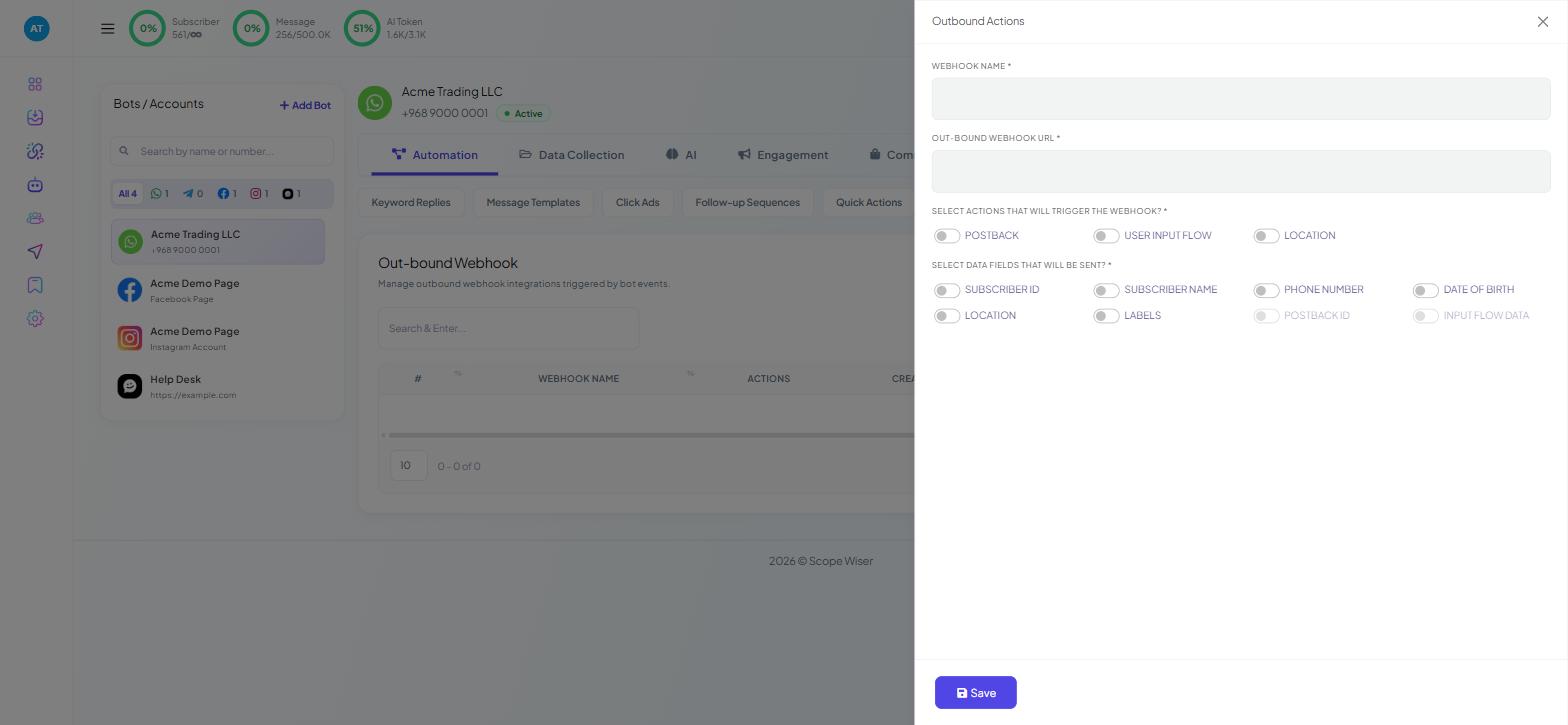
Click Create. A drawer titled Outbound Actions opens from the right.
WEBHOOK NAME *: your own label. Name it after the destination and the purpose, such ascrm-new-lead, because the list shows only names and URLs.OUT-BOUND WEBHOOK URL *: paste the URL you copied.SELECT ACTIONS THAT WILL TRIGGER THE WEBHOOK? *: switch on the trigger(s):POSTBACK: the customer tapped a button or menu item backed by a postbackUSER INPUT FLOW: a User Input Flow completedLOCATION: the customer shared their location
SELECT DATA FIELDS THAT WILL BE SENT? *: switch on the fields to send. Always includeSUBSCRIBER ID. For a form, includeINPUT FLOW DATA.Click Save.
Always include
SUBSCRIBER ID. It is the only stable key linking the record in your CRM back to the conversation in Scope Wiser. Names change and phone numbers get re-entered; the subscriber ID does not.
INPUT FLOW DATAcarries your questions and answers. Without it, a webhook triggered by a completed form sends the subscriber's identity and none of what they said.
4. Test it before you build anything on top
Message the bot on the channel it is connected to, and complete the flow properly: real answers, all the way to the end.
In Zapier, use Test Trigger on the catch hook. The incoming record should show the fields you switched on.
Check the
LAST CALLED ATcolumn on the Outbound Actions list.Only once the payload looks right, add the action that consumes it.
Don't test with half-filled answers. The webhook fires on a completed flow, so an abandoned test tells you nothing.
✅ Done when…
☐
LAST CALLED ATshows a fresh timestamp after your test☐ The receiving end shows the fields you switched on, including
SUBSCRIBER ID
If something doesn't work
POSTBACK IDorINPUT FLOW DATAcan't be switched on. They stay disabled until their matching trigger is on: enablePOSTBACKandPOSTBACK IDbecomes selectable; enableUSER INPUT FLOWandINPUT FLOW DATAdoes. Nothing is broken.LAST CALLED ATis blank. The webhook never fired: a Scope Wiser-side problem.A timestamp, but nothing at the far end. A receiving-side problem.
The integration stopped at some point. A stale
LAST CALLED ATshows this long before anyone notices missing leads in the CRM. A dead endpoint does not surface in the conversation; see Bot Error Logs and Custom Fields for where execution failures do appear.It works on one bot but not another. An outbound action belongs to the bot you created it on. Create it again on the other bot.
Reference
Which webhook feature you actually want
Feature | Direction | Use it when |
|---|---|---|
Automation → Outbound Actions | Out | A bot event should push selected subscriber data to an external service |
Automation → Webhook Workflows | In | An external service should trigger a message to a subscriber |
Bot Settings → Webhook | Out | You want the raw stream — every message in, out, and status change |
HTTP API block in the Flow Builder | Out and back | The flow needs a response to continue with, mid-conversation |
The Outbound Actions list
The list carries the columns #, WEBHOOK NAME, ACTIONS, CREATED AT, LAST CALLED AT and OUT-BOUND WEBHOOK URL, with a "Search & Enter..." box and a Create button.
LAST CALLED AT is the column to remember. It is the quickest answer to "is this thing firing at all?"
The eight data fields
SUBSCRIBER ID · SUBSCRIBER NAME · PHONE NUMBER · DATE OF BIRTH · LOCATION · LABELS · POSTBACK ID · INPUT FLOW DATA
Limits worth knowing
Three triggers, eight fields, one URL. That is the whole mechanism, and it is worth knowing before you design around it. Outbound Actions is not a general event stream: nothing fires on an inbound message, a label change or a broadcast, and you cannot add a field that is not on the list of eight. Where the shape does not fit, Bot Settings → Webhook carries the raw message stream and the HTTP API block sends exactly what you compose.
Structured text only. Payloads carry field values, not files or media. Send a link if you need to move a document.
No response handling. Whatever your endpoint returns is not read back into the conversation. Use the HTTP API block for that.
Per bot. Running the same integration on WhatsApp and Facebook means creating it twice.
Failures are quiet. Watch
LAST CALLED AT.
What to do next
Calling External APIs From a Flow covers the other direction: pulling a value into a conversation mid-flow and branching on it. If the collection side is what you still need, What User Input Flows Are and When to Use Them starts there.
Next: Calling External APIs From a Flow