
Zapier: Setup and Top Use Cases
Connect Scope Wiser to Zapier in both directions using Webhooks by Zapier: push chatbot data out with Outbound Actions, pull events in with a Webhook Workflow, and the automations worth building first.
Zapier connects Scope Wiser to the other apps your business runs on, without anyone writing code. This guide builds both directions: chatbot data going out to Zapier, and Zapier triggering a WhatsApp message.
The one thing to settle first: which direction
Scope Wiser → Zapier. Something happens in a conversation, and you want it recorded or acted on somewhere else. Use Outbound Actions, or an HTTP API block inside the flow. On the Zapier side the trigger is Webhooks by Zapier → Catch Hook.
Zapier → Scope Wiser. Something happens in another app, and you want a WhatsApp message sent. Use a Webhook Workflow, which gives you a callback URL Zapier can post to as an action.
This post builds the first direction in full, then explains what changes for the second.
What you need
A Zapier account, on a plan that includes webhooks.
A connected channel in Scope Wiser, and a bot that collects something worth sending.
A User Input Flow if the data you want is answers to questions. What User Input Flows Are and When to Use Them covers building one.
Step 1: get a catch-hook URL from Zapier
In Zapier, create a Zap whose trigger app is Webhooks by Zapier and whose event is Catch Hook. Zapier generates a URL and shows it to you. Copy it — that is the whole of what Scope Wiser needs from Zapier.
Leave the Zap open. You will come back to it to capture test data before you can build the action.
Step 2: send the data from Scope Wiser
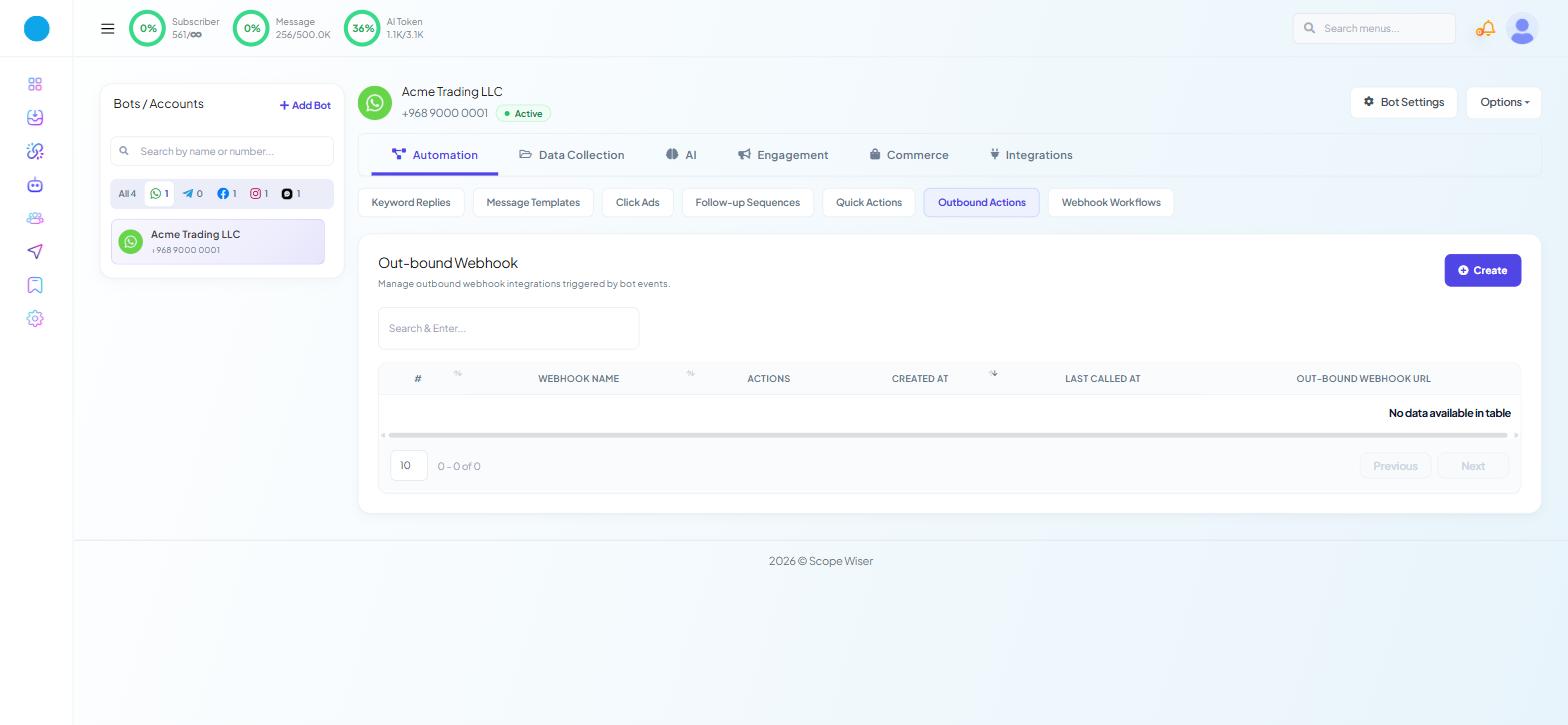
Open Chatbot Manager, select the bot, then Automation → Outbound Actions. The page is headed Out-bound Webhook — "Manage outbound webhook integrations triggered by bot events."
Click Create. A drawer titled Outbound Actions slides in.
WEBHOOK NAME * — name it for the destination: "Zapier — new lead".
OUT-BOUND WEBHOOK URL * — the catch-hook URL you copied.
SELECT ACTIONS THAT WILL TRIGGER THE WEBHOOK? * — toggles for POSTBACK, USER INPUT FLOW and LOCATION. Switch on the one that matches what your bot does.
SELECT DATA FIELDS THAT WILL BE SENT? * — toggles for SUBSCRIBER ID, SUBSCRIBER NAME, PHONE NUMBER, DATE OF BIRTH, LOCATION, LABELS, POSTBACK ID and INPUT FLOW DATA. Switch on only the fields you need.
Save the webhook.
POSTBACK ID and INPUT FLOW DATA stay greyed out until you turn on the matching trigger action above them, which catches most people the first time. Switch on USER INPUT FLOW and INPUT FLOW DATA becomes selectable.
Step 3: produce a real payload
Zapier cannot build an action until it has seen the shape of your data.
Trigger the bot yourself: send the keyword on WhatsApp, work through the input flow, and answer with values you will recognise. In Zapier, use the trigger's test step. The payload arrives carrying whichever of the data fields you switched on in step 2 and nothing else — with SUBSCRIBER NAME, PHONE NUMBER and INPUT FLOW DATA on, that is the subscriber's name, the phone number (labelled chat ID) and the input-flow answers. A field you deliberately left off is simply absent; that is not a failed test.
If nothing arrives, check three things in this order: that the outbound action's trigger toggle matches what you actually did, that the flow ran to completion rather than stopping at a question, and that the URL was pasted whole.
Step 4: build the action
With the payload captured, add the action step in Zapier and map fields from it. The example that proves the connection quickest is an email to yourself — Zapier's own email action, with the subscriber's answer in the body — because it takes a minute and tells you the mapping is right.
Once that works, replace it with the action you actually want: a row in a spreadsheet, a contact in a CRM, a task, a message in a team channel.
Turn the Zap on when it is done. A Zap left in draft looks identical to a broken webhook from the Scope Wiser side.
For developers
To push at a chosen point in a conversation rather than on a generic bot event, define a saved HTTP API that POSTs to the catch-hook URL and drop the HTTP API block into the flow where the data becomes available — see HTTP API: The Complete Developer Guide.
The other direction: Zapier sends, Scope Wiser messages
When the event starts in another app, the flow reverses.
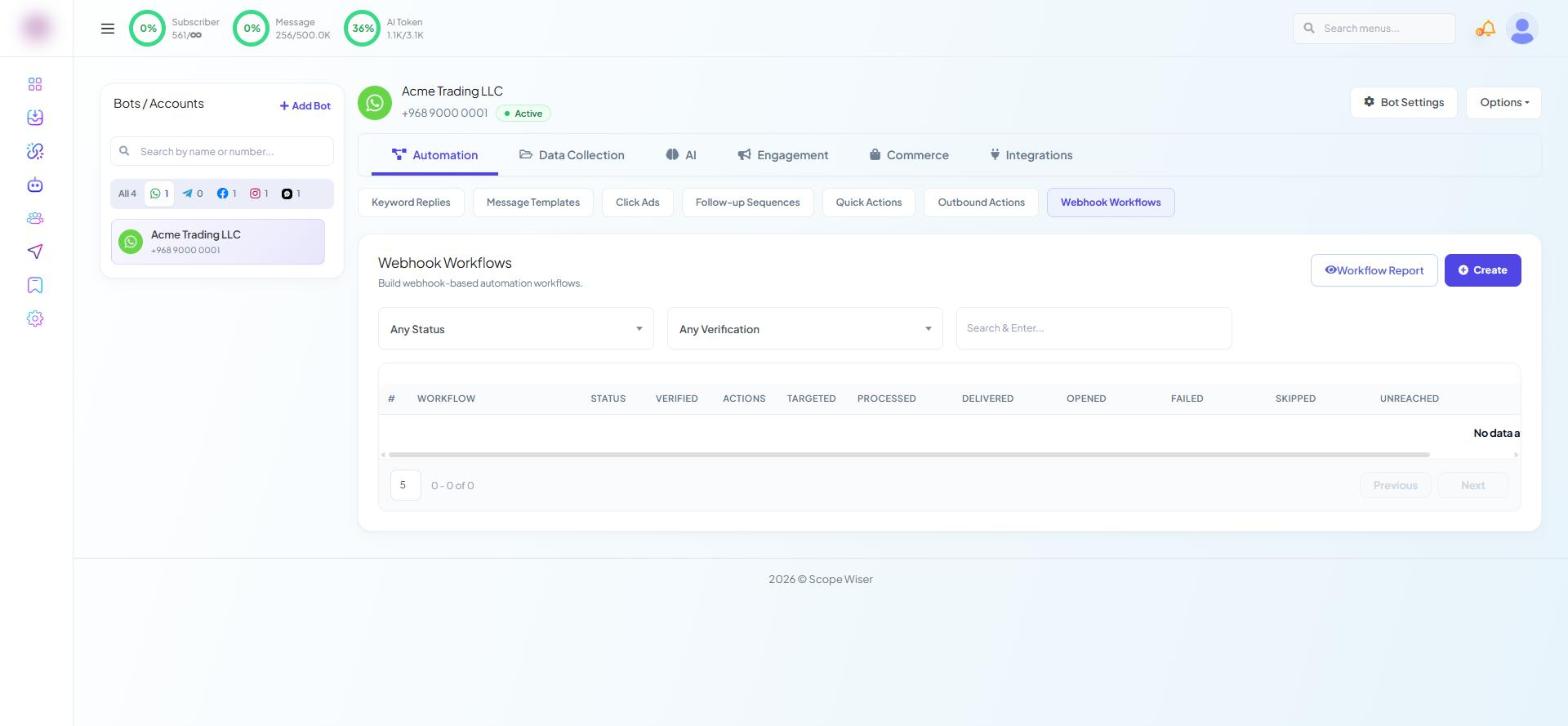
Create a Webhook Workflow at Chatbot Manager → Automation → Webhook Workflows — "Build webhook-based automation workflows."
Give it a WORKFLOW NAME, choose the approved MESSAGE TEMPLATE it will send, and click Create Workflow. The address Zapier posts to appears only afterwards, in a read-only box headed Webhook Callback URL. You can also copy it from the kebab menu on the workflow's row.
In Zapier, add Webhooks by Zapier → POST with the callback URL, send one test, press Capture Webhook Response and pick the phone and name rows. Webhook Workflow: Complete Beginner's Guide covers the workflow screen in full.
Because the first message goes to somebody who has not messaged you in the last 24 hours, it must be an approved template. That constraint is WhatsApp's, not the product's.
Automations worth building first
Lead capture into your CRM. A chatbot enquiry becomes a lead record with no retyping.
Contacts into an email platform. A subscriber who gives an email address joins the right list.
A row in a spreadsheet. Every enquiry logged, with a timestamp.
Calendar events from bookings. A confirmed appointment becomes an event in the team calendar.
Support tickets. A help request in chat opens a ticket in your helpdesk.
Follow-up email after a conversation. A receipt, a summary, or a document somebody asked for.
After editing an input flow or custom field, re-test the Zap.
When data does not arrive
Nothing reaches Zapier at all. The trigger action toggle in the outbound action does not match the event, or the flow never reaches the point that fires it.
Data arrives but fields are empty. The matching data-field toggle is off, or the field was never filled in during the conversation.
It worked, then stopped. The Zap was turned off, or the input flow was edited and the payload changed shape.
Messages fail in the other direction. Nearly always the phone number — see Form-to-WhatsApp Troubleshooting.
What to do next
Outbound Actions: Push Bot Data to Any CRM goes deeper into the trigger events and the field picker, and explains how Outbound Actions differs from the three other webhook features. If your automation starts outside Scope Wiser, Webhook Workflow: Complete Beginner's Guide is the one to read.