
Google Calendar: Connect, Create Calendars and Events
How the Google Calendar side of Google Integration works: what the sign-in grants, how to create a calendar and an event from Scope Wiser, and how the WhatsApp Appointment System uses the connection to book slots and issue Google Meet links.
Google Integration is one connection with two halves. Most people meet the Sheets half first, because that is where subscriber data goes. The Calendar half matters the moment you take bookings: it is what lets a WhatsApp conversation put an appointment into a real calendar, and what generates the Google Meet link for a virtual one.
What the connection grants
Open Connect Account and click the Connect Google card. The page is headed Google Integration ("Connect and manage your Google accounts, sheets, and calendars.") with four counters across the top: Google Accounts, Sheets Access, Calendar Access and Limited Access.
Click Sign in with Google in the Connect Google Account card. Google then asks which of four permissions to grant: contacts, the Drive files you use with the app, Google Sheets, and Google Calendar. Tick all four (there is a Select all). If Calendar is left unticked the account still connects, but it counts under Limited Access and the Calendar section below stays empty. That is the most common reason a booking flow never writes anything.
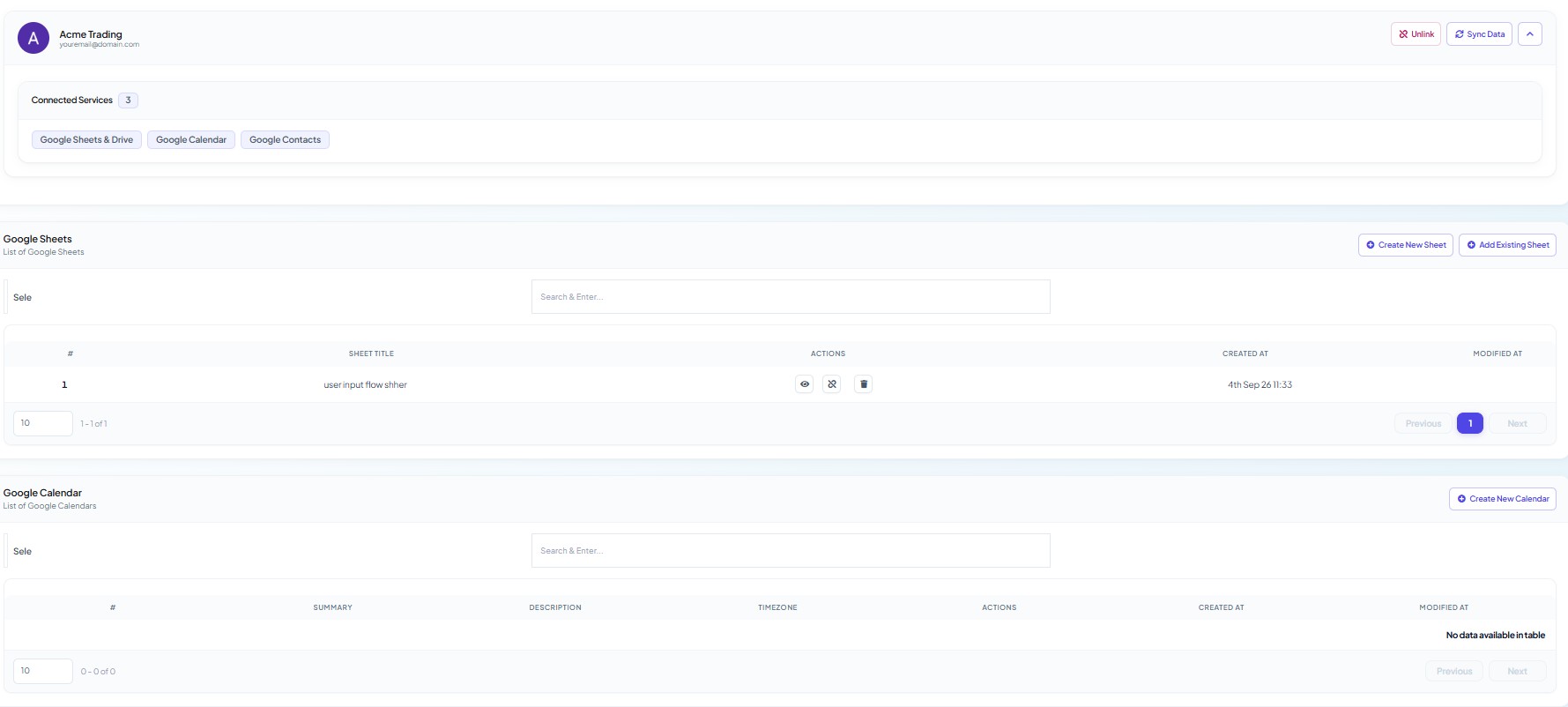
Once connected, the account card shows Connected Services with badges for Google Sheets & Drive, Google Calendar and Google Contacts, plus Unlink and Sync Data buttons.
Creating a calendar from Scope Wiser
The Google Calendar section ("List of Google Calendars") lists calendars the connected account has created through Scope Wiser, with the columns #, SUMMARY, DESCRIPTION, TIMEZONE, ACTIONS, CREATED AT and MODIFIED AT. A fresh connection shows No data available in table.
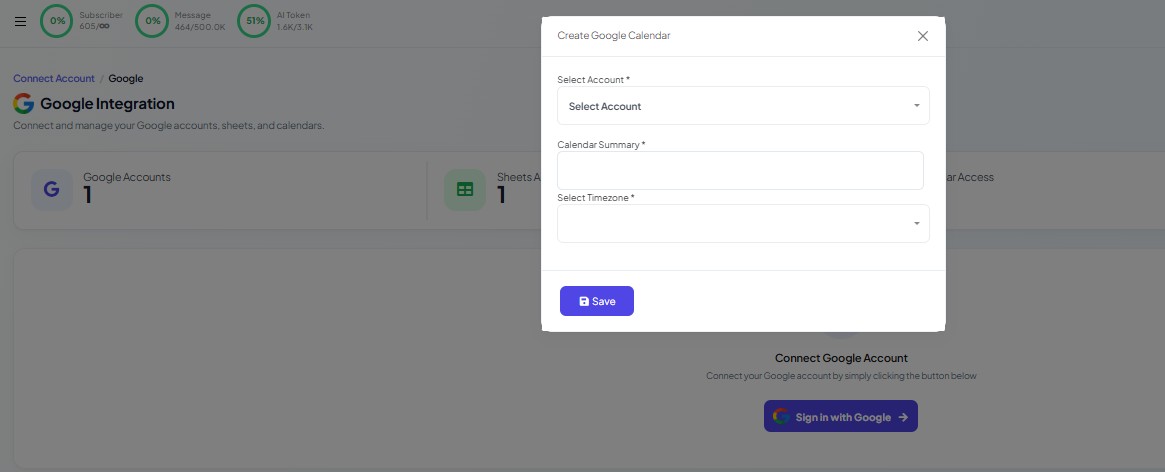
Create New Calendar opens a Create Google Calendar dialog with three required fields:
Select Account: which connected Google account owns the calendar.
Calendar Summary: the calendar's name as it will appear in Google Calendar.
Select Timezone: the zone every slot in it is expressed in. Pick the zone your business actually operates in; a mismatch here shows up as bookings an hour off.
Save creates the calendar in the Google account itself, so it is visible in Google Calendar on your phone immediately, not only inside Scope Wiser.
Creating an event
Each calendar row's actions include creating an event by hand. The Create Calendar Event dialog carries Event Title (required), Location, Description, Start Time and End Time (both required), Select Timezone (required) and an Add Google Meet Link switch. Turning that switch on attaches a Meet link to the event, which is the same mechanism the appointment system uses for virtual services.
Use this dialog once to check the connection writes to Google before building a booking flow.
How bookings use it
The WhatsApp Appointment System is where the calendar earns its keep. Its setup asks you to Connect Google Calendar so that every booking syncs in real time, to set your time zone, and optionally to link a Google Sheet as a running record. Services marked as virtual then get a Google Meet link generated automatically; in-person services show your location instead.
So the order is: connect Google here with Calendar ticked, create or choose the calendar bookings should land in, set the time zone once, and only then build services and availability. Set up appointment booking and Create services and availability walk through the appointment side, and Appointment Booking Automation shows the WhatsApp conversation that collects the booking. This article is the prerequisite all three assume.
When the calendar section stays empty
Limited Access is 1, Calendar Access is 0. Calendar was unticked at sign-in. Click Unlink, reconnect, and tick everything.
The calendar exists in Google but not in the list. The list shows calendars created through Scope Wiser. Create one here rather than in Google, or use Sync Data on the account card.
Bookings land at the wrong hour. The calendar's time zone and the appointment system's time zone differ. Both should be the zone you operate in.
What to do next
Google Sheets: Connect, Import and Use Data in Replies covers the other half of the same connection. For bookings, continue with WhatsApp Appointment System.