
Form-to-WhatsApp Troubleshooting
The WhatsApp message from your website form is not arriving, or arrives with blanks. Work through the failures in the order they actually happen, from the form to the template.
The chain is: the form fires a webhook → Scope Wiser receives it → the workflow maps the data → Meta delivers the template. A break in any link looks identical from the website.
Start by finding out how far the request got.
First: did anything reach Scope Wiser?
Open Chatbot Manager, select your WhatsApp bot, then Automation → Webhook Workflows. Find your workflow's row and read the counters: TARGETED, PROCESSED, DELIVERED, FAILED, SKIPPED and UNREACHED. A Workflow Report control sits above the table, and the filters Any Status and Any Verification narrow the list.
Three of those counters render under a different label — FAILED as Error, SKIPPED as Condition Failed and UNREACHED as Failed; Website Forms to WhatsApp: WPForms, Elementor and Others explains what each one means.
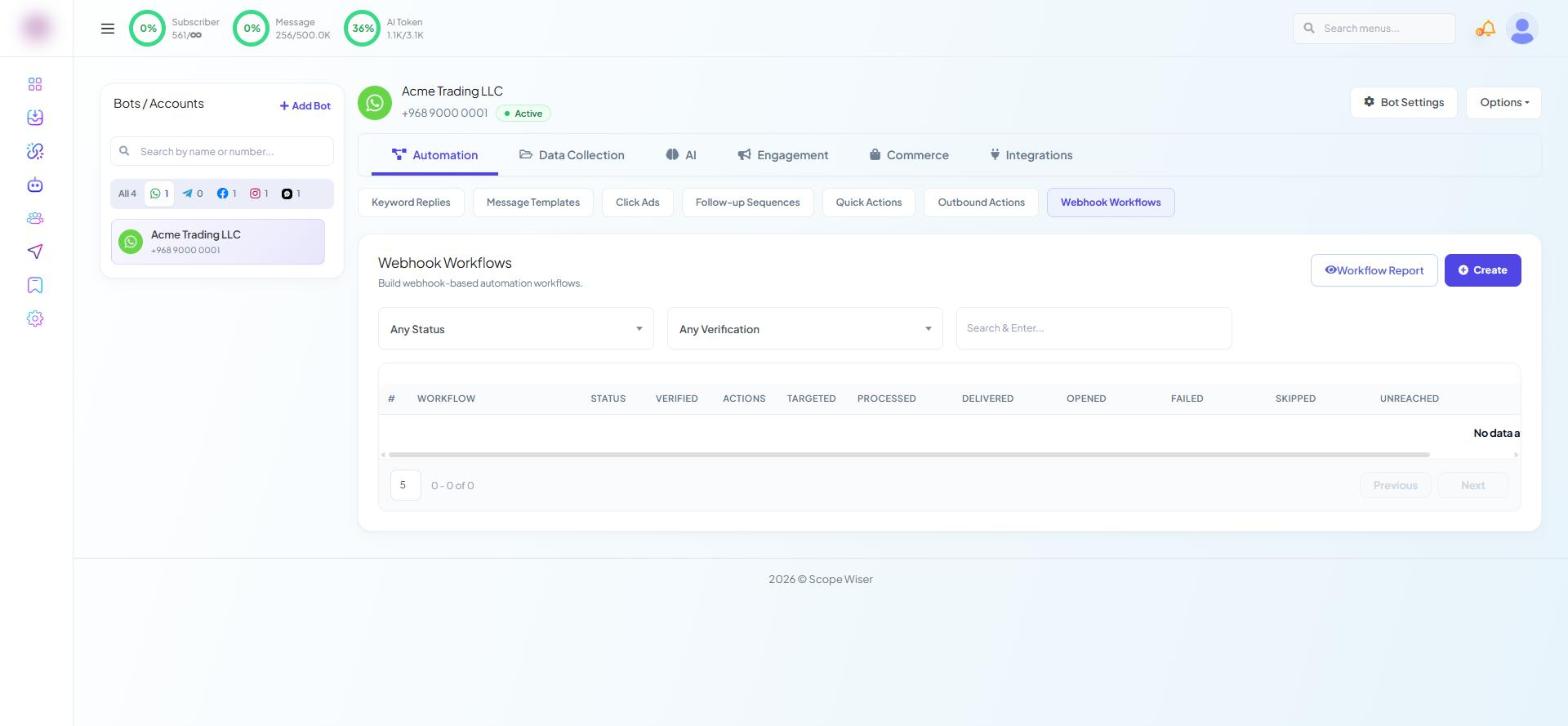
All counters at zero — nothing arrived. The problem is on the website side. Go to the next section.
Targeted and processed climbing, nothing delivered — the request arrived and Meta rejected the send. Skip to The message fails at WhatsApp.
Delivered climbing but messages look wrong — the data mapping. Skip to The message arrives with blanks.
Nothing reaches Scope Wiser
Four causes, in the order they are worth checking.
The page was not republished. Republish the page — Elementor and WPForms both serve the old form until you do. This is the most common cause by a wide margin. Open the page in the editor and click Publish or Update even if you are sure you already did.
The webhook setting is not switched on. In Elementor, open Actions After Submit in the form widget's settings and confirm Webhook is in the list — pasting the URL into the Webhook section without adding the action itself silently does nothing. In WPForms, confirm the Webhooks addon is active and that webhooks are enabled on this form.
The URL is wrong. Recopy it from the workflow in Scope Wiser and paste it fresh. A URL that has been through a document, an email or a chat message may have picked up a trailing space, a line break or a "smart" character.
The form itself does not submit. Turn off caching plugins and retry; if it still fails, ask your web developer to check the browser console.
The message arrives with blanks
You get "Hi , thanks for getting in touch" instead of a name. The template is fine; the mapping is not.
The workflow pairs fields from the form's payload with the template's variables. If the form's field names have changed since you mapped them — or you mapped against a sample from a different form — the pairing no longer resolves and the variable comes through empty.
Fix it by recapturing a sample and remapping:
In the workflow list, open the kebab menu on the row and choose Edit Connection. That is the way back into a saved workflow's mapping.
Under Configure Webhook Data, either submit the form again and press Capture Webhook Response on the Real-time Response tab, or skip the website entirely: paste a payload of the shape the form now sends into Custom JSON Body and press Run Test.
Webhook Response Mapping repopulates itself against whatever the fresh payload contains. Each dropdown shows the form's fields with a sample value beside each. Pick the row whose sample value shows the name.
Check that every variable is mapped. A template with two variables needs two mappings; one left empty produces a message that looks half-finished.
To see what actually arrived last time, read the Raw Data panel on the same screen — "The original webhook data received in raw format" — which pretty-prints the captured payload. There is no separate archive of past calls, so the payload in front of you is the most recent capture, not a history.
The message fails at WhatsApp
The workflow processed the request and the send was rejected. Three usual causes.
The template is not approved. Open Automation → Message Templates and read the STATUS column for the template your workflow uses. Anything other than Approved means it cannot send. Use Sync Templates to refresh the status from Meta before assuming it is stuck — the local status can lag.
The phone number is not usable. This causes more failures than everything else combined. Every number needs its full country code. A number entered as 9000 0001, or one starting with a national trunk prefix such as 0, goes nowhere. So does a number that is simply not registered on WhatsApp, and that failure is silent — Meta accepts the send and nothing is ever delivered.
Prevent it at the form rather than diagnosing it afterwards: use a phone field, show the expected format in the placeholder, and state it in the label — "WhatsApp number, including country code". Where your visitors are all in one country, prefill the code. A leading + can be stripped inside Scope Wiser with a Data Formatter, described in Website Forms to WhatsApp: WPForms, Elementor and Others.
The channel itself is down. If nothing is going out on any route, the problem is the connection rather than the form. Check Connect Account for the bot's status.
The delay you set is being ignored
The message arrives instantly even though you configured a wait.
The workflow's own Wait [0] minutes field is the only delay for this message; delays on flow blocks do not apply. It sits in the Send message with a delay section, takes minutes only, and left at 0 the template goes out immediately.
The message sends but the person is not a subscriber
Expected behaviour. A template sent to a number does not create a two-way relationship on its own. Once the recipient replies, they become a subscriber in Scope Wiser and the 24-hour window opens, at which point normal flows, labels and follow-ups all apply. Write the template so replying is the natural next step.
Before you ask for help
Have these ready and most cases resolve in one exchange:
The workflow name, and the counters from its row in Webhook Workflows
The relevant line from Workflow Report, whose per-recipient log gives PHONE NUMBER, STATUS, SCHEDULED AT, DELIVERED AT, OPENED AT, FAILED AT and RESPONSE — the RESPONSE column carries the platform's own reason for a failed send
The template name and its STATUS
The number you tested with, in the exact format the form submitted it
Whether the page was republished after the form was last edited
Whether the form itself submits on the website
What to do next
If you are still setting this up rather than repairing it, Website Forms to WhatsApp: WPForms, Elementor and Others covers the full chain in order. For rejections rather than delivery failures, Why Message Templates Get Rejected explains what Meta looks at.