
Sending OTP Messages via the API
Send a one-time passcode to WhatsApp from your own application: the Auth/OTP template, the template variable that carries the code, the API endpoint, and how to handle the token safely.
This guide is for developers integrating their own website or app.
Your application calls an endpoint, Scope Wiser sends an approved WhatsApp template with the passcode in it, and the customer never sees a chatbot at all.
What has to be true first
A connected WhatsApp channel.
An approved template in the Auth/OTP category. Free-form messages only reach people who messaged you in the last 24 hours. Somebody logging in has not, so the message must be a template.
A place to put a credential where it will not leak.
Step 1: create the variable that carries the code
Every recipient gets a different passcode, so the template needs a variable rather than fixed text.
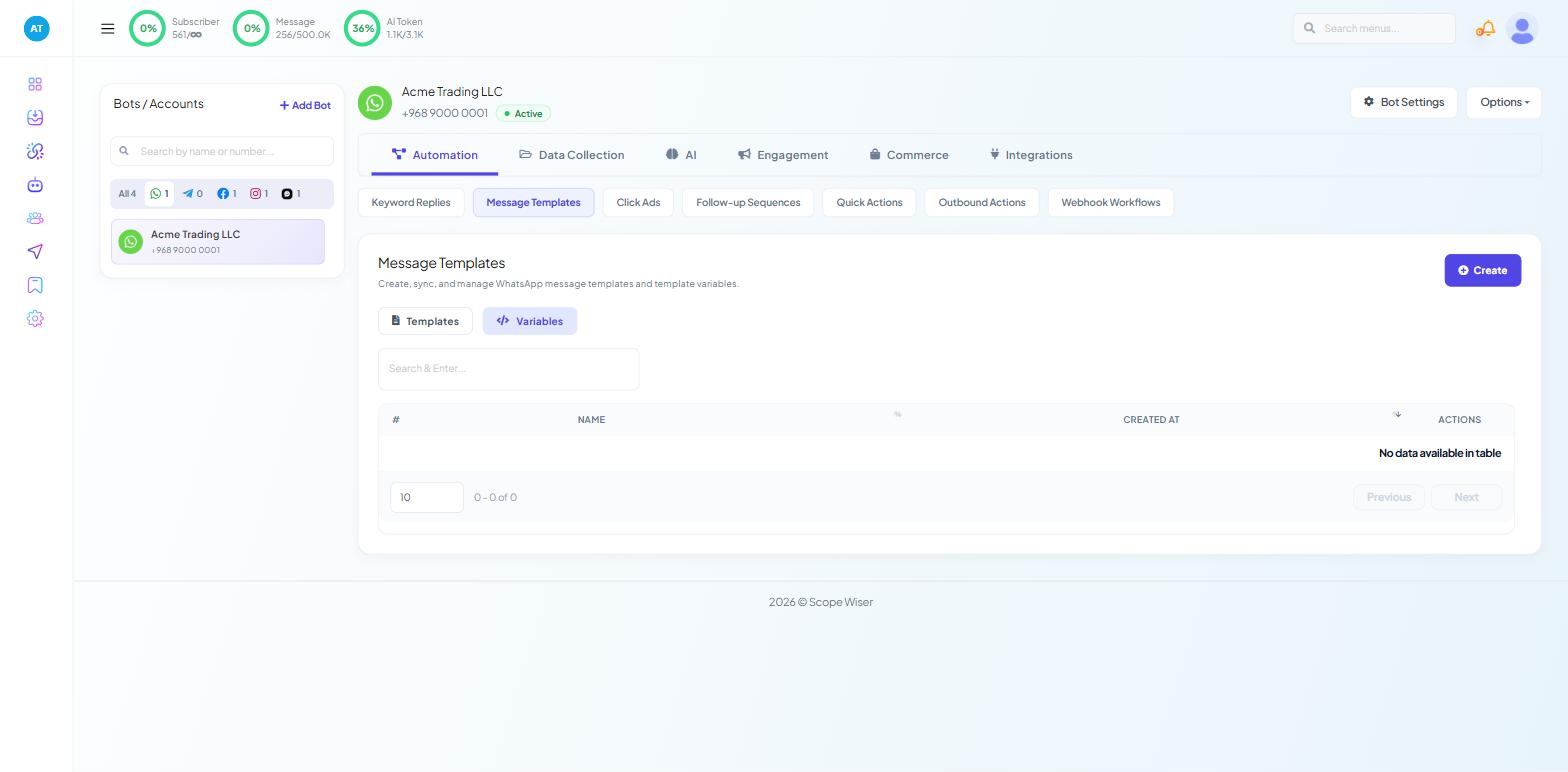
Open Chatbot Manager, select the WhatsApp bot, then Automation → Message Templates. The page carries two inner tabs, Templates and Variables. On Variables, click Create, name the variable something like OTP, and save it.
Create the variable first. A template built without one has to be edited and re-approved, and approval is the slow part.
Step 2: create the template
Back on Templates, click Create and choose General Template. The Message Template modal opens:
Field | What to set |
|---|---|
TEMPLATE NAME * | "Put a name to track it later" — lower case with underscores |
LOCALE * | The language the code arrives in |
TEMPLATE CATEGORY * | Auth/OTP |
HEADER TYPE * | No Header is fine |
MESSAGE BODY (1024)* | "Type # for custom fields and name, #! for variables" |
FOOTER TEXT | Optional, up to 60 characters |
BUTTON | None |
The category matters more here than anywhere else. Auth/OTP is a distinct WhatsApp category with its own rules, and a passcode template submitted as Marketing will be rejected or throttled.
For the body, type #! where the code should appear and pick your OTP variable from the list. Something short: "Your Acme Trading verification code is #!. It expires in five minutes." Do not add a link, and do not add anything promotional — both cause rejections in this category.
Save, then use Sync Templates and watch the STATUS column until it reads approved. Auth templates are usually decided quickly.
Creating & Getting WhatsApp Templates Approved covers the modal in full, including what gets templates rejected.
Step 3: generate the endpoint
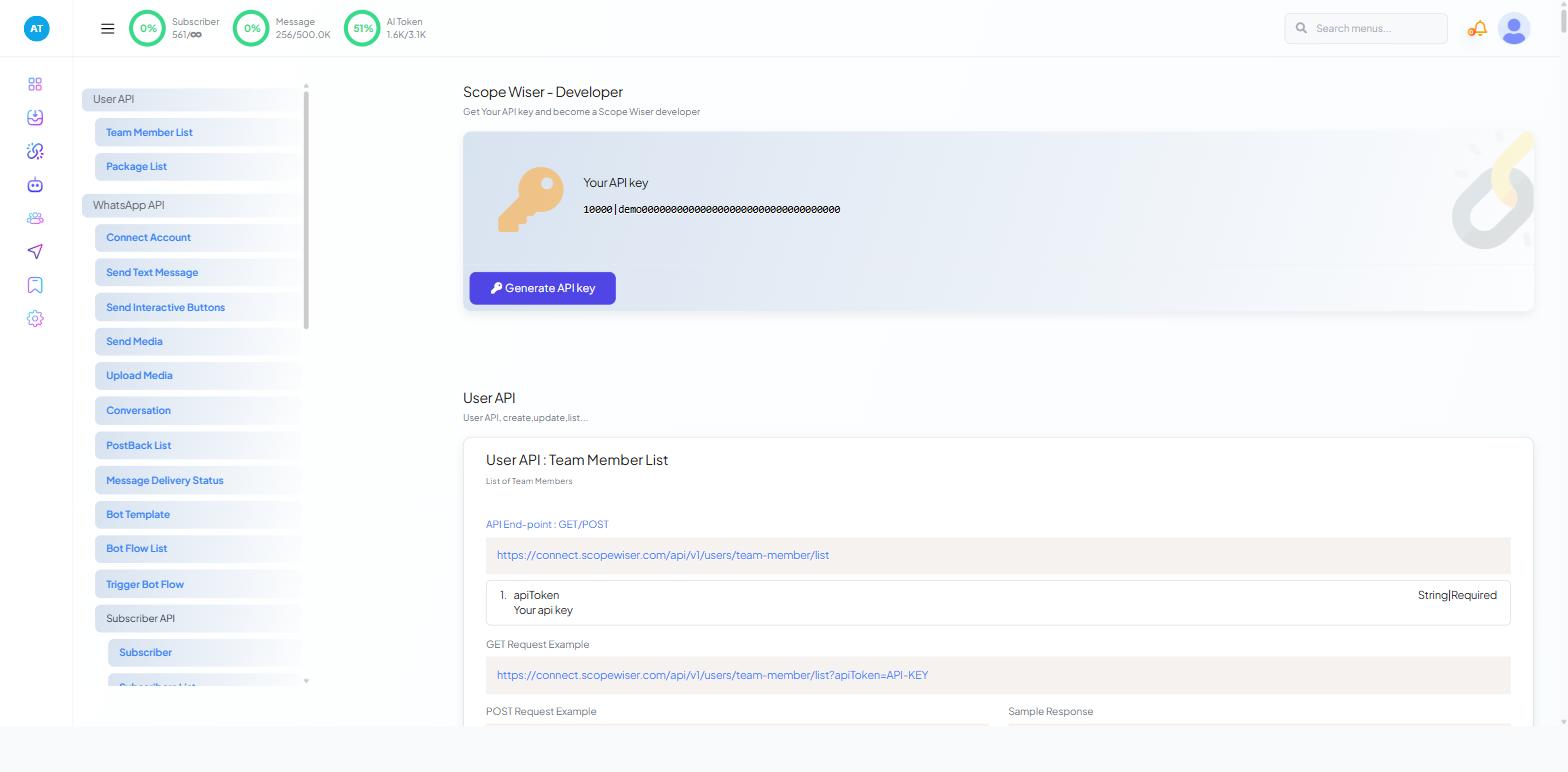
Open the profile menu and choose API Developer. The item is only in that menu if your role has the API DEVELOPER permission switched on under Control Panel → User Permission, so on a team login this step may need the account owner.
Generate an API key in the console if you do not already have one.
Use the console's endpoint builder for sending a template message. It asks which WhatsApp account to send from, which template to use, and a name for the endpoint, and returns a complete URL with the parameters filled in.
Generate the endpoint rather than assembling one by hand. It gets the template identifier and the variable parameter names right, and those are the two things that are tedious to work out from a failed response.
Step 4: call it from your application
The generated endpoint carries your credential and identifies the account, the template and the variable. In your own code, replace the values that change per request — the passcode and the recipient — and keep the rest.
Here is the shape in PHP. The placeholder names are deliberate:
<?php
$apiToken      = getenv('SCOPEWISER_API_TOKEN');   // never hard-code this
$phoneNumberId = getenv('SCOPEWISER_PHONE_NUMBER_ID');
$templateId    = getenv('SCOPEWISER_OTP_TEMPLATE_ID');

$otp        = random_int(10000, 99999);
$sendNumber = '96890000001';                        // country code, no + and no spaces

// replace this host with the base URL shown in your API console
$url = 'https://example.com/api/v1/whatsapp/send/template'
     . '?apiToken='            . urlencode($apiToken)
     . '&phoneNumberID='       . urlencode($phoneNumberId)
     . '&botTemplateID='       . urlencode($templateId)
     . '&templateVariable-OTP-1=' . urlencode($otp)
     . '&sendToPhoneNumber='   . urlencode($sendNumber);

$ch = curl_init($url);
curl_setopt($ch, CURLOPT_RETURNTRANSFER, true);
$response = curl_exec($ch);
curl_close($ch);
Three things in that snippet are not decoration.
The credential comes from the environment, not from the source file.
The recipient's number carries its country code and nothing else — no
+, no spaces, no leading zero. Malformed numbers are the most common reason a send that returns success delivers nothing.TLS verification stays on. Fix the certificate store rather than disabling peer verification.
Keeping the token safe
Store it in an environment variable; regenerate it in the console if it is exposed.
Handling the response and the failure cases
Read the response your application receives rather than assuming the send worked, and log it against the attempt.
Nothing arrives, but the call succeeded. Nearly always the number format. Check for a
+, a space, or a missing country code.The call is rejected. Usually the token, or a template identifier that no longer matches after a template was edited.
Delivery is inconsistent across countries. Check the number's messaging limit and quality rating on the WhatsApp Integration page.
It worked and then stopped. The template was edited and lost its approval, or the token was regenerated elsewhere.
Two application-side habits matter as much as the integration. Expire codes quickly — five minutes is generous — and rate-limit requests per phone number, so a form that anyone can submit cannot be used to send hundreds of messages at your expense.
Never log the passcode itself. Log that one was sent, to which subscriber, and at what time.
What to do next
HTTP API: The Complete Developer Guide covers the other direction — Scope Wiser calling your systems — along with monitoring through the API Usage Log and key safety in full. For the rules that decide when a template is required at all, read WhatsApp Rules You Must Know: 24-Hour Window & Template Messaging.