
SMS Gateways: Twilio, Vonage and Africa's Talking
Which credentials Twilio, Vonage (formerly Nexmo) and Africa's Talking give you, where to paste them in Scope Wiser, and which provider suits which market.
This guide tells you which credentials each SMS provider gives you, where they go in Scope Wiser, and which provider suits which market.
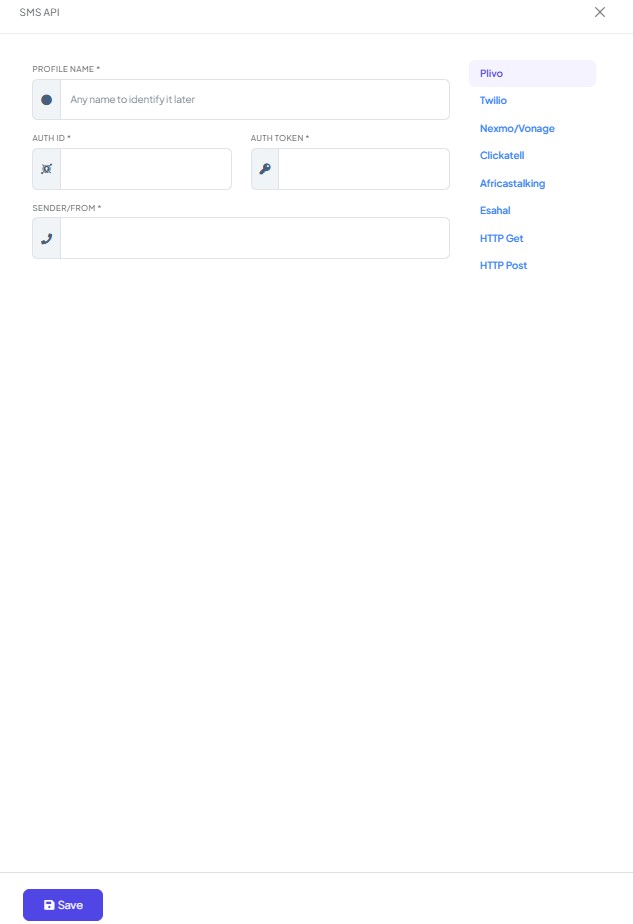
The SMS API form offers eight tabs: Plivo, Twilio, Nexmo/Vonage, Clickatell, Africastalking, Esahal, HTTP Get and HTTP Post. The first six are named gateways — pick your provider and fill in the credentials it issued. The last two are for any other provider, and are covered in Custom SMS Gateway: HTTP GET and POST.
This guide covers the three most widely used: Twilio, Vonage and Africa's Talking. Plivo, Clickatell and Esahal work the same way — choose the tab and enter the keys from that provider's console.
Where the credentials go, whichever provider you choose
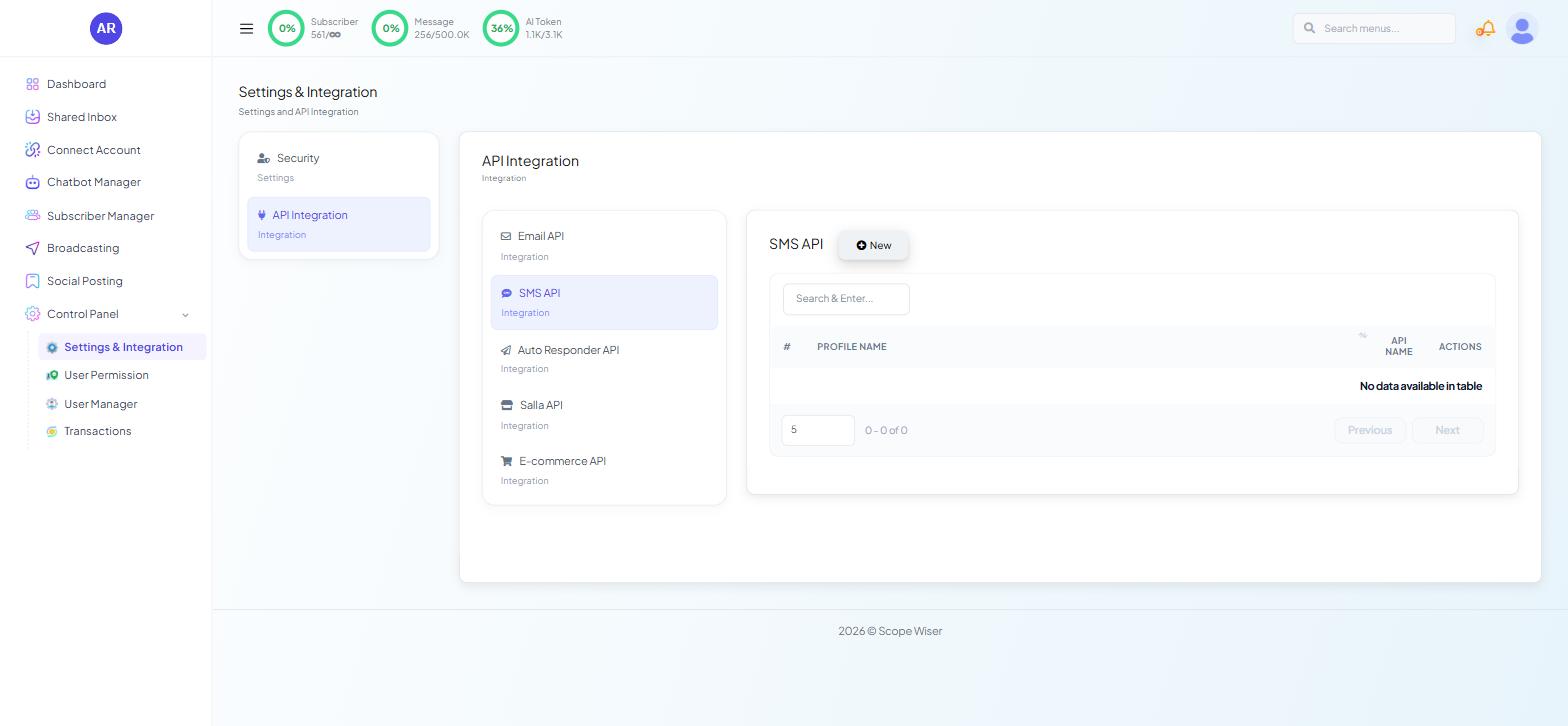
From the sidebar, open Control Panel → Settings & Integration.
Choose the API Integration card, then SMS API from the list.
Click New. A drawer opens with the provider tabs listed down the right-hand side; the fields on the left change with the tab you pick.
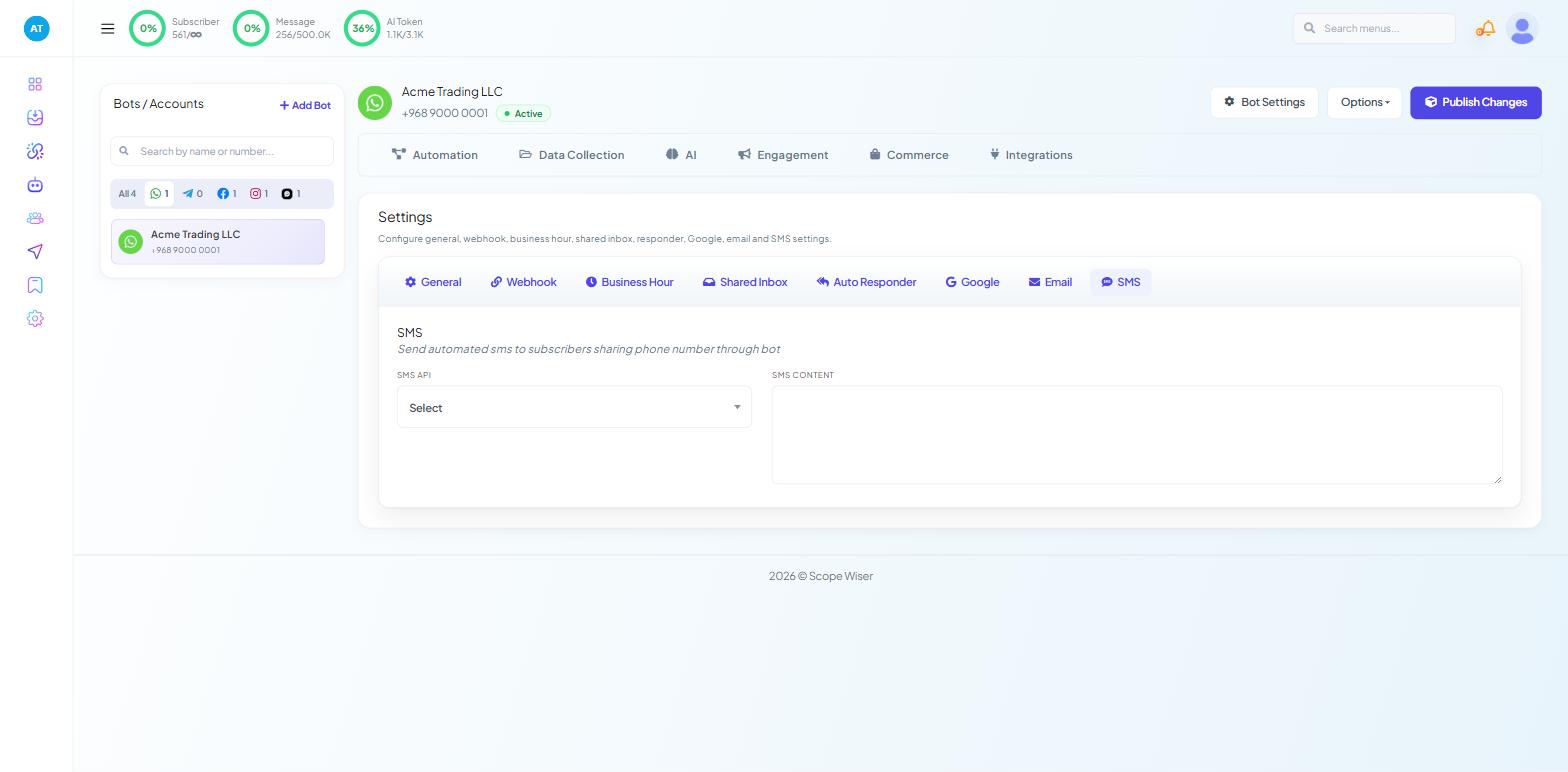
Give the profile a PROFILE NAME that says what it is for, such as "Twilio — reminders". That name is what you pick later in Bot Settings → SMS and in the Broadcast Center.
Fill in that provider's fields and click Save.
The fields differ by provider, and the labels are not always the ones the provider itself uses:
Tab | Fields |
|---|---|
Plivo | Auth ID, Auth Token, Sender/From |
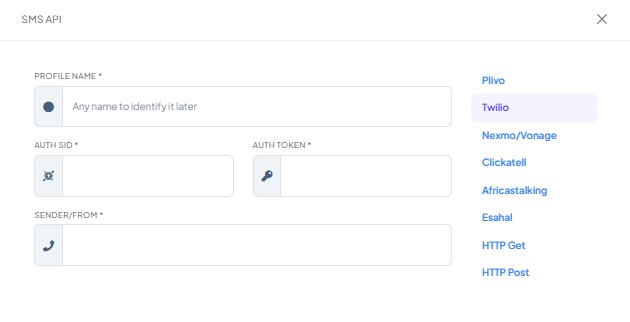
Twilio | Auth SID, Auth Token, Sender/From |
Nexmo/Vonage | The key and secret Vonage issues, plus a sender |
Clickatell | API ID only |
Africastalking | The username and key Africa's Talking issues |
Esahal | Account Name, Account Password, Username, Sender/From |
Twilio — for sending worldwide
Use Twilio when you send to many countries.
What you need from Twilio:
Twilio calls it | The field here |
|---|---|
Account SID — your identifier, starting | AUTH SID |
Auth Token — the matching secret, treat it like a password | AUTH TOKEN |
A phone number you bought from Twilio, in full international format | SENDER/FROM |
All three appear together in the Account Info panel of the Twilio console once your account is verified.
Two things to know before you commit:
Twilio trial accounts can only text numbers you have verified. Upgrade before you test at any scale, or every send fails and looks like a configuration fault.
Buy a number in or near the country you are messaging. A US number sending to Oman is expensive and often filtered.
Vonage (formerly Nexmo) — for one-time codes and alerts
Use Vonage for high volumes of short, urgent messages: verification codes, delivery PINs, alerts.
What you need from Vonage:
Credential | What it is |
|---|---|
API Key | The public half of the pair, on the API dashboard |
API Secret | The private half, shown next to it |
Sender | A Vonage number you own, or an approved alphanumeric sender ID |
The key and secret sit side by side on the Vonage API dashboard, each with a copy control.
A sender name such as ACME reads better than a random number, but several countries — India and the United States among them — either require pre-registration or forbid it, and an unregistered sender is dropped by the carrier without an error. Check your destination country's rules with Vonage before you build a campaign on it.
Africa's Talking — cheapest and most reliable for African numbers
What you need from Africa's Talking:
Credential | What it is |
|---|---|
API Key | Generated from the API Key section of your account settings |
Username | Your account username. On the test environment this is |
The API key is issued by email: request it, then follow the link in the message to generate it. Copy it straight into Scope Wiser — it is shown once.
The sandbox lets you test the whole chain — profile saved, bot published, message triggered — without spending credits. A sandbox profile never delivers to a real phone, so create a second, live profile before you go live.
Choosing between them
Sending worldwide, no single dominant market? Twilio.
Mostly one-time codes and alerts, price-sensitive? Vonage.
Recipients mostly in Kenya, Nigeria, Uganda, Rwanda or their neighbours? Africa's Talking.
Already paying for a regional provider not listed here? Keep it and add it as a custom gateway — see Connecting a Custom SMS Gateway (HTTP GET and POST).
You can save profiles from two providers and switch per bot if one goes down.
After the profile is saved
A saved profile sends nothing on its own. To attach it to a bot and send broadcasts, follow SMS Marketing: Setup and Tracking.
Test with your own number first, on a live profile, to a real handset. A sandbox success or a "queued" status in the provider's console does not prove delivery.
When it will not connect
Credentials rejected immediately. You have pasted the wrong half of a pair — the API key where the secret belongs — or copied a trailing space.
Profile saves, messages fail. Nearly always the sender. Confirm the number is one you own on that account and is enabled for SMS, not voice only.
Works for you, fails for customers. A trial or sandbox account restricted to verified numbers.
Everything works, then stops. Credit exhausted, or a token regenerated at the provider. The provider's own logs will say which.
What to do next
With a profile saved, go to SMS Marketing: Setup and Tracking to attach it to a bot and read the delivery figures. If your provider is not one of these three, Connecting a Custom SMS Gateway (HTTP GET and POST) covers adding any gateway with a plain HTTP endpoint.